Home
» AI Agents
»
How to Convert a PDF to an Editable Word Document Without Losing Formatting
How to Convert a PDF to an Editable Word Document Without Losing Formatting
There is no reliable one-click method that guarantees a PDF will become a perfectly editable Word file with every line, table, font, and page break unchanged. That is not a new limitation in 2026; it comes from the difference between the two formats. PDF is designed to preserve a fixed page appearance, while Word rebuilds content into editable paragraphs, tables, images, and other document objects. Microsoft’s current support documentation still says PDF conversion works best for files that are mostly text and may not reproduce the original page-for-page.
The practical goal, then, is not “zero formatting change at any cost.” It is to choose the right conversion method for the kind of PDF you have, preserve the structure that matters most, and repair only the places where reflow is unavoidable. For many ordinary reports, contracts, manuals, and business documents, Microsoft Word can do this directly. Scanned or visually complex PDFs may need OCR or a dedicated PDF converter such as Adobe Acrobat before the Word cleanup stage.
First, identify what kind of PDF you have
Before converting anything, select a sentence in the PDF. If you can highlight individual words and copy them, the file is probably a text-based PDF. If clicking on a page behaves as though the whole page is one picture, it is likely a scanned PDF. OCR, short for optical character recognition, is the process that detects letters inside page images and turns them into searchable, editable text.
This distinction matters because Word’s built-in PDF conversion is strongest when the source is mostly text. Microsoft specifically warns that documents containing many charts or graphics may convert poorly, sometimes leaving an entire page as an image rather than editable text. It also lists elements such as certain tables, page borders, multi-page footnotes, endnotes, PDF bookmarks, comments, and some font effects among the items that may not convert well. See Microsoft Support: Opening PDFs in Word.
If the file is a scan, do not judge the conversion only by visual similarity. A Word page can look perfect while the text is still trapped inside an image. Microsoft documents a scan-to-PDF workflow that then opens the PDF in desktop Word for editing, while noting that mostly text documents convert best. See Microsoft Support: Scan and edit a document.
Step 1: Open the PDF in desktop Word
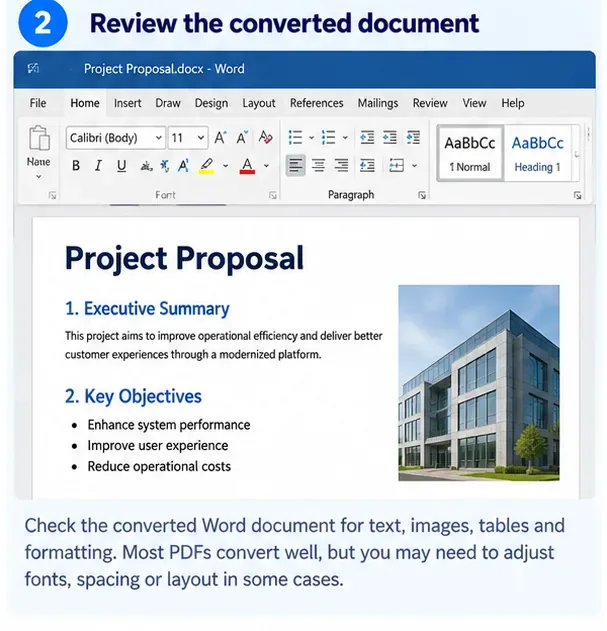
For a normal text-based PDF, start with the simplest route. In a supported desktop version of Word, choose File > Open, browse to the PDF, and open it. Word creates a converted copy for editing; the original PDF is not changed. When Word displays the conversion notice, continue only if you are working from a copy or otherwise know where the original is stored.
This is usually the best first attempt for documents that are dominated by paragraphs, headings, lists, and relatively simple tables. It is less suitable for brochures, magazines, multi-column layouts with floating objects, forms whose exact positioning is critical, or pages built mainly from graphics.
AI-generated illustration of the File > Open workflow in Microsoft Word; it is not a screenshot of an actual conversion result.
If Word turns a page into a single image, stop trying to “fix” the text with Word formatting controls. The problem is not paragraph spacing; the source content was not recognized as editable text. Use an OCR-capable conversion path instead.
Step 2: Review the converted document before editing it heavily
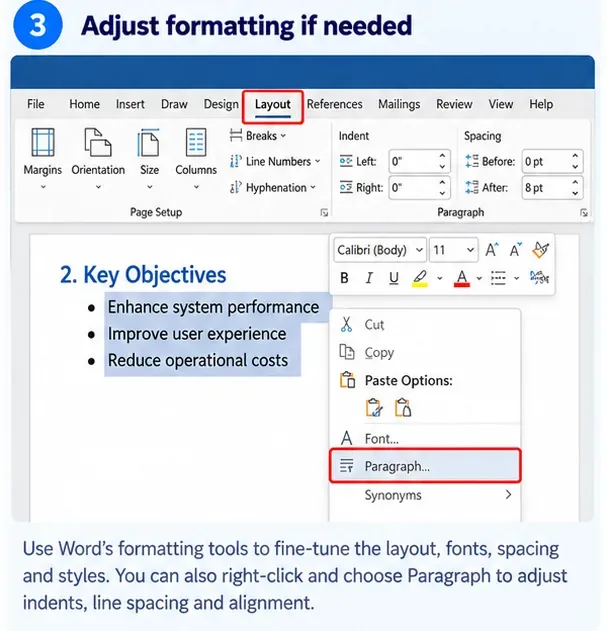
Do not immediately start rewriting text. First compare the converted DOCX with the original PDF side by side. Check the highest-risk areas: page breaks, tables, headers and footers, numbered lists, columns, image placement, footnotes, and unusual fonts. This quick inspection tells you whether the Word conversion is good enough to repair or whether you should try another conversion route before investing time in manual cleanup.
A useful rule is to check the first page, one middle page, and the last page, then inspect every page that contains a complex table, diagram, signature block, or multi-column section. If the same layout problem repeats everywhere, fix the underlying Word style or section setting rather than correcting each paragraph one at a time.
AI-generated illustration showing a converted Word document being reviewed for text, images, and layout; not a real conversion test.
Why does the formatting move at all?
A PDF usually records where text and graphics appear on a page. Word must infer relationships that may not be explicitly stored in the PDF: which lines form a paragraph, which text belongs in a table cell, where a heading ends, whether two blocks are columns, and whether an item is a footnote or ordinary text. Microsoft describes this reconstruction as a set of rules that attempts to choose the Word objects that best represent the original PDF.
That explains a common surprise: the PDF may look simple to a person but be structurally difficult for a converter. A “table” might actually be lines and separately positioned text. A heading may be several independent text boxes. A scanned page may contain only pixels. Conversion quality depends on that hidden structure, not just on what the page looks like.
Step 3: Repair formatting in the right order
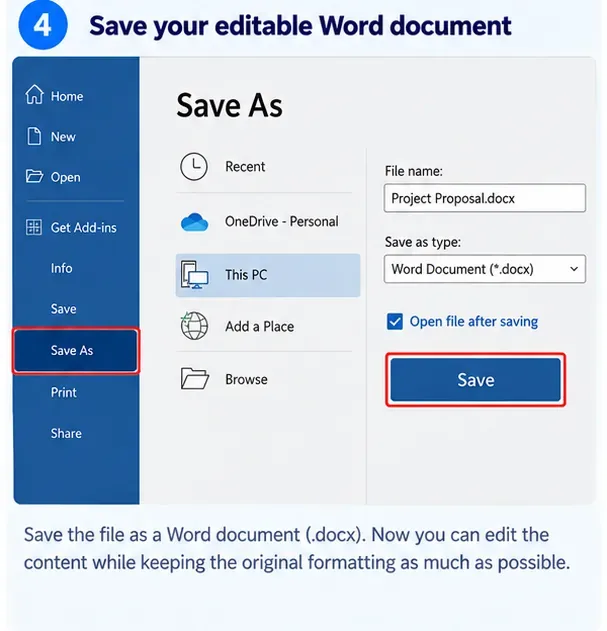
When the conversion is usable, correct the document from large-scale structure to small details. Start with page size, orientation, margins, sections, and columns. Then check paragraph alignment, indents, line spacing, and spacing before or after paragraphs. After that, fix fonts, lists, table widths, and individual image positions. Working in this order reduces the chance that a later section-level change will undo dozens of small manual fixes.
AI-generated illustration of Word layout and paragraph controls used to repair conversion differences; not an actual Microsoft conversion result.
Use styles instead of formatting every heading by hand
If the PDF conversion produced headings that merely look bold and large, apply Word heading styles where appropriate. Styles make repeated formatting consistent and are easier to adjust globally. The same principle applies to body text: a consistent Normal style is safer than dozens of paragraphs with slightly different direct formatting.
Keep the original font only when it is actually available
If the source PDF uses a font that is not installed on your computer, Word may substitute another font. That substitution can change line lengths and page breaks even when the font looks similar. If you are authorized to use the original font and can install it legitimately, doing so may improve fidelity. Otherwise, choose one substitute font and apply it consistently rather than allowing a mixture of replacements.
Rebuild difficult tables instead of fighting them
Tables are one of the most common failure points because PDF does not necessarily preserve table semantics. If a converted table contains many merged cells, stray line breaks, or separate text boxes, rebuilding a small table in Word can be faster and more stable than repairing every cell. Preserve the data first; reproduce the exact border treatment second.
What if the PDF is scanned or the Word conversion is poor?
Use an OCR-capable PDF tool before doing extensive formatting repair. Adobe’s current Acrobat documentation, updated in 2026, states that its Export PDF workflow can convert PDFs to DOCX and can use OCR for scanned documents. Adobe also notes that some protected files, PDF Portfolios, and certain other PDF types cannot be converted with that web export workflow. See Adobe Acrobat: Export PDF overview and Adobe Acrobat: Convert PDFs to Word formats.
For OCR, select the correct document language when the converter offers that option. The language choice helps recognition, especially with accented characters and words that could otherwise be misread. After OCR, still compare names, dates, account numbers, equations, and other high-consequence text against the original. OCR makes image text editable; it does not guarantee that every character was recognized correctly.
If the PDF contains confidential, legal, financial, health, or proprietary information, follow your organization’s privacy and document-handling policy before uploading it to any online conversion service. A local desktop workflow may be preferable when cloud upload is not permitted.
Step 4: Save as DOCX, then compare the final file with the PDF
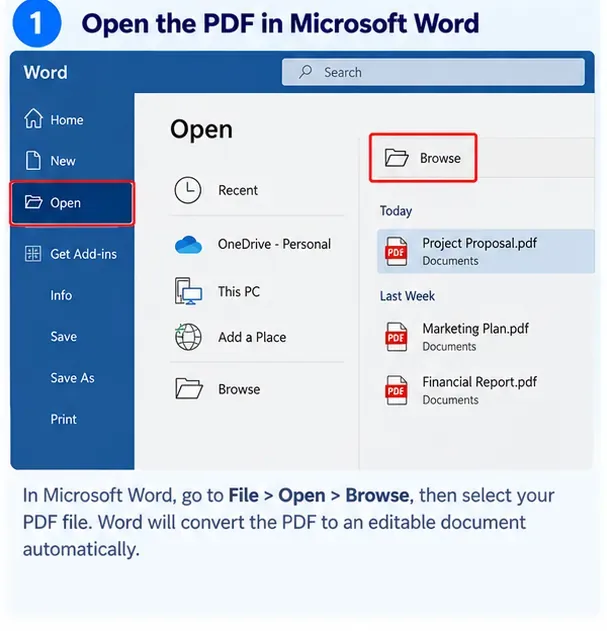
Once the converted document is structurally sound, save it as a Word Document (.docx). DOCX is the normal editable Word format. Keep the original PDF separately so you always have a fixed reference for comparison.
AI-generated illustration of saving the editable result as a Word DOCX file; not a screenshot of an actual converted document.
Now perform a final quality check. Open the original PDF and the DOCX at the same zoom level and review them page by page. Pay special attention to content that can change meaning when it shifts: table rows, form labels, captions, numbered clauses, footnotes, mathematical expressions, signature areas, and page-specific references such as “see the table below.”
A practical checklist for preserving formatting
Keep the original PDF untouched. Treat the Word file as a reconstructed working copy.
Use Word first for mostly text-based PDFs. It is built into supported desktop Word versions and is usually the fastest route.
Use OCR for scanned pages. If text cannot be selected in the source PDF, ordinary reflow may not be enough.
Compare before editing. A bad conversion is cheaper to redo than to repair manually for an hour.
Fix page structure before typography. Sections, margins, columns, and tables affect everything below them.
Check fonts. Missing fonts can cause different line wrapping even when all text is present.
Verify critical text after OCR. Names, numbers, codes, and legal wording deserve direct comparison with the source.
Save as DOCX and keep a reference PDF. The editable version and fixed-layout original serve different purposes.
Which method should you choose?
PDF type
Best first approach
What to expect
Mostly text, simple layout
Open directly in desktop Word
Usually the least cleanup; some reflow is still possible
Scanned pages
OCR-capable conversion, then Word
Editable text after recognition; verify OCR accuracy
Complex brochure or multi-column design
Dedicated PDF-to-DOCX converter, then manual review
May preserve visual placement better, but cleanup can still be substantial
Tables with unusual spacing or merged cells
Try Word, then rebuild troublesome tables if needed
Data may survive even when table structure does not
Password-protected or restricted PDF
Obtain authorized access or an unrestricted source file
Do not attempt to bypass document permissions
Can you truly convert PDF to Word without losing formatting?
You can often preserve most formatting, especially when the PDF was created digitally from a normal word-processing document. But “without losing formatting” should be treated as a quality target, not a guarantee. Microsoft explicitly says the converted Word document might not match the PDF exactly, and that lines and pages can break in different places.
The most reliable workflow is therefore simple: identify whether the PDF is text-based or scanned, choose Word or an OCR-capable converter accordingly, inspect the conversion before making major edits, repair structure from the top down, and compare the saved DOCX against the original. That approach minimizes unnecessary rework while giving you an editable Word document that stays as close to the source formatting as the PDF’s underlying structure allows.