How to Prepare a Veo Image-to-Video Photo Without Clipping the Subject
Prepare a Veo source photo in five steps: match the video frame, add safe space, preview the crop, and export a sharp image with the subject intact.
If a Runway video jumps when it reaches the last reference frame, first confirm that the image is actually assigned as a last keyframe in a mode that supports paired keyframes. Then compare the two images, simplify the action between them, and test one change at a time. A model may treat an ordinary reference image as visual guidance rather than as a required ending, so the first and last frames are not interchangeable with general references.
Runway offers different generation modes and inputs across models. This guide covers the current web Apps and Tools workflows documented for Runway, including the Animate with Keyframes app and model-specific Keyframe modes. Exact controls, plans, and combinations can change by model; check the model help page linked below before regenerating.
| What to prepare | Why it helps |
|---|---|
| Your first-frame and last-frame images, the prompt, and the generated clip that shows the jump | Lets you compare the intended endpoints with the actual output |
| Access to a Runway web workflow or model that accepts both first and last frames | Paired keyframes are not supported in every model or mode |
| Estimated time: 15–30 minutes for a few controlled checks; difficulty: Intermediate | Timing depends on generation queues and how many variants you choose to make |
Open the generation you used and confirm whether the ending image is set in a field labeled Last Video Frame, Last Frame, or a paired-keyframe control. If you placed it in a general image-reference slot, the model may use it for appearance without treating it as the final frame.
Runway’s current Apps catalog lists Animate with Keyframes for configuring starting and ending frames. In Tools, Seedance 2.5 has a Keyframe mode for a First Video Frame and Last Video Frame. Minimax H3 also supports first-to-last-frame video, but its documentation says keyframes cannot be combined with reference inputs and lists a Standard plan or higher requirement. Use the instructions for the model you selected, not a tutorial for a different model. See Runway’s current Apps catalog, Seedance 2.5 instructions, and Minimax H3 inputs and plan details.
Open the first and last images side by side. Check that they have the same aspect ratio and compatible framing. Look at the subject’s size and position, camera height, lens perspective, horizon, lighting direction, background layout, and visible objects. A person moving across a room can change position, but a sudden switch from a wide view to a close-up, a different room, or a reversed camera angle asks for a much larger transition.
Make sure the intended endpoint is visually possible from the starting image. For example, if the person begins beside a table and ends at the doorway, keep the room and camera direction consistent and leave a plausible path between those positions. Matching every pixel is unnecessary; the goal is to avoid unintentional contradictions that can encourage a jump. This is a practical continuity check, not a guarantee of how a generative model will interpolate.
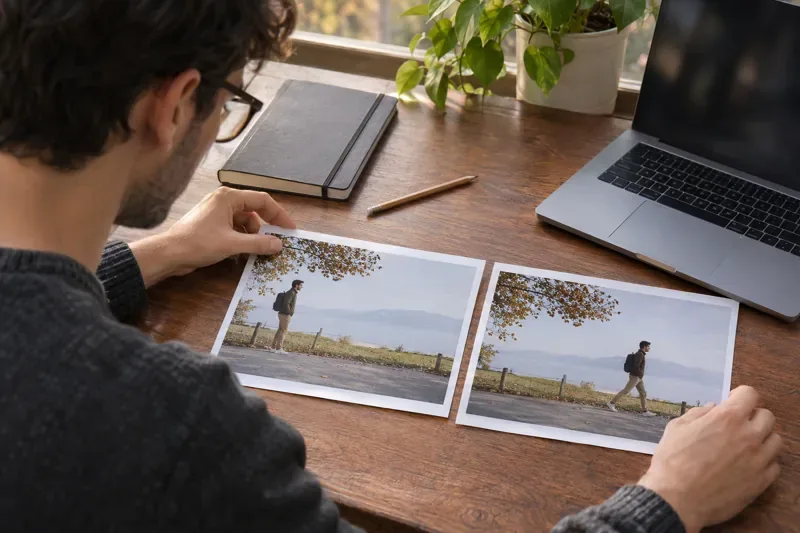
Scrub the output near the transition and describe the problem precisely. Is there a single hard cut to the ending image, a sudden change in camera angle, a subject that changes identity or clothing, or a gradual morph that never settles on the intended final composition? Also verify that the clip’s first frame resembles the selected start and its final frame resembles the selected end.
Write down one observable symptom before you edit anything. If the final image appears for only one frame, that points to a different problem than a subject that drifts throughout the shot. Avoid changing the endpoint images, prompt, duration, and references all at once; doing so makes it harder to tell which adjustment helped.
Describe the motion that connects the endpoints in a short, ordered sentence. Name the subject, the action, and the camera behavior. Avoid adding a new shot, scene change, sudden zoom, or several unrelated actions unless the transition truly requires them. If you want a locked camera, say so; if you want a slow pan, state its direction and keep that movement consistent with both frames.
Example: “One continuous shot. The camera stays fixed as the hiker walks from the left side of the trail toward the wooden gate, then stops facing it. Keep the same jacket, trail, daylight, and camera angle throughout.” Adapt the action to your images rather than copying the example literally. Runway’s image-to-video guide recommends clear motion instructions and notes that more complex sequences may need a longer duration. It also recommends increasing duration and removing wording that suggests a cut when unwanted cuts appear. Read Runway’s image-to-video prompting guidance.
Keep the frame pair fixed and change only the prompt or duration for the next attempt. If the action is too complex for the selected duration, give the model more time or reduce the action to a single move. If the frame pair itself has conflicting composition, revise one image first, then regenerate. Save each attempt with a short note such as “longer duration” or “removed camera pan” so you can compare outcomes.
Review the new clip at normal speed and frame by frame near the end. Check whether it begins and ends on the intended compositions and whether the movement between them feels continuous. A better prompt can reduce ambiguity, but generative video may still vary between attempts; do not report a fix until the result actually looks correct.
Runway’s Gemini Omni Flash help page describes a specific case where a video can cut to a reference image at the last frame when a first frame is used together with a reference. In that model’s Frame mode, the first-frame image is the literal opening frame, while references guide the look and do not act as exact keyframes. Runway’s stated workarounds are to trim the unwanted last frame or remove the reference and generate again. If you need both a defined start and a defined end, switch to a model or app with a true first-and-last keyframe mode instead of treating the reference slot as an endpoint. See Runway’s Gemini Omni Flash FAQ and mode details.
No. Runway’s documented controls differ by model. Seedance 2.5 and Minimax H3 have first-and-last keyframe workflows, while Gen-4.5 documentation currently describes text-to-video and image-to-video inputs. Check the selected model’s current help page before preparing a paired-frame prompt. Runway’s older Gen-3 Alpha and Gen-3 Alpha Turbo keyframe feature was retired in July 2026, so older tutorials may describe controls that are no longer available.
Only if the selected model’s instructions say that references can define an endpoint. A reference generally guides visual content; a last keyframe explicitly defines the ending frame. In some model workflows, keyframes and references cannot be combined.
Check the prompt for shot-change language, reduce multiple actions to one continuous movement, and test a longer duration if the action is crowded. If the model still creates a jump, revise the endpoint images to make their framing and scene details more compatible, then regenerate with only that change.
Prepare a Veo source photo in five steps: match the video frame, add safe space, preview the crop, and export a sharp image with the subject intact.
Organize AI video reference images in 7 steps to keep subjects, framing, and visual details consistent across shots.
Realign captions after extending an AI video in 6 steps. Find the edit point, shift only affected cues, caption new speech, and verify the export.

Plan a 15-second Halloween video with a four-shot AI storyboard, practical prompts, and checks that keep fictional footage from looking like a real event.