如何使用 Local Ollama 自動產生 SEO 元標題和描述
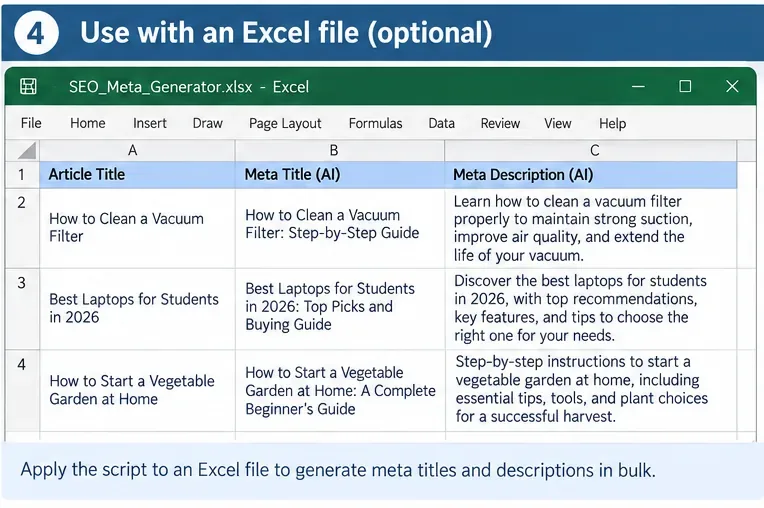
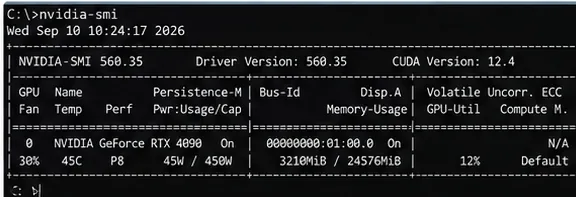
建立本地 Ollama 工作流程,批量產生結構化的 SEO 標題和元描述,驗證輸出,並將結果標記出來以供手動審核。
The answer changed in 2026. Ollama is no longer just a small command-line model runner, and LM Studio is no longer just a desktop GUI for chatting with local models. Ollama added Anthropic-compatible APIs and a one-command ollama launch workflow for coding tools such as Claude Code, Codex, and OpenCode. LM Studio 0.4.0 introduced llmster for true headless deployment, a stateful REST API, parallel serving, and MCP access through the API. For local AI agent development, both are now serious developer platforms.
Short answer: choose Ollama when you want the shortest path from terminal to local model server, already have your own agent framework, or want easy integration with coding agents and automation scripts. Choose LM Studio when you want built-in model discovery plus a developer server with stateful chats, MCP integrations, first-party Python/TypeScript SDKs, and an automatic multi-round agent API. Neither is universally better; the right choice depends on which layer of the agent stack you want the runtime to manage.
This comparison was checked against current Ollama and LM Studio documentation on September 13, 2026.
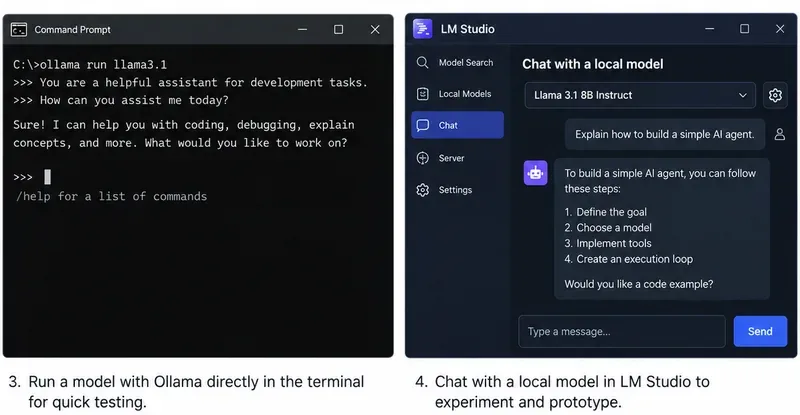
Two updates narrowed the gap substantially.
First, Ollama added Anthropic Messages API compatibility in January 2026 and then introduced ollama launch, which can configure and start supported coding tools with Ollama models without manually editing environment variables or configuration files. Ollama’s current integrations documentation includes Claude Code, Codex, OpenCode, Copilot CLI, Cline, Roo Code, JetBrains, VS Code, n8n, and other tools. See Ollama’s announcement of ollama launch, Ollama’s Anthropic compatibility documentation, and Ollama integrations.
Second, LM Studio 0.4.0 separated the core runtime from the desktop app through llmster, making headless use on servers and CI a first-class option. Its native v1 REST API now supports stateful conversations, authentication, model download/load/unload operations, and MCP integrations. LM Studio also exposes OpenAI-compatible and Anthropic-compatible endpoints. See LM Studio 0.4.0 release notes and LM Studio v1 REST API documentation.
Practical consequence: “CLI versus GUI” is no longer an adequate comparison. The more useful question is whether you want a lean inference runtime that plugs into an existing agent stack, or a local AI development environment that also provides agent-oriented orchestration features.
Ollama usually wins for simplicity. Its native API runs at http://localhost:11434, and it also implements OpenAI-compatible and Anthropic-compatible endpoints. If your code already uses an OpenAI client, a framework that accepts a configurable base URL, or a coding tool supported by Ollama, switching the backend can be a small configuration change.
Ollama’s tool-calling API supports single tool calls, parallel tool calls, streaming tool calls, and multi-turn tool-calling loops. The documentation shows an agent loop where your Python or JavaScript code executes the requested function, returns the result to the model, and repeats until the model stops asking for tools. See Ollama tool-calling documentation.
A minimal OpenAI-compatible connection looks like this:
from openai import OpenAI

client = OpenAI(
    base_url="http://localhost:11434/v1",
    api_key="ollama"
)
Best fit: LangChain-style applications, your own Python agent loop, coding assistants, CI jobs, shell automation, or any project where you mainly need a dependable local model endpoint and prefer to own the orchestration logic yourself.
LM Studio has the clearer advantage here. Its Python and TypeScript SDKs include an .act() API specifically designed for multi-round tool use. You give the model a task and tools; the SDK can execute requested tools, pass results back to the model, and continue for additional rounds until the model returns a final response or the process ends.
LM Studio’s documentation describes this as an automatic multi-round tool-calling API and provides hooks for progress, invalid tool requests, and parallel tool execution. The Python SDK can also accept ordinary type-annotated Python functions as tool definitions. See LM Studio .act() documentation.
That does not automatically make an LM Studio agent more capable. Tool-use quality still depends heavily on the model, tool descriptions, context length, and your safety controls. It does reduce the amount of agent-loop plumbing you have to write yourself.
Best fit: prototypes where you want to define Python or TypeScript functions and immediately test autonomous multi-step behavior without bringing in a separate agent framework.
If Model Context Protocol is central to your project, LM Studio is currently the stronger native choice. LM Studio can act as an MCP host in the app, and its API supports both configured MCP servers and per-request remote MCP servers. Its current v1 REST API and OpenAI-compatible Responses endpoint can expose MCP integrations to calling applications.
For example, LM Studio can define an ephemeral remote MCP server in a request or call MCP servers configured in mcp.json. The server settings include explicit permissions for per-request MCPs and locally configured MCP servers. See LM Studio MCP via API.
Ollama has extensive integrations with agent applications that may themselves support MCP, but Ollama’s current core documentation emphasizes function/tool calling and external integrations rather than presenting Ollama itself as an MCP host equivalent to LM Studio.
Choose LM Studio if: you want your local inference server to be the place where MCP tools are configured and exposed to agent requests.
Choose Ollama if: your higher-level agent application already owns the MCP layer and you only need Ollama to supply inference and tool-call outputs.
LM Studio currently offers more built-in state management. Its native /api/v1/chat endpoint can store a response and continue the conversation with a previous_response_id. Its OpenAI-compatible Responses API also supports stateful continuation. That can reduce how much conversation history your application has to resend for long-running workflows.
Ollama supports the OpenAI Responses API, but its current compatibility documentation states that only the non-stateful flavor is supported and that previous_response_id and conversation-based state are not supported. Your application can still maintain state by keeping the message history and sending it with later requests.
Recommendation: if server-managed conversational state is important to your architecture, LM Studio has an edge. If you already persist agent memory in your own database, message store, or framework, Ollama’s stateless approach is not a major disadvantage.
Official references: LM Studio REST API overview and Ollama OpenAI compatibility.
Ollama is especially convenient if your main goal is running existing coding agents. The current quickstart exposes ollama launch shortcuts for supported tools, and Ollama has dedicated integration documentation for Claude Code, Codex, OpenCode, Cline, Roo Code, and others. Its Anthropic-compatible Messages API supports streaming, tools, tool results, vision, and thinking-related fields for supported models.
LM Studio 也透過其與 Anthropic 相容的/v1/messages介面支援 Claude Code,並透過其與 OpenAI 相容的回應介面支援 Codex。 2026 年 1 月,LM Studio 0.4.1 版本專門添加了兼容 Anthropic 的接口,以便將本地模型與 Claude Code 配合使用。
| 需要 | 更好的預設設定 | 原因 |
|---|---|---|
| 一鍵設定多個編碼代理 | 奧拉瑪 | ollama launch是圍繞支援的代理整合而設計的。 |
| Claude Code 使用本機後端 | 任何一個 | 兩者都提供了與 Anthropic 相容的訊息 API。 |
| Codex 帶有本地後端 | 任何一個 | 兩者都支援適用於 Codex 工作流程的 OpenAI 相容 API。 |
| 代理程式和 MCP 工具由本機伺服器管理 | LM工作室 | MCP 已整合到 LM Studio 目前的伺服器/API 架構中。 |
官方來源:Ollama 整合和LM Studio Anthropic 相容 API。
LM Studio 更適合視覺化探索。其桌面應用程式包含模型發現功能,並可搜尋 Hugging Face 支援的模型。其命令列介面 (CLI) 也支援搜尋和下載模型lms get,包括 GGUF 和 MLX 格式(如適用)。您可以選擇量化等級、檢查本機模型、在載入前估算記憶體需求,並配置每個模型的載入設置,例如上下文長度、GPU 卸載和 Flash Attention。
當您測試多個小型代理模型並希望在將其中一個鎖定到程式碼之前對其進行互動式比較時,這非常有用。
Ollama 的模型工作流程更具規範性和腳本化特性:可以使用諸如ollama pull`model_name`、ollama list` ollama runmodel_version`、`model_name` 和`model_name` 之類的指令ollama create。模型Modelfile可以定義一個基礎模型以及可重複使用變體的設定。這對於基礎架構即程式碼 (IaC) 風格的部署非常方便,因為模型準備工作可以放在 shell 腳本、Docker 工作流程或部署自動化流程中。
建議: LM Studio 用於瀏覽和互動式實驗;Ollama 用於可重複的終端驅動模型工作流程。
官方來源:LM Studio 模型下載指南和Ollama CLI 參考。
是的。以前 Ollama 的優勢更明顯,但 LM Studio 0.4.0 改變了這種比較結果。
Ollama 本身就是服務導向的。在 Linux 系統上,官方安裝指南建議將 Ollama 作為 systemd 服務運行,並ollama serve公開本機 API。它還提供了 Docker 支援和用於控制伺服器行為的環境變數。
LM Studio 現在提供了llmster一個獨立的守護進程,它不依賴 GUI。目前的文檔明確指出它適用於 Linux 伺服器、雲端實例、GPU 機器和 CI。使用 `npm start` 啟動它,lms daemon up並使用 `npm start` 啟動 API 伺服器lms server start。
建議:如果您追求最小的概念棧,Ollama 仍然更簡單易用。但如果您希望在保留 LM Studio 模型管理 API、有狀態聊天、身份驗證、MCP 支援和 SDK 生態系統的同時實現無頭部署,llmster那麼 LM Studio 就完全可行。
官方來源:Ollama Linux 服務文件和LM Studio 無頭部署。
沒有絕對的贏家。效能取決於模型格式、量化、上下文長度、CPU/GPU、驅動程式堆疊、批次、記憶體壓力和運行時設定。
Ollama 為平行請求和已載入模型提供了調度控制,其 2026 年 Apple Silicon 版本包含一個基於 MLX 的預覽引擎。 LM Studio 0.4.0 引入了並行請求的連續批次功能,並同時支援 llama.cpp 運行時和 Apple Silicon 上的 MLX。 LM Studio 還為適用的執行時間提供了明確的載入控制,例如 GPU 卸載、上下文長度、Flash Attention 和 KV 快取放置。
操作:對代理將使用的確切模型和上下文大小進行基準測試。至少要測量首次令牌到達時間、每秒令牌數、記憶體消耗和多請求吞吐量。不要基於使用不同量化或上下文設定的通用基準測試來選擇運行時。
兩者都支援主流的本地AI平台,但具體細節有所不同。 Ollama支援macOS、Windows和Linux,並提供NVIDIA、AMD、Apple Metal和實驗性Vulkan路徑的原生加速選項。 LM Studio支援Apple Silicon Mac、x64/ARM Windows系統和x64/ARM64 Linux配置;其目前的macOS需求不支援Intel Mac。
如果您的硬體配置比較特殊,請在選擇執行時間環境之前,先確認 GPU 和作業系統的特定組合。
官方來源:Ollama 硬體支援和LM Studio 系統需求。
推理運行時只是安全邊界的一部分。一旦代理程式獲得可以寫入檔案、執行命令、瀏覽已認證網站或呼叫內部 API 的工具,風險就不僅來自模型伺服器,也來自工具的權限。
LM Studio明確警告,MCP伺服器可以運行任意程式碼、存取本機檔案並使用網絡,並提供了用於身份驗證和MCP權限的伺服器設定。 Ollama的工具API將函數執行權交給您的應用程序,這使您可以直接控制每個函數可以執行的操作。
建議:使用狹窄的工具模式,驗證參數,將唯讀工具和破壞性工具分開,要求對高影響操作進行確認,並且不要在沒有適當存取控制的情況下將本地模型 API 或 MCP 伺服器暴露給不受信任的網路。
如果您的 Python 應用程式已經包含代理程式循環或使用可與 OpenAI 相容 API 通訊的框架,請選擇Ollama。 Python SDK 還可以直接將 Python 函數作為工具使用,因此基本的工具呼叫工作流程仍然簡潔且有效率。
如果您希望使用執行時期自帶的 SDK 來處理多輪工具執行,請選擇LM Studiolmstudio-python 。此SDK 將模型載入/卸載、嵌入、結構化回應、代理流程和工具定義整合在同一個軟體包中。
一條有用的規則是:
| 你的情況 | 推薦起點 |
|---|---|
| 您希望在幾分鐘內啟動本機 API,並且偏好終端工作流程。 | 奧拉瑪 |
| 你想在選擇之前先瀏覽一下模型。 | LM工作室 |
| 您已經在使用 LangChain、LlamaIndex、您自己的循環或其他編排層。 | 奧拉瑪 |
| 您希望將 MCP 工具直接整合到本機伺服器/API 工作流程中。 | LM工作室 |
| 你需要一個用 Python/TypeScript 寫的第一方多輪代理助理。 | LM工作室 |
| 您主要需要的是 Claude Code、Codex、OpenCode 或類似的編碼代理整合。 | Ollama,LM Studio 也可行。 |
| 你需要本地進行 GUI 測試,但稍後會進行無頭伺服器部署。 | LM工作室 |
| 您更傾向於使用易於編寫腳本和部署的極簡服務。 | 奧拉瑪 |
對於希望使用最小化、以終端為先的模型運行時環境,並能輕鬆整合到現有智能體生態系統中的開發者而言,Ollama 是更佳的預設選擇。其 API、函數呼叫、OpenAI/Anthropic 相容性以及 2026 年編碼智能體集成,使其在應用程式或外部框架已擁有記憶體、MCP、規劃、重試和工具執行等功能時尤為便捷。
如果您希望在一個本機環境中實現更全面的代理開發功能,LM Studio 是更佳的預設選擇。其 2026 版無頭守護程序消除了以往僅依賴 GUI 的局限性,而其有狀態 REST API、MCP 支援、模型管理介面、OpenAI/Anthropic 相容性以及.act()SDK 則為需要整合編排和互動式模型實驗的開發者提供了強大的優勢。
如果您仍然猶豫不決,其實很簡單:使用相同的模型和量化方法,在兩者上分別測試相同的工具呼叫任務原型。如果代理框架已經滿足您的所有需求,那麼保留 Ollama 更簡潔的執行環境即可。如果您需要從頭開始建置狀態管理、MCP 底層架構、模型管理控制以及多輪工具循環,那麼 LM Studio 或許可以節省更多工程時間。
建立本地 Ollama 工作流程,批量產生結構化的 SEO 標題和元描述,驗證輸出,並將結果標記出來以供手動審核。
Use this free modern real estate listing presentation PowerPoint blueprint to organize pricing, marketing, property prep, agent value, and seller next steps.
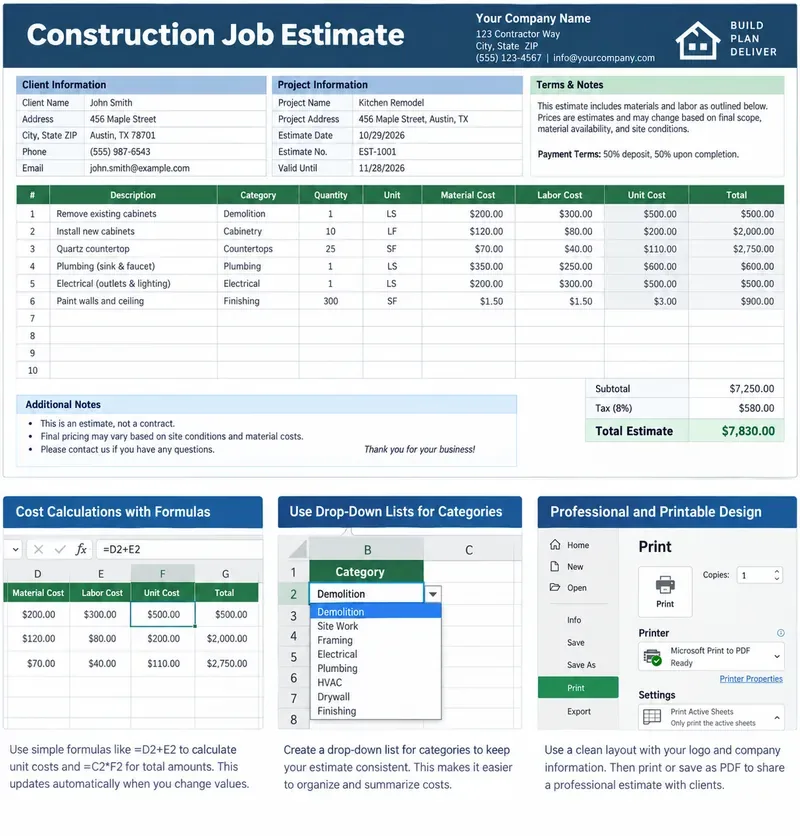
在 Excel 中建立一個可列印的建築工程估價模板,其中包含清晰的人工、材料、公式、加價、排除項和可直接列印的客戶總計。
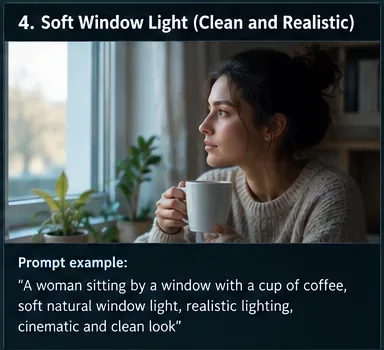
利用實用的電影級照明公式、可重複使用的配方、範例和快速故障排除清單,建立更強大的 Luma Dream Machine 視訊提示。
Build a minimalist tech startup investor pitch deck in PowerPoint with the right slide order, clear design rules, traction metrics, and investor-ready appendix.
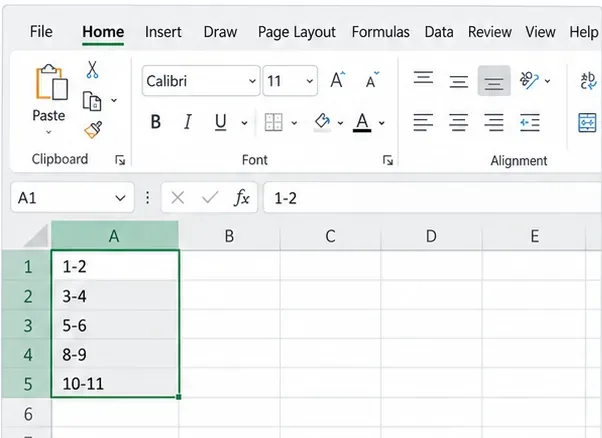
阻止 Excel 將程式碼、ID 和分數轉換為日期。使用文字格式、撇號、匯入控制項和最新的 Microsoft 365 選項。
透過減少採樣工作、控制解析度和批次大小、簡化節點、使用快取以及安全地調整 VRAM 和注意力來加快 ComfyUI SDXL 渲染速度。
Build a practical rental property income and expense tracker in Excel with clear categories, formulas, monthly summaries, and tax-ready recordkeeping guidance.
使用 Ollama、AnythingLLM、本地嵌入和 RAG 建立私人本地 AI 知識庫。學習四步驟設定、隱私檢查、測試和備份。
透過修剪輸入、分割文件、使用檢索以及驗證最終答案是否涵蓋來源文件來修復長文檔分析中的上下文視窗錯誤。