How to Edit One Label in a ChatGPT Image Without Changing the Layout
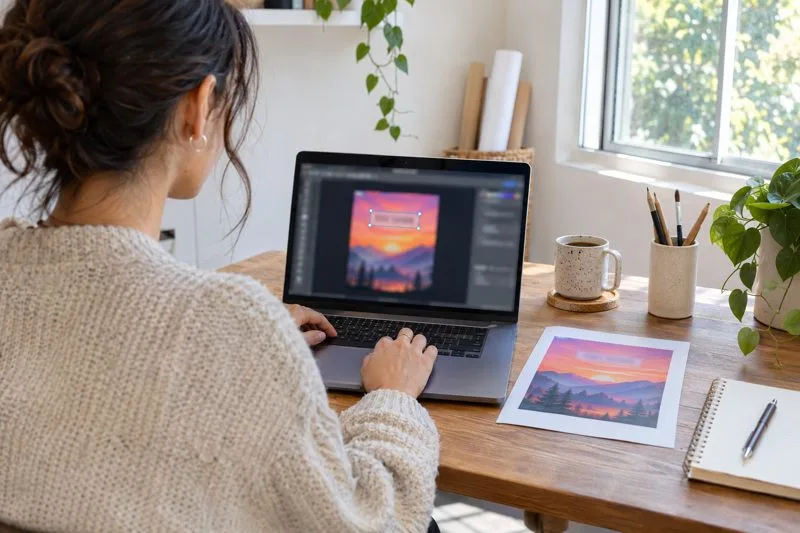
Follow these five steps to replace one label in a ChatGPT image, review the result, and preserve the rest of the layout.
To change one label in a ChatGPT image, open the image in the editor, select just the label area, and describe the exact replacement while naming the layout details to preserve. This five-step workflow is for anyone correcting a title, short caption, or product label without asking the image model to redesign the whole composition. It reduces unintended changes, but it cannot guarantee pixel-for-pixel preservation: OpenAI’s current guidance says selections are not always precise and edits may extend beyond the highlighted area.
| Requirement | Details |
|---|---|
| Image | The ChatGPT-generated image or an existing image you can upload. Keep an untouched original copy so you can compare or restart. |
| ChatGPT Images | The current Images editor. OpenAI’s Help Center lists ChatGPT Images on web, iOS, and Android and says it is available on all tiers; interface placement can vary by platform. |
| Time | About 5–15 minutes for a short label, depending on how many edit attempts are needed. This is a planning estimate, not a measured test. |
| Difficulty | Easy. For exact typography or pixel-locked layout, have an image or design editor available as a fallback. |
Before editing, download or otherwise preserve the original image. Note the label’s exact location and the nearby elements that must remain unchanged: for example, the colored banner, icon, border, alignment, and spacing. Write down the replacement text exactly, including capitalization, punctuation, and any line break. If the label contains legal copy, a product code, or other text that must be exact, plan to verify every character after the edit.
A short preservation list helps keep the request specific. Avoid vague directions such as “make the poster better,” which invite broader changes. The goal is a localized text edit, not a new design.
Open the image from the conversation or from Images, then open the editor. Choose Select and highlight the label you want to replace. Include the old lettering and a small amount of its immediate background so the model has room to rebuild it, but avoid covering neighboring icons, borders, faces, or other copy. On mobile, OpenAI’s instructions say to adjust the selection brush with the slider, then choose Next to enter the edit request. Use Undo or Redo if the highlight spills over or misses part of the label.
The highlighted region is guidance for the image model, not a hard-edged mask. A tight selection can reduce the scope of an edit, but cannot guarantee that every pixel outside it will remain identical.
In the editor text box, state the replacement as a direct instruction. Put the new wording in quotation marks and explicitly say to change only the selected label. Then name the visual details to keep. For example:
“Replace only the selected label ‘SUMMER SALE’ with ‘SPRING SALE’. Keep the same position, size, line break, font style, weight, color, alignment, and background treatment. Preserve the rest of the image and all surrounding layout elements unchanged. Do not add any other text.”
Use this as a pattern, not a guarantee that the original font can be reproduced perfectly. If the existing label is curved, distressed, very small, or layered over a complex photograph, describe those characteristics plainly. Avoid adding unrelated refinements in the same request; one requested change makes it easier to judge whether the edit worked.
Check both the new label and the parts around it. Confirm spelling and punctuation, compare the label’s size and alignment with the original, and look for altered borders, colors, icons, or spacing outside the selected area. Zoom in if needed. ChatGPT’s editor provides Undo and Redo for revising selections, and the conversation can be used to request a more constrained follow-up edit.
If the wrong text remains, make the next prompt narrower and repeat the exact replacement. If unrelated artwork shifts, undo the result, tighten the selection, and ask again with fewer changes. Keep the untouched original available rather than treating a near-match as final.
When the image passes your visual and text check, select Save in the editor or use the image’s save/download control, depending on where you opened it. Reopen the saved file and verify it rather than relying only on the preview. For exact print copy, regulated product text, or a layout that must remain pixel-identical, use a conventional editor with a separate text layer: cover or remove the old wording, place the replacement text, and match its type, position, and color. Keep that edit on a layer so it can be adjusted without rebuilding the entire image.
ChatGPT Images is useful for a quick generative correction, while a layer-based editor is the safer choice when the text and every surrounding pixel must be controlled precisely. OpenAI’s documentation describes improved image editing, but also notes that results remain imperfect and selections can extend beyond their highlighted regions.
Yes. Select the area containing the word and ask for the exact replacement. Review the result because the editor may affect pixels beyond the highlighted area.
Not necessarily. The selection tool guides the edit but is not a guaranteed pixel-perfect boundary. Keep an original copy and compare the full image after each change.
Yes. OpenAI’s Help Center says you can upload an existing image, then describe the change or select a specific area in the editor.
Sources: OpenAI Help Center: Images in ChatGPT and OpenAI ChatGPT release notes.
Follow these five steps to replace one label in a ChatGPT image, review the result, and preserve the rest of the layout.
Use this practical review to check accuracy, consent, rights, donor trust, accessibility, and platform rules before publishing AI-assisted campaign images.
Build Halloween event posters and social images with a stable face reference, editable event copy, a reusable scene, and a practical final review.