How to Export a ChatGPT Canvas Draft and Preserve Working Links
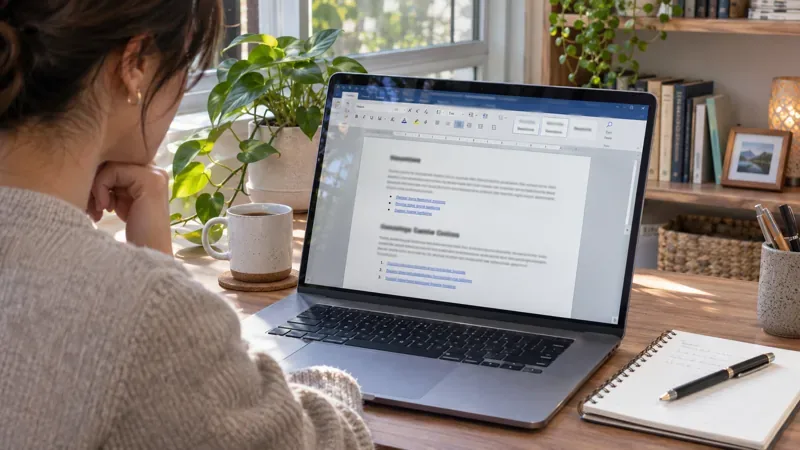
Export a ChatGPT Canvas draft in 5 steps, choose a useful format, and check that links open correctly before sharing.
To export a ChatGPT Canvas draft without losing useful links, use the Canvas Download control, choose a format that fits your next step, and test the exported copy before you share it. Markdown keeps web addresses visible in link syntax, while Word is convenient for continued editing; a PDF is better for reading and review. No export format can repair a broken destination, and link behavior can vary with the destination app, so keep the Canvas draft until you have checked the file.
This guide is for people moving a text document from ChatGPT Canvas into an editor, review workflow, or read-only file. OpenAI describes Canvas as a workspace for creating and revising documents with ChatGPT and says Canvas can be exported, shared, or continued. The exact controls and available file types can vary by Canvas type and interface; use the options shown in your own Canvas. OpenAI Academy’s Canvas guide; OpenAI’s ChatGPT release notes on Canvas sharing.
Open the draft in Canvas and scan for links that matter: citations, source pages, internal references, and calls to action. If the text uses linked words such as “read the report,” make sure you can identify the destination URL before export. Add a short link list at the end of your draft if a reviewer will need the full addresses; this gives you a visible fallback if a formatting conversion strips hyperlink styling.
Also distinguish a normal web hyperlink from a Canvas share link. A hyperlink points to a website or file. A Canvas share link is intended to let someone open a Canvas asset and may depend on sign-in or sharing access. OpenAI documents sharing Canvas assets from the Canvas toolbar; do not assume that sharing the Canvas and exporting a document create the same permissions or access. OpenAI release notes on Canvas sharing.
Review the latest text in Canvas, confirm the links are attached to the intended words, and save or copy a checkpoint before changing formats. Canvas supports ongoing revision, and OpenAI Academy recommends using its version history when exploring edits. Keeping the original Canvas available lets you compare the export and make another copy if formatting changes. Do not use the downloaded file as the only copy until you have reviewed it.
With the text Canvas open, select Download in the Canvas toolbar and choose one of the file types offered. For a draft that will be edited, select a word-processing format if it is available. For a portable text file, choose Markdown if offered: its familiar link form, [descriptive words](https://example.com/page), stores both the readable label and destination in the document. For a read-only handoff, PDF may be convenient, but it is harder to revise and you should verify whether the links are clickable in the PDF you actually receive.
Save the file to a folder you can find and give it a meaningful name, such as campaign-draft-links-2026-11-21.docx. The date in this example is only a filename example; use the date you actually export. If your Canvas is code rather than a text document, use the code-specific download option and check that the resulting file extension matches the language. OpenAI’s Canvas material describes both writing and coding workflows, so do not assume that a code Canvas offers the same document formats.
Do not stop at seeing a download notification. Open the file in the app where you plan to use it. Check that headings and paragraphs remain in order, then inspect several hyperlinks: hover or select the linked text to reveal the destination, and click it to confirm it opens the expected page. If the file is Markdown, open it in a Markdown-aware editor or inspect the raw text to confirm each link has a label and a complete URL. If it is Word or PDF, make sure the text appears as a link and the destination is present.
For example, a source label such as “OpenAI Canvas guide” should point to the official Academy page, not merely look blue or underlined. A visible URL that ends halfway through, points to a local temporary file, or redirects to an access-denied page is not a working handoff. Link appearance alone does not prove that the destination works.
If a link is missing or wrong, return to the Canvas or edit the exported file, recreate the hyperlink using the full destination, then save a fresh copy. Reopen that copy and test the repaired link. When links are essential, keep a separate plain-text list of the full URLs alongside the formatted document, or use Markdown as a backup. Send collaborators the file and any required access instructions; an exported file does not grant permission to a private destination.
Make sure you opened the Canvas itself rather than viewing the draft only as a chat response. Check the toolbar and use the options currently shown for that Canvas. If you are using a managed workspace or a code Canvas, available controls may differ. You can copy the text into a local editor as a fallback, then add or check the links there; avoid claiming that this manual copy is an export from Canvas.
Check whether the export preserved an actual hyperlink or only the visible words. In Markdown, confirm the syntax includes both a label and a complete destination in parentheses. In Word, select the text and inspect its link settings. Recreate the link with the full https:// address, save, close, and reopen the document before testing again.
Compare the destination with the source in Canvas and correct any outdated or mistyped URL. If the target is private, confirm that the recipient has permission and is signed into the right account. A public-looking Canvas share URL or exported document does not make a restricted website or file public.
Use Markdown when you want the destination URL visible in the file’s link syntax, or a Word-compatible file when you need to continue editing formatted text. Check the actual export and test its links; do not assume any format guarantees every hyperlink will work.
No. Exporting copies document content. It does not change permissions on linked websites, private files, or Canvas shares.
No. Open the exported document and test the destination. Confirm it lands on the intended source and that the intended reader can access it.
Sources checked: OpenAI Academy: Canvas; OpenAI: Introducing Canvas; OpenAI Help Center: ChatGPT release notes. The linked Northern Illinois University PDF supplied as a starting reference returned a not-found response during this check and was not used.
Export a ChatGPT Canvas draft in 5 steps, choose a useful format, and check that links open correctly before sharing.
Use this 6-step NotebookLM duplicate-source check to find overlapping evidence, compare originals, and get clearer answers with citations.
Use AI to speed up an October school newsletter without losing accuracy or trust. Check dates, sources, student privacy, permissions, and a human-reviewed final proof.
Use this DevDay 2026 note-taking template to capture announcements, verify them against official sources, and share a concise team brief with clear actions.
Through this article, you will learn the complete process of building an AI agent with Llama 3 model function call capabilities based on the open source deep learning model visualization tool Gradio.