หน้าแรก
» โดเมน
»
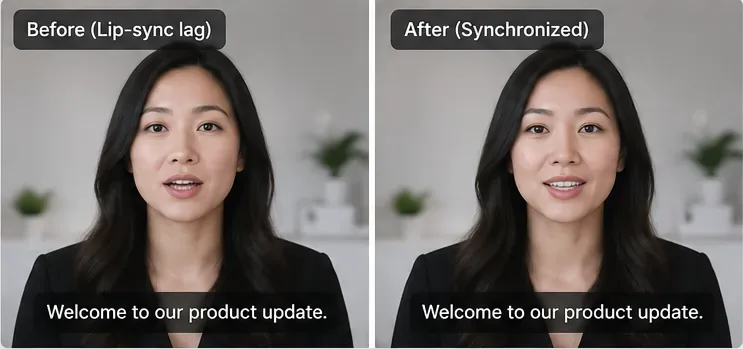
How to Fix Lip-Sync Lag in AI Video Generators (HeyGen & ElevenLabs)
How to Fix Lip-Sync Lag in AI Video Generators (HeyGen & ElevenLabs)
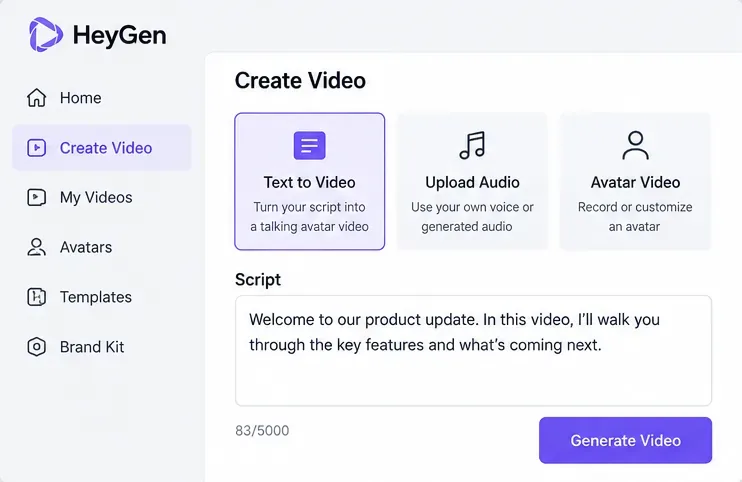
A useful 2026 clarification comes before any troubleshooting: ElevenLabs Dubbing does not currently perform lip sync by itself. ElevenLabs says lip sync is available separately in Image & Video, Flows, and Studio through dedicated third-party models. HeyGen, meanwhile, currently separates translation into Audio Only, Speed lip sync, and Precision lip sync. That means the right fix depends on where your workflow actually creates the mouth animation.
If you generate speech in ElevenLabs and then animate an avatar in HeyGen, treat the ElevenLabs file as the audio source and HeyGen as the lip-sync stage. If you use ElevenLabs Dubbing for translation, do not expect the Dubbing step alone to change mouth movements; route the finished speech into a lip-sync tool afterward. If you are translating an existing video in HeyGen, choose the lip-sync engine based on the footage rather than assuming the more expensive mode is always necessary.
This guide was checked against current HeyGen and ElevenLabs documentation on September 13, 2026. Product controls and credit rates can change, so the linked official pages are the source of truth.
First diagnose the type of lip-sync problem
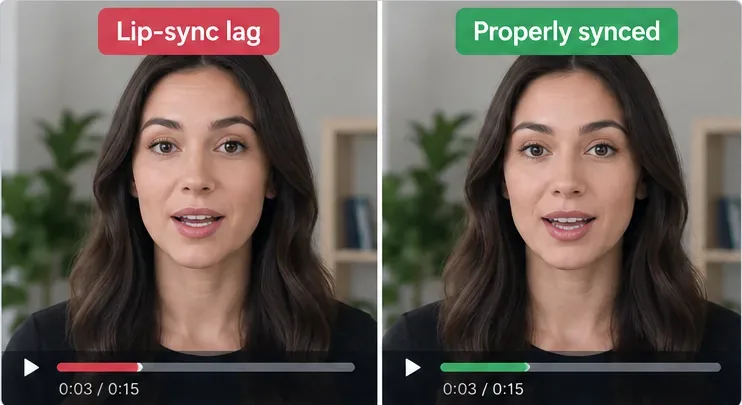
“Lip-sync lag” can mean several different things. Fixing the wrong layer wastes generations and credits.
What you see
Likely problem
Best first move
The mouth is late by roughly the same amount from beginning to end
Constant audio/video offset or leading silence
Trim or shift the audio before regenerating the entire video
The first sentence matches, but drift gets worse over time
Speech duration and video timing are diverging
Regenerate at a better pace, split the scene, or use duration adaptation
Only certain words look wrong
Phoneme/articulation mismatch
Regenerate the affected sentence or use a higher-fidelity lip-sync pass
Front-facing shots work but side profiles fail
Visual tracking difficulty
Use HeyGen Precision or simplify the source shot
ElevenLabs dub sounds well timed but the original mouth never changes
Dubbing was mistaken for lip sync
Send the dubbed audio into a dedicated lip-sync model or HeyGen
Before changing settings, decide whether you have a constant offset, progressive drift, or only a few bad mouth shapes; each problem calls for a different fix.
1. Pick one audio source of truth before generating video
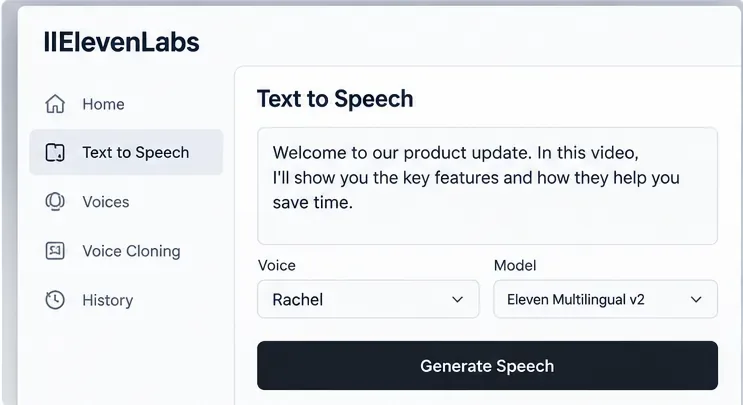
A common workflow mistake is generating a voice in ElevenLabs, then also letting the video tool synthesize or reinterpret the script. That creates two timing decisions instead of one. If the ElevenLabs performance is the one you want, finish that audio first and use it consistently as the source for the avatar scene.
HeyGen’s current Studio documentation says custom audio can be added by uploading a prerecorded file or recording audio directly. The Studio is script-focused, and HeyGen notes that full animated-avatar previews are not available while editing because the avatar must be generated; you can preview audio before submission.
Recommendation: for expensive or long scenes, generate a short test scene first. Confirm the audio, face, and mouth behavior before committing the full runtime.
Choose one speech source for the scene. If you already approved the ElevenLabs audio, upload that audio rather than independently recreating the delivery.
2. Fix the ElevenLabs pacing before blaming the lip-sync engine
If the speech itself is rushed, unusually slow, or full of awkward pauses, the video generator has to animate that timing. Clean audio is easier to sync than audio you plan to repair after the mouth animation has already been generated.
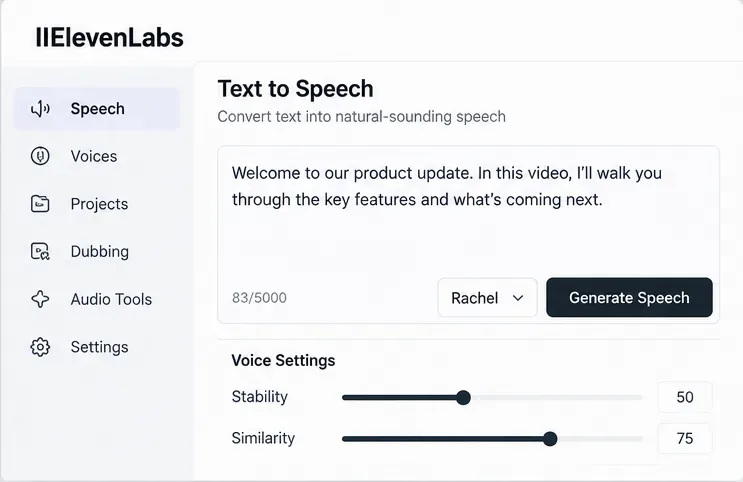
ElevenLabs currently documents a voice Speed control from 0.7 to 1.2 in Text to Speech, with 1.0 as the normal rate. The company warns that extreme values can reduce quality. Its best-practices documentation also notes that excessive pause markup can create instability or unexpected pacing.
Tradeoff: changing speed can help a sentence fit a target duration, but it also changes the performance. If the voice starts sounding rushed or unnaturally stretched, rewriting the line is usually better than pushing the speed control further.
Generate and approve the speech first. Listen for pacing problems, uneven pauses, or rushed phrases before using the file for lip sync.
ElevenLabs’ official documentation is currently inconsistent on one detail: the Help Center says the Speed setting is available for all voices and models, while the Text to Speech product guide contains a model-specific note saying Speed is not available for Eleven v3. Because both statements are official, check the controls actually shown for the model you select rather than assuming a speed slider will always be present.
Action: if the selected model does not expose Speed, control timing through wording, punctuation, model-specific audio tags, or a different supported model instead of relying on a nonexistent control.
3. Remove avoidable silence and check for a constant offset
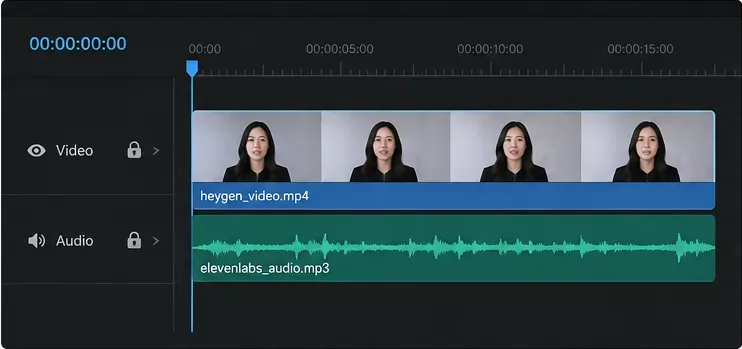
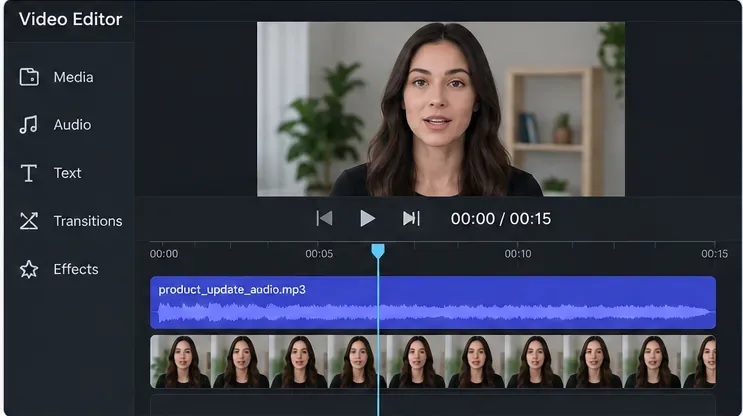
If the mouth is consistently late or early by the same amount, changing the AI model may be unnecessary. Inspect the audio file in a timeline. A small lead-in before the first spoken consonant, or an audio clip placed a few frames away from the intended start, can create the appearance of a failed lip-sync generation.