A good Ollama–Obsidian setup is not merely one where a chat box returns text. For personal knowledge management, the better test is whether the system can use the notes you intended, preserve your control over the vault, respond at an acceptable speed, and admit when your notes do not contain the answer. If those conditions are not met, changing the model, retrieval setup, or plugin configuration is more useful than repeatedly tweaking prompts.
As of September 2026, Ollama's local API is still served by default at http://localhost:11434, with API routes under /api, and local access does not require authentication. Ollama also provides embeddings for semantic search and retrieval-augmented generation (RAG), which is the part that makes whole-vault question answering materially different from ordinary chat. See the official Ollama API introduction, local authentication documentation, and embeddings documentation.
This guide uses Copilot for Obsidian as the example community plugin because its project currently supports local Ollama models and vault-oriented workflows. The exact wording of settings can change between plugin releases, so use the current Copilot for Obsidian repository and its local-model setup guide if a label in your installation differs from the screenshots or steps below.
What should a successful local PKM setup actually achieve?
Before installing anything, define the result you want. A useful local setup should pass four practical tests:
- Connection: Obsidian can reach a model that Ollama is actually serving on your machine.
- Grounding: when you ask about a note or your vault, the answer reflects the relevant note content instead of relying only on the model's general training.
- Performance: response time and memory use are acceptable enough that you will realistically use the workflow.
- Control: you know which plugin can read or modify notes, which model endpoint it uses, and whether any optional web or cloud features are enabled.
These criteria matter because “local model connected” and “good personal knowledge management” are not the same thing. Chat can work perfectly while vault retrieval is weak, and a strong model can still produce poor answers if the wrong notes are retrieved.
Step 1: Install Ollama, pull a model, and verify the local API
Install Ollama using the official instructions for your operating system. Ollama currently supports macOS, Windows, and Linux; the official quickstart is the safest starting point because installation and model recommendations change over time.
Pull a chat model before opening Obsidian. For example:
ollama pull gemma3
ollama ls
You do not need to use gemma3. The important part is that the model name you later enter in Obsidian must match a model Ollama can list locally. Start with a model your computer can run comfortably rather than automatically choosing the largest model available.
Next, verify the API independently of Obsidian:
curl http://localhost:11434/api/tags
If that command returns a JSON list containing your model, the basic Ollama service is working. You can also run ollama ps while a model is active. Ollama documents this command as a way to see whether a model is loaded in CPU memory, GPU memory, or a mix of both. If responses are painfully slow or the machine becomes unresponsive, that is a signal to switch to a smaller model or reduce context requirements rather than assuming Obsidian is the problem.
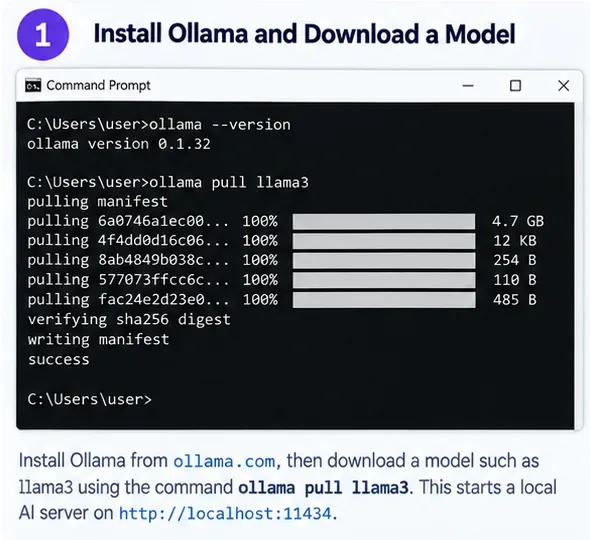
AI-generated illustration of the Ollama installation and model-pull step. Version numbers and model download details shown in the image are illustrative, not a current release record.
Step 2: Install the Obsidian plugin and connect its chat model to Ollama
Obsidian treats community plugins as third-party code. Its official documentation warns that these plugins run code on your behalf, so review the plugin source and permissions if your vault contains sensitive material. To install one, open Settings → Community plugins, turn on community plugins if necessary, choose Browse, then install and enable the plugin. The exact process is documented in Obsidian's official Community plugins help page.
For this guide, install Copilot from the community directory and confirm that the plugin points to the verified Copilot for Obsidian project linked above. Avoid choosing a similarly named plugin only because it appears first in search results.
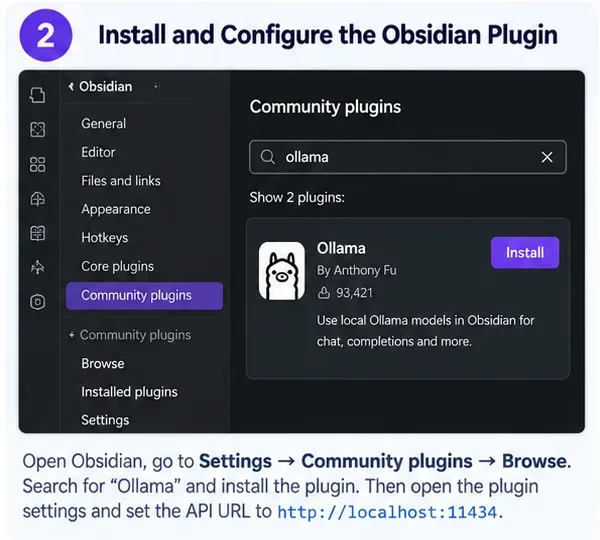
AI-generated conceptual illustration of the Community plugins browser. The plugin card, author name, and download count shown are illustrative and should not be treated as verified directory data; use the verified Copilot project linked in this article.
Open Copilot's settings and look for the model configuration area, currently organized under its Models settings. Add a custom chat model with these values:
- Provider: Ollama.
- Model: the exact local model name reported by
ollama ls.
- Base URL:
http://localhost:11434.
- API key: Ollama itself does not require one for localhost access. If a plugin field requires a placeholder, follow that plugin's current instructions rather than inventing a cloud key.
There is an easy URL mistake to avoid. When you test Ollama manually, API endpoints look like http://localhost:11434/api/chat. Copilot's native Ollama provider, however, expects the base server address and constructs the endpoint internally, so use http://localhost:11434 unless the current plugin specifically asks for a full endpoint. Likewise, do not add /v1 when using the native Ollama provider. Ollama's separate OpenAI-compatible API uses /v1, but that is a different integration path.
Step 3: Test note-level grounding before indexing your whole vault
Do not begin by indexing thousands of notes. First, prove that the basic chat connection works with a small, controlled test. Create a temporary note containing three facts that are easy to verify, such as a project name, a deadline, and a decision. Then attach or mention that note in Copilot and ask the model to summarize only what the note says.
A good result should reproduce those facts accurately, avoid adding unsupported claims, and stay within the scope you requested. A poor result might answer from general knowledge while ignoring the note, invent details, or omit an important fact that is plainly present.
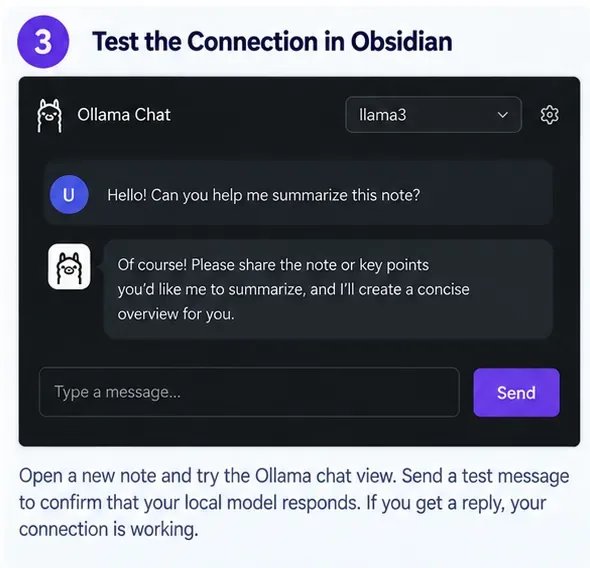
AI-generated conceptual illustration of a local chat test in Obsidian. It demonstrates the kind of result to check, not a real screenshot of a specific plugin release.
If there is no response, troubleshoot from the bottom up. First rerun curl http://localhost:11434/api/tags. If that fails, the issue is Ollama, not Obsidian. If the API works but Copilot does not, recheck the model name and base URL. Only after those checks should you investigate an origin/CORS issue. Current Copilot code includes a request path intended to handle local Ollama access, while its local setup guide also documents OLLAMA_ORIGINS for configurations that require direct Obsidian-origin access. Use the method documented for your installed Copilot version instead of applying old environment-variable workarounds automatically.
Step 4: Add vault-aware retrieval only if note-level chat passes
For personal knowledge management, the biggest quality improvement often comes from retrieval rather than from moving to a larger chat model. RAG means the system first retrieves chunks of your notes that appear relevant, then gives those chunks to the language model as context. That lets a local model answer questions about information it was never trained on.
To make retrieval local as well, use an Ollama embedding model. Ollama's current documentation recommends models such as embeddinggemma, qwen3-embedding, and all-minilm. For example:
ollama pull embeddinggemma
Configure that model in Copilot's vault-search or QA embedding settings using the Ollama provider, then build or rebuild the local index. Use the same embedding model for indexing and querying; Ollama explicitly recommends this because vectors produced by different models are not directly interchangeable.
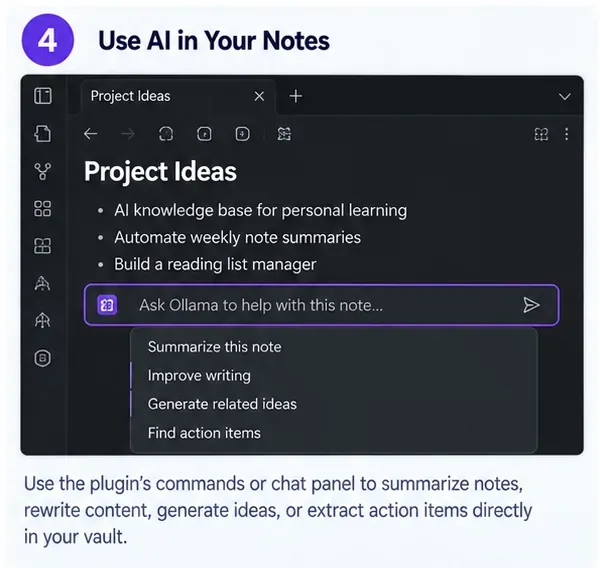
AI-generated conceptual illustration of an Ollama-powered note workflow. The command names and menu layout are examples, not a claim about the exact UI of the current Copilot release.
Once indexing finishes, test retrieval with questions whose answers you already know. Ask for a fact that appears in one note, then a relationship that requires two notes. Finally, ask for something that is not in the vault. The best result is not the most fluent answer; it is the one that uses the right evidence and declines to invent missing facts.
How to judge whether the result is good enough
| Quality check | Pass signal | When to change approach |
|---|
| Local connection | /api/tags works and the same model responds in Obsidian | If curl fails, fix Ollama first; if only Obsidian fails, inspect plugin model/URL settings |
| Note grounding | Known facts from the attached note are reproduced accurately | If chat ignores the note, fix context selection before changing models |
| Vault retrieval | Relevant notes are consistently surfaced for known-answer questions | If retrieval is weak, improve embeddings/indexing or narrow the indexed scope |
| Generation quality | The model separates supported facts from uncertainty | If retrieval is good but answers are weak, try a stronger chat model |
| Latency | You can interact without repeated long stalls | If Ollama is mostly CPU-bound or memory-starved, use a smaller model or less context |
| Privacy | The configured endpoint is localhost and optional cloud/web features are disabled | If a remote endpoint or web tool is active, the workflow is no longer fully local |
When a larger model is not the right fix
If answers are wrong because the system retrieves the wrong notes, upgrading the chat model may make the prose better without fixing the evidence. Improve retrieval first. Conversely, if the correct passages are retrieved but the model cannot synthesize them reliably, then a better chat model can help.
Hardware also sets a practical ceiling. Ollama notes that model files can consume substantial storage, and larger contexts consume more memory. Use ollama ps to see how the current model is being loaded. A workflow that technically runs but takes so long that you stop using it is not a successful PKM system.
Privacy and safety limits of “local” Obsidian AI
Ollama's localhost API itself requires no authentication, which is convenient on one machine but also means you should not casually expose port 11434 to a network. Keep it bound locally unless you deliberately secure a remote configuration.
Also remember that “Ollama is local” does not automatically mean “the entire Obsidian workflow is offline.” Community plugins can contain cloud-provider integrations, web search, telemetry, or agent tools. Review the plugin's current settings and disable features you do not intend to use. If your goal is strict offline processing, test with the network disconnected after all models and plugins are already installed.
Final self-check
Your setup is ready for everyday personal knowledge management when all of these statements are true: Ollama's API responds locally; Obsidian uses the exact local model you intended; a controlled note test returns the correct facts; vault retrieval finds the right notes for known-answer questions; unsupported questions do not trigger confident fabrication; and performance is fast enough that you will actually use the workflow.
If only the first two statements are true, you have successfully connected Ollama to Obsidian, but you do not yet have a reliable knowledge-management assistant. Treat retrieval quality, model behavior, and privacy configuration as separate parts of the system, and change the part that is actually failing.