Home
» AI Agents
»
Best Low-VRAM Settings for Running Llama 3 Locally on Mid-Range Laptops
Best Low-VRAM Settings for Running Llama 3 Locally on Mid-Range Laptops
Running the original Meta Llama 3 8B model on a mid-range laptop is less about finding one magic setting and more about protecting enough memory headroom that the model stays stable while preserving useful output quality. For most laptops with 4 to 8 GB of dedicated VRAM, the strongest starting point is a 4-bit GGUF quantization, a 2K to 4K context window, one active generation at a time, and as much GPU offload as the machine can hold without exhausting VRAM.
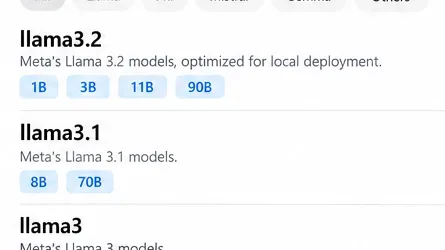
This article specifically targets the original Llama 3 8B released in April 2024. Meta's current model index still distinguishes it from Llama 3.1, 3.2, and later releases. The original Llama 3 8B and 70B models were trained with an 8K context length, while Llama 3.1 and later members of the family use different limits. Meta's original Llama 3 GitHub repository was archived in March 2026 and now directs developers to the consolidated Meta llama-models repository. The original specifications are also documented in the official Meta Llama 3 8B Instruct model card.
The original Llama 3 is a separate model family from Llama 3.1 and Llama 3.2. The settings below target the original 8B model with its 8K context limit.
The best baseline settings for 4–8 GB VRAM
If you want a single practical baseline before fine-tuning, start with Llama 3 8B Instruct in Q4_K_M GGUF, set the context to 4,096 tokens, keep parallel requests at one, enable or leave Flash Attention on automatic, and let your runtime choose the maximum GPU offload that still leaves VRAM headroom. On a 4 GB GPU, reduce context to 2,048 tokens and expect partial CPU offload.
Dedicated VRAM
Recommended quantization
Starting context
Batch / micro-batch
GPU offload
What good results look like
4 GB
Q4_K_M with partial offload; Q3_K_M only if necessary
2,048
128 / 64–128
Auto or partial
No out-of-memory error, OS remains responsive, acceptable generation speed
6 GB
Q4_K_M
4,096
256 / 128–256
Auto; full offload if it fits
Most or all layers on GPU without VRAM saturation
8 GB
Q5_K_M for quality, or Q4_K_M for more context headroom
4,096; test 8,192 afterward
512 / 256
Auto or full
Stable 4K context first; 8K only if memory remains comfortable
These are starting points, not guarantees. Laptop GPUs often reserve some VRAM for the display, and cooling, driver backend, system RAM, and the exact GGUF build all affect how much memory is actually available. A configuration that fits on one 8 GB GPU can still fail on another 8 GB laptop if the graphics stack or desktop workload consumes more memory.
Why Q4_K_M is usually the best low-VRAM starting point
Quantization means storing model weights at lower precision so the model occupies less memory. It reduces the weight footprint, but aggressive quantization can also reduce answer quality. Current llama.cpp quantizer reference data for Llama-3-8B gives a useful directional comparison: Q3_K_M is listed at about 3.74G with a larger perplexity increase, Q4_K_M at about 4.58G with a smaller increase, and Q5_K_M at about 5.33G with a smaller increase again. You can inspect those values directly in the llama.cpp quantizer source.
Quant
llama.cpp reference size for Llama-3-8B
Reference Δ perplexity
Best use
Q3_K_M
About 3.74G
+0.6569
Very tight memory where Q4_K_M cannot run comfortably
Q4_K_M
About 4.58G
+0.1754
Best general balance for 4–6 GB VRAM laptops
Q5_K_M
About 5.33G
+0.0569
Quality-first choice for 8 GB VRAM when enough headroom remains
Perplexity is not the same thing as user-perceived quality, so do not treat those numbers as a universal ranking for every task. They are most useful for choosing a sensible order of experimentation. If Q4_K_M answers your prompts well, dropping to Q3 solely to make the model fit completely in VRAM may not be a worthwhile trade. Partial GPU offload can preserve the Q4 model's weights while moving some work to system RAM.
LM Studio's current documentation similarly explains that 4-bit variants are a reasonable default when the machine can support them. See the official LM Studio model download guide. Ollama's official Llama 3 library currently lists the original 8B package at about 4.7 GB with an 8K context window, which is another reminder that the model file alone already exceeds a 4 GB VRAM budget. See the official Ollama Llama 3 library page.
Context length: lower it before sacrificing model quality
The context length is the number of tokens the model can consider in its active prompt and conversation history. Larger context requires more KV-cache memory. For low-VRAM laptops, context is one of the safest settings to reduce because it does not change the stored model weights.
Start at 2,048 tokens on 4 GB VRAM and 4,096 tokens on 6–8 GB VRAM. Only move to 8,192 after confirming the 4K configuration is stable. The original Llama 3 model card caps its trained context at 8K, so using a much larger number does not turn original Llama 3 into a long-context model. If you need tens of thousands of tokens, use a model that was actually trained for that context, such as a later Llama family release.
Ollama's current context documentation explicitly notes that increasing context increases memory requirements. As of 2026, Ollama defaults systems with less than 24 GiB VRAM to a 4K context. That makes 4K a reasonable general-purpose ceiling to test before pushing higher on a laptop. See Ollama's official context-length documentation.
GPU offload: maximize it, but leave headroom
GPU offload controls how many model layers are stored and computed on the GPU instead of the CPU. More GPU-resident layers usually improve generation speed, but filling VRAM to the last few megabytes is fragile because the runtime also needs KV cache, compute buffers, and backend allocations.
With current llama.cpp, the command line accepts --n-gpu-layers auto, so auto-selection is a good first attempt. If loading fails, reduce context first. If it still fails, allow fewer layers on the GPU rather than immediately switching to a much lower quantization. The current command-line options are documented in the official llama.cpp CLI reference.
A conservative Llama 3 8B Q4_K_M launch looks like this:
llama-cli -m Meta-Llama-3-8B-Instruct-Q4_K_M.gguf -c 4096 -b 256 -ub 128 -ngl auto -fa auto
The exact GGUF filename will vary. On a 4 GB GPU, try -c 2048 -b 128 -ub 64 first. The goal is not to maximize every number; it is to establish a stable baseline, then add context or offload gradually.
Batch size: reduce it when prompt loading causes spikes
The logical batch size controls how many prompt tokens can be processed together. A larger batch can speed prompt ingestion, but it can also increase temporary memory demand. The micro-batch is the physical chunk used for execution. Current llama.cpp exposes these as --batch-size and --ubatch-size.
If the model loads successfully but crashes when you paste a long prompt, lower the batch before changing quantization. A 256 logical batch with a 128 micro-batch is a sensible middle ground for 6 GB VRAM. On 4 GB, 128/64 is more conservative. On 8 GB, 512/256 is worth testing. Smaller batches may slow prompt processing, but they usually have less effect on the steady token-by-token generation phase.
Flash Attention and KV cache: useful, but test your backend
Flash Attention is an optimized attention path that can reduce memory use and improve speed on supported backends. Current llama.cpp exposes an automatic mode, and LM Studio's current load API documents Flash Attention as an option that can decrease memory usage and improve generation speed for its llama.cpp-based engine. See the LM Studio model-load API documentation.
For a mid-range laptop, leave Flash Attention on automatic first. If you encounter a backend-specific crash or visual-driver instability, test the same prompt with it disabled before changing several other settings at once. This makes it easier to identify the real cause.
llama.cpp also supports quantized KV-cache types such as Q8_0. Quantizing the KV cache can reduce memory use, but it is an advanced tuning step. Change context length and batch size first, because those adjustments are easier to reason about and do not alter KV precision. If you later need the extra headroom for 8K context, test a Q8 KV cache against your own prompt set before adopting it permanently.
Use one parallel request on a laptop
Concurrency is easy to overlook. Multiple parallel generations need separate active context capacity and can push an otherwise stable configuration over the memory limit. For a single-user laptop, keep parallelism at one while tuning. Ollama's official FAQ notes that required memory scales with parallel requests and context size, and ollama ps shows whether a model is on GPU, CPU, or split across both. See the official Ollama FAQ.
How to judge whether the settings are actually good
A configuration is useful only if it gives acceptable answers consistently, not merely if the model loads. Use the same small evaluation set each time you change a setting. Five to ten prompts are enough for a practical laptop test: one factual explanation, one summarization task, one structured extraction task, one coding task, and one multi-turn conversation that approaches your normal context length.
Memory stability: the model should load repeatedly without an out-of-memory error, and the desktop should remain responsive during long prompts.
Generation speed: measure tokens per second after prompt processing. Compare the same prompt, not different conversations.
Prompt-processing speed: if long inputs take too long to ingest, try increasing batch size only if VRAM headroom remains.
Instruction following: verify that the model still respects requested formats, constraints, and multi-step instructions after changing quantization.
Long-context behavior: place a fact near the beginning of a long prompt and ask for it near the end. If the model fails despite available context, the issue may be model quality or prompting rather than memory.
For repeatable comparisons, keep temperature and sampling settings constant. Temperature has little relevance to VRAM tuning, but changing it at the same time can make outputs look better or worse for reasons unrelated to memory settings.
When to change approach
If the model will not load
Reduce context to 2K, close GPU-heavy applications, use Q4_K_M, and allow partial GPU offload. If Q4_K_M still leaves the machine swapping heavily, Q3_K_M may be justified. Do not assume a 3.7 GB model will fit cleanly in 4 GB VRAM; the runtime needs memory beyond the weight file.
If it loads but long prompts crash
Lower context and batch size before changing model quantization. Long prompts increase KV-cache use, while large batches can create short-lived allocation spikes.
If it is stable but too slow
Increase GPU offload until you approach, but do not exhaust, the available VRAM. If the system is already heavily CPU-bound because the model cannot fit, a lower quantization may run faster even if it gives up some quality. Test before deciding.
If answers are noticeably worse
Move from Q3_K_M back to Q4_K_M, or from Q4_K_M to Q5_K_M if an 8 GB GPU has enough headroom. Also confirm that you are using the Instruct variant and the correct chat template. Lowering context does not inherently lower reasoning quality unless the prompt actually needs the removed history.
LM Studio and Ollama equivalents
If you prefer a GUI, LM Studio exposes context length and GPU offload directly and can estimate memory before loading. Its current CLI also supports a dry run:
lms load --estimate-only <model-key> --context-length 4096 --gpu auto
The estimator accounts for context length and GPU offload, so it is a convenient way to compare 2K versus 4K before committing. See the official lms load documentation.
For Ollama, the official original Llama 3 command remains:
ollama run llama3
Use ollama ps to check whether the model is fully on GPU or split with CPU memory. If a 4K context is too heavy on a 4 GB GPU, reduce num_ctx to 2,048 for that session. Ollama's official documentation describes both context configuration and processor split reporting.
Recommended final profiles
For 4 GB VRAM: use Llama 3 8B Instruct Q4_K_M, 2K context, one request, 128/64 batch and micro-batch, Flash Attention on automatic, and partial GPU offload. Choose Q3_K_M only after you confirm Q4_K_M is too slow or unstable with your available RAM.
For 6 GB VRAM: use Q4_K_M, 4K context, one request, 256/128 or 256/256 batch settings, and automatic GPU offload. This profile usually gives more useful headroom than trying to force Q5_K_M into a nearly full graphics card.
For 8 GB VRAM: start with Q5_K_M at 4K context if response fidelity matters most. If you need the full 8K context, Q4_K_M may be the better balance because it leaves more room for the KV cache and runtime buffers. Confirm with the same prompt set before deciding.
Limits of this advice
These recommendations assume a laptop with 4–8 GB of dedicated GPU memory and enough system RAM to absorb partial offload. Integrated GPUs and Apple Silicon use shared or unified memory, so a dedicated-VRAM table does not map cleanly to them. Driver versions, CUDA/Vulkan/ROCm backends, laptop power limits, and cooling can also change performance substantially.
The 70B original Llama 3 model is not a realistic low-VRAM target for this class of laptop if interactive speed is the goal; Ollama's current package is around 40 GB before runtime overhead. For mid-range systems, the 8B model is the appropriate starting point.
The most reliable tuning strategy is therefore simple: preserve a Q4_K_M or better model when possible, reduce context before reducing weight quality, keep concurrency at one, and increase GPU offload only while memory remains stable. A setting is “best” when it survives your longest real prompt and still produces answers you would actually use.