How to Fix a Word Document That Opens as Read-Only on Mac

Fix Word documents that open read-only on Mac by checking Office updates, file permissions, cloud access, document restrictions, and shared-file locks.
The fastest way to fix a Word document that opens as read-only on a Mac is to first determine whether the problem affects one file or every Word file. If every document suddenly opens but cannot be edited or saved, update macOS and Microsoft Office first: Microsoft has a documented 2026 issue that can put Office for Mac into reduced functionality mode on older or unsupported software. If only one document is affected, save an editable copy to a local folder you control, then check Finder permissions, cloud sharing rights, and any document-level restrictions.
This distinction saves time because a Word-wide licensing or compatibility problem will not be fixed by changing one file’s permissions, while a single locked or view-only document does not require reinstalling Office.
| What you see | Most likely area to check first |
|---|---|
| Every Word document opens but editing and saving are disabled | Office/macOS support status, updates, sign-in, or activation |
| Only one local .docx file is read-only | Finder Locked setting and Sharing & Permissions |
| A shared OneDrive/SharePoint file opens in Viewing mode | Sharing permission and Word document mode |
| The document says access is restricted or protected | IRM, sensitivity label, owner permissions, or document protection |
| The file says it is locked for editing by another user | Shared-file lock or another Word session |
This is the most important 2026-specific check. Microsoft says that starting July 13, 2026, some Office users on macOS can enter reduced functionality mode: Word, Excel, PowerPoint, Outlook, or OneNote can open and print files but cannot edit, save, or create new files. Microsoft ties this behavior to unsupported operating-system or app versions.
Microsoft’s current Office for macOS update guidance says the minimum version for this specific remediation is macOS 12 Monterey or later and Office app version 16.83 or later. Microsoft also notes that it supports Office on the three most recent major macOS versions, so the practical supported target may be newer than the minimum needed merely to exit this particular mode.
Use these steps when multiple documents are affected:
This fix is especially relevant if Word worked normally before July 2026 and suddenly became view-only without any change to the documents themselves. Microsoft’s Word for Mac known-issues page specifically calls out the reduced-functionality problem.
If Word displays an unlicensed-product or subscription warning, resolve that separately. Microsoft explains that Office can eventually disable editing when activation fails or a subscription is no longer valid. See Microsoft’s activation troubleshooting guidance.
If one document opens read-only but other Word files edit normally, make a copy before changing system settings. This is the quickest test for a file-location or ownership problem.
In Word, choose File > Save As or Make a Copy, depending on the version and file source, then save the document to a normal local folder such as Documents. Give the copy a new name and open that copy.
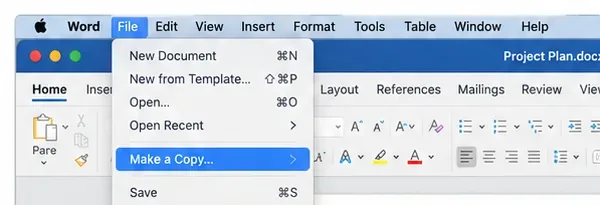
This approach is appropriate when the original came from an email attachment, a shared folder, a removable or network location you may not be allowed to modify, or a cloud location where you only have viewing rights. Microsoft’s read-only document guidance notes that a read-only file can generally be copied and the copy saved under a different name or in a different location.
If the copy is editable, Word itself is functioning. The remaining problem is with the original file’s location, permissions, sharing settings, or protection.
For a local file, Finder permissions are the next place to look. Apple’s current file-permissions documentation says that Read only allows a user to open a file but not change its contents, while Read & Write allows editing.
In Finder:
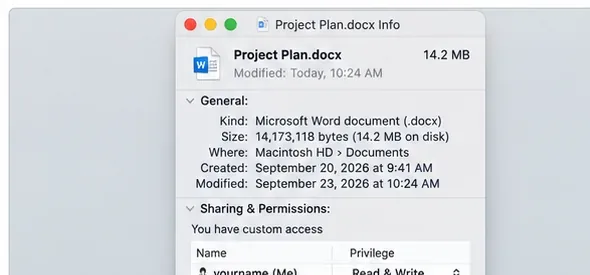
Apple separately documents the Finder Locked checkbox in its Mac document-locking guide. Do not change permissions on a work-managed file or shared organizational folder unless you are supposed to have edit access; the correct fix may be to ask the owner or administrator.
If your account already says Read & Write but Word still cannot save over the original, check the containing folder too. You may own the file while lacking permission to write changes into that folder. Saving the copy to your local Documents folder is a useful comparison test.
A cloud document can be perfectly synchronized and still be read-only because the sharing link grants viewing rather than editing. In current Word for Microsoft 365 for Mac, documents may expose three modes: Viewing, Reviewing, and Editing. Microsoft’s document-modes guidance says Editing is available only when your permissions allow it.
If the mode control near the top-right of Word says Viewing, open it and choose Editing if that option is offered. If Editing is missing, changing local Mac permissions will not grant cloud edit rights. Ask the file owner to give you edit access.
Microsoft’s OneDrive and SharePoint permissions guidance explains that owners can review who has access and change or recreate sharing links with the appropriate permission.
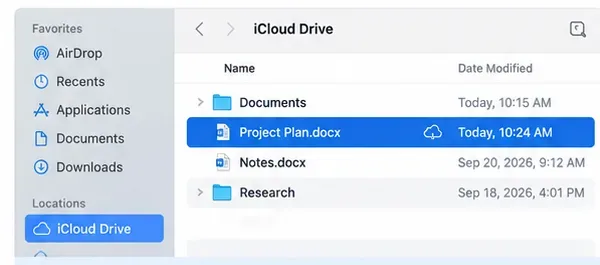
The same principle applies to other cloud-synced locations: first verify that the file is available locally, then verify that the account or shared folder actually grants write access. If you urgently need to work and policy allows it, save a separate copy to a local writable folder and reconcile changes later.
If Finder says you can write to the file but Word still refuses edits, the restriction may be inside the document rather than in macOS.
Microsoft 365 supports Information Rights Management (IRM) on Mac. Under Microsoft’s IRM documentation, a user with Read permission can view a protected document but cannot edit it; Change permission allows editing and saving. These rights travel with the document and are not overridden by changing Finder permissions.
If the document belongs to your organization and an IRM policy, sensitivity label, or restricted-access rule gives you only Read access, request Change or Full Control from the owner or administrator. Do not try to bypass the policy by altering the file package or copying protected content.
A document owner can intentionally configure a file or sharing link as view-only. Microsoft’s editing guidance distinguishes “always open view-only” from actual editing permission. If you own the file, remove the read-only preference using the controls available in your Word build. If you do not own it, switch to Editing only when the owner has granted that right.
That is a different condition from ordinary read-only mode. Shared Office files can be locked while another desktop user is editing them. Microsoft’s shared-file lock guidance recommends waiting for the other editor to close the file or using Save As to create a separate copy if you must work immediately.
If no one else is using it, fully quit Word and reopen the document. A second Word session or an interrupted session can sometimes leave the document unavailable until the application closes cleanly.
| Condition | Best next action |
|---|---|
| All Word documents are non-editable | Update macOS and Office, then check sign-in and activation |
| One local file is read-only | Save a local copy, then inspect Finder Locked and Sharing & Permissions |
| OneDrive/SharePoint file shows Viewing | Switch to Editing if available; otherwise request edit permission |
| IRM or sensitivity label restricts editing | Ask the owner/admin for Change permission |
| File is locked by another user | Wait for the other session to close or work in a separate copy |
Open the document, type a short test change, save it, close Word, and reopen the same file. If the change remains, both editing and write access are working. If you can type but cannot save over the original, the problem is still related to storage location, permissions, or cloud access rather than Word’s editing canvas.
If every document remains non-editable after updating Word and macOS, test a blank new document. If even a new blank document cannot be created or saved, return to Microsoft 365 activation and reduced-functionality troubleshooting. If a blank document works but one specific file does not, focus on that file’s permissions, sharing mode, or protection instead.
For Word on Mac in 2026, the most important first question is whether read-only behavior affects one file or the entire app. App-wide failures now have a documented Microsoft cause on outdated macOS or Office builds, so updating should come before file surgery. For a single file, saving a copy to a writable local folder and checking Finder’s Locked and Read & Write settings usually reveals whether macOS is the issue. Cloud files add a separate permission layer, while IRM, sensitivity labels, and another-user locks must be resolved through the owner or organization rather than by changing Finder settings.
Fix Word documents that open read-only on Mac by checking Office updates, file permissions, cloud access, document restrictions, and shared-file locks.
Runway Gen-3 is retired, but its character-consistency problem remains. Use references, character plates, disciplined shot design, and image-to-video workflows to reduce drift.
Use this printable one-page marketing strategy template to choose local customers, channels, offers, budget, actions, and measurable goals without overplanning.
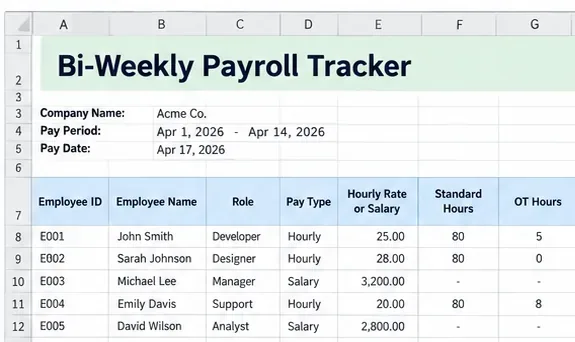
Build a practical bi-weekly payroll tracker in Excel with clean fields, formulas, controls, and 2026 payroll compliance references for small teams.
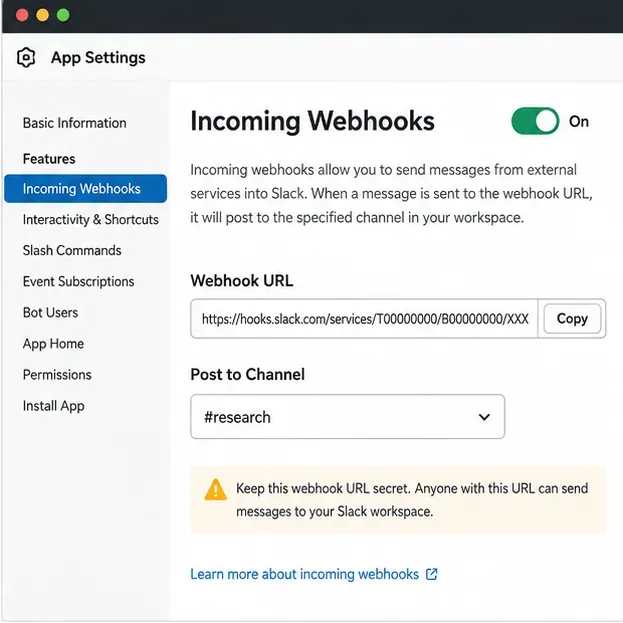
Build a practical Python research assistant that finds arXiv papers, creates faithful structured summaries, deduplicates results, and posts concise digests to Slack.
Stop CrewAI agents from repeating work by fixing task ownership, dependencies, delegation, retries, Flow triggers, state persistence, caching, and idempotency.
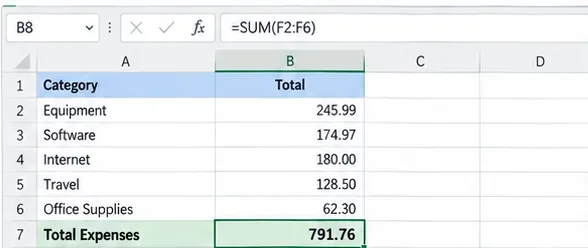
Build an independent contractor expense tracker for U.S. freelance work, with IRS-aware categories, receipt records, 2026 mileage rates, and tax-review flags.
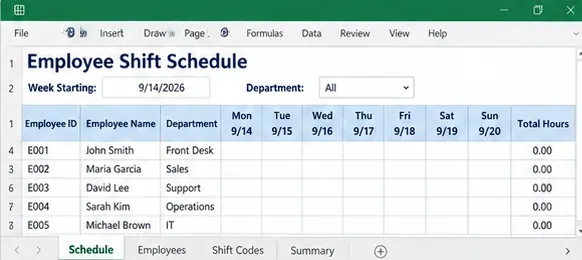
Build a free employee shift schedule in Excel with an hours calculator, overnight-shift formulas, weekly totals, quality checks, and clear limits.
Build a practical Excel lead tracker with tables, dropdowns, follow-up alerts, and a simple pipeline summary—plus clear signs that it is time to move to a CRM.
Build a practical Excel equipment maintenance log for workshop assets with service history, due dates, downtime, costs, inspection records, and clear safety boundaries.