A useful employee shift schedule should do more than put names into a weekly grid. By the time you finish this template, you should be able to see who is scheduled, calculate planned hours consistently, catch missing or unusual entries, and review weekly totals without manually adding every shift. Just as important, you should know what the spreadsheet does not prove.
This guide shows how to build a free employee shift schedule template in Excel with an hours calculator. The emphasis is on result quality: what a reliable schedule should produce, how to test the formulas, which warning signs deserve review, and when a spreadsheet has become too fragile for the scheduling process you actually run.
The examples use a small fictional team and sample dates only. They are not records from a real employer and should not be read as legal, payroll, or staffing recommendations.
What a good shift schedule should accomplish
Before adding formulas, define the output you expect. A practical Excel shift schedule should let a manager answer the following questions quickly:
- Who is scheduled on each day?
- What shift or start and end time is assigned?
- How many planned hours does each employee have for the workweek?
- Are any shifts missing, incomplete, or obviously unusual?
- Which employees are approaching a weekly-hours threshold that deserves review?
- Can the schedule be printed, shared, or copied into the next week without breaking the formulas?
| Quality check | Good result | Warning sign |
|---|
| Daily shift calculation | Known test shifts return the expected duration | Overnight shifts become negative or show unrealistic values |
| Weekly total | Daily planned hours add to one clear total | Manual totals differ from the formula result |
| Data consistency | Shift codes and status values use controlled choices | Multiple spellings create different categories |
| Exception visibility | Missing shifts and review items are easy to spot | Errors are buried in normal-looking cells |
| Actual-hours boundary | The workbook clearly distinguishes scheduled from worked hours | The schedule is treated as proof of time actually worked |
Step 1: create the weekly schedule layout
Start with a worksheet named Schedule. Put the week-starting date and an optional department selector near the top. Use one row per employee and one column per day, followed by a Total Hours column. Keep employee IDs separate from names so the schedule still works if two people share the same name or a name changes.
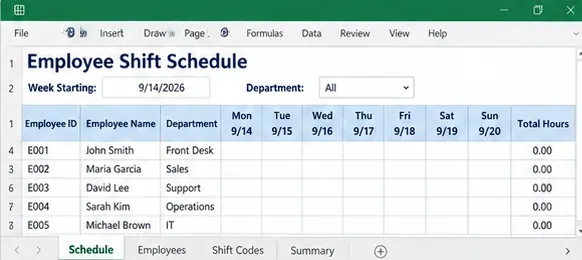
Example weekly schedule layout with employee identifiers, daily columns, and a dedicated weekly total.
If you expect the employee list to grow, format the employee reference range as an Excel Table. Microsoft documents Format as Table as a way to organize related data and keep filtering and structured ranges easier to manage. Microsoft’s current support page, checked in September 2026, lists this feature for Microsoft 365, Excel 2024, Excel 2021, Excel 2019, and Excel 2016.
A good first test is simple: add three employees, fill one week, then insert a fourth employee. The formulas and references should extend predictably rather than requiring manual repair.
Step 2: define shift codes before filling the week
For teams that reuse the same shift patterns, a separate Shift Codes sheet is easier to audit than typing times repeatedly. A small table might contain a code, shift name, start time, end time, planned hours, and an optional display category.
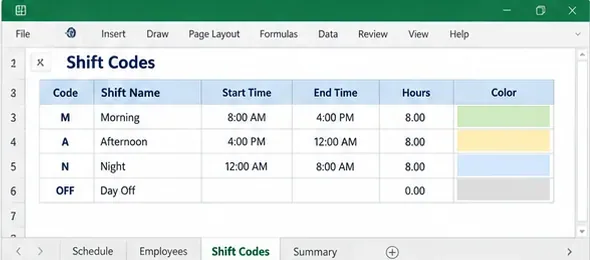
Example Shift Codes sheet that keeps recurring shift definitions in one place.
For example, M can represent 8:00 AM to 4:00 PM, A can represent 4:00 PM to midnight, N can represent midnight to 8:00 AM, and OFF can represent no scheduled hours. The specific codes are not important; consistency is.
Do not hide break assumptions inside a shift name. If the 8:00 AM to 4:00 PM shift includes an unpaid 30-minute meal period, either store 7.5 planned hours for that code or add a separate Break Hours field. The workbook should make the assumption visible enough for another reviewer to understand it.
Step 3: enter shifts with controlled choices instead of free text
Fill the weekly grid using the defined shift codes. For repeated categories, Excel data validation can reduce accidental variations. Microsoft’s data validation guidance confirms that the List option can restrict cells to choices from a dropdown.
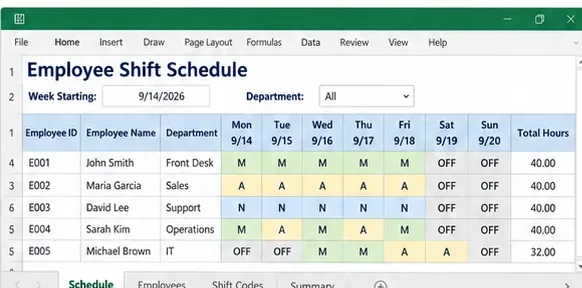
Example schedule after recurring shift codes have been assigned across the week.
Test the setup by trying both a valid code and an invalid entry. If a typo such as “Morn” is accepted even though the formula expects “M,” decide whether the validation rule should block it or whether the hours formula should flag it. A reliable template should not silently convert an unknown code into zero hours because that can make understaffing look like a valid day off.
Step 4: build the hours calculator and test overnight shifts
There are two sensible ways to calculate hours. If every schedule cell contains a standard shift code, use the Shift Codes table to look up the planned hours and sum the seven days. If employees have variable start and end times, calculate the duration directly from those time cells.
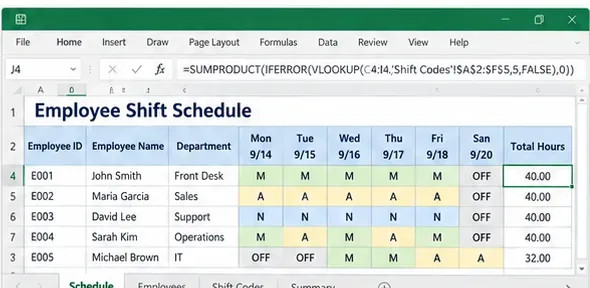
Example lookup-based hours calculator that converts the assigned shift codes into weekly totals.
For a direct start-time and end-time schedule
Microsoft’s current Excel time-difference guidance shows that subtracting a start time from an end time returns elapsed time, and multiplying the difference by 24 converts Excel’s day fraction to decimal hours. For a normal same-day shift, the basic pattern is:
=(EndTime-StartTime)*24
That alone is not safe for a shift that crosses midnight. A 10:00 PM start and 6:00 AM end would otherwise appear to move backward within the same date. One practical pattern is:
=MOD(EndTime-StartTime,1)*24-BreakHours
Microsoft documents the MOD function as returning the remainder after division. With a divisor of 1 day, the formula can wrap a negative time difference into the next 24-hour cycle. If breaks are stored in minutes instead of decimal hours, subtract BreakMinutes/60.
Run known test cases before trusting the formula
| Test shift | Break | Expected planned hours | What it checks |
|---|
| 8:00 AM–4:00 PM | 0 | 8.0 | Normal daytime subtraction |
| 8:00 AM–4:00 PM | 0.5 hour | 7.5 | Break deduction |
| 4:00 PM–12:00 AM | 0 | 8.0 | Midnight boundary |
| 10:00 PM–6:00 AM | 0 | 8.0 | Overnight wrap |
These are arithmetic test cases, not staffing recommendations. If any test produces a negative number, a value over 24 for a single ordinary shift, or a break longer than the shift, stop and review the formula or inputs rather than hiding the result with another formula.
Step 5: keep employee reference data separate from the schedule
Create an Employees sheet for stable information such as Employee ID, Employee Name, Department, scheduling status, and notes. If hourly rates are not needed to create the schedule, leave them out. A scheduling workbook should not collect sensitive payroll or identity data merely because Excel can store it.
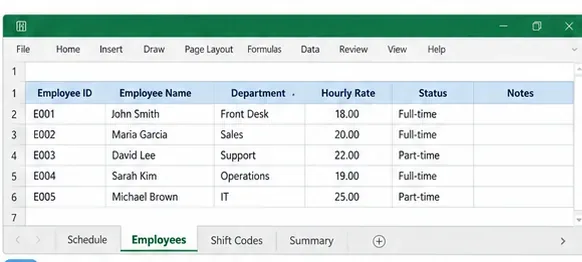
Example employee reference sheet kept separate from the weekly scheduling grid.
The quality goal is one source of truth for names and departments. If the same employee appears as “Maria Garcia” on one sheet and “M. Garcia” on another, lookups and summaries can become inconsistent. Stable employee IDs reduce that risk.
Step 6: add a weekly summary, but label scheduled hours honestly
A Summary sheet can show total planned hours by employee, department, or team. This is useful for spotting unusually light or heavy schedules before the week is published.
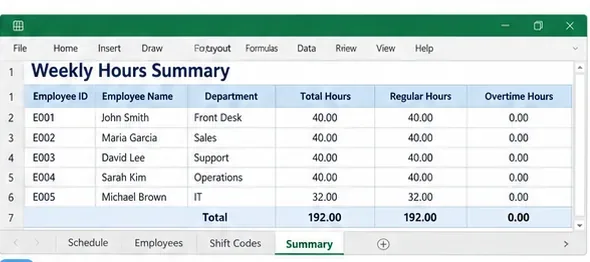
Example weekly summary for reviewing the distribution of scheduled hours across the team.
Be careful with the word “overtime.” Under the federal Fair Labor Standards Act, covered nonexempt employees generally receive overtime for hours worked over 40 in a workweek. The U.S. Department of Labor’s Fact Sheet #23 also states that the FLSA applies overtime on a workweek basis. A schedule can identify a Potential Overtime risk, but it does not establish the final compensable hours.
This distinction matters because the Department of Labor’s Fact Sheet #22 explains that the workday can be longer than the scheduled shift and that work that is suffered or permitted can count as hours worked. In other words, an employee scheduled for 38 hours can still work more than 40, while a scheduled 42-hour week may change before it is actually worked.
For a scheduling workbook, use planned-hour labels. Reconcile actual hours through the employer’s approved timekeeping and payroll process.
Step 7: make exceptions visible with conditional formatting
Conditional formatting is useful when it highlights conditions that require a human decision. Examples include blank shift cells on an active employee row, planned weekly hours above an internal review threshold, or a shift code that is not in the approved list.
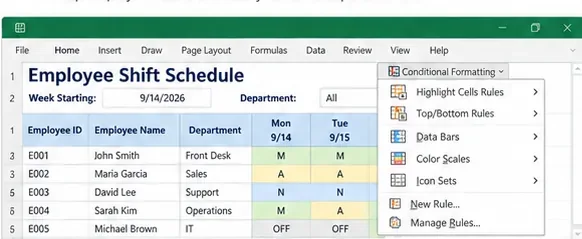
Conditional formatting can make review conditions visible without changing the underlying schedule values.
Microsoft’s conditional formatting documentation confirms that rules can format cells based on their values. The best rules are usually simple enough for another manager to inspect and explain.
Do not use color as the only signal. Add a Status or Review Notes field when a condition needs follow-up. That keeps the reason visible when the workbook is printed in grayscale or viewed by someone who cannot distinguish the colors.
Step 8: review, print, save, and preserve the right version
Before distributing the schedule, run a short review: confirm the correct week, check that every active employee has a complete row, scan planned totals, resolve review flags, and test the printed or PDF view. Then save the published version separately from the reusable template.
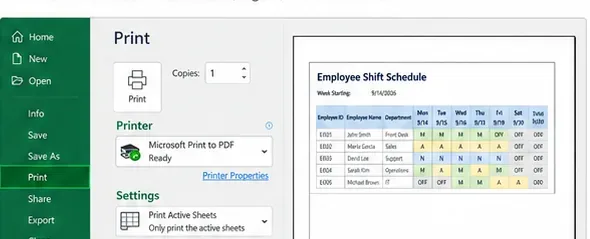
Example print preview used to check that employee names, daily shifts, and weekly totals remain readable before distribution.
A clear naming pattern helps prevent the wrong week from being reused. For example, use Shift_Schedule_2026-09-14.xlsx for a published weekly schedule and Employee_Shift_Schedule_Template.xlsx for the clean reusable file.
A compact template structure you can copy
| Sheet | Main fields | Purpose |
|---|
| Employees | Employee ID, Name, Department, Status | Stable reference data |
| Shift Codes | Code, Shift Name, Start, End, Break, Planned Hours | Reusable shift definitions |
| Schedule | Employee, Mon–Sun, Total Hours, Review Status | Weekly planning |
| Summary | Employee or Department, Planned Hours, Review Flag | Quality review before publishing |
How do you know the finished template is good enough?
A template is ready for routine use when the outputs remain understandable after someone other than the creator opens the workbook. Use these acceptance checks:
- A daytime test shift returns the expected number of hours.
- An overnight test shift returns the expected number of hours instead of a negative value.
- A missing start or end time is visibly flagged rather than converted into a plausible total.
- Weekly hours equal the sum of the seven daily planned-hour values.
- Unknown shift codes do not silently count as zero.
- The schedule distinguishes planned hours from actual hours worked.
- The printed or PDF version includes the week date and remains readable.
- A second user can add an employee or copy the week without repairing formulas manually.
The Department of Labor’s Fact Sheet #21 on FLSA recordkeeping is also useful context for U.S. employers. It states that covered employers must maintain accurate records of hours worked and notes that, for employees on fixed schedules, schedule records may be used with exceptions when actual hours differ. That is another reason to keep a planning schedule separate from the record of what was actually worked.
When should you stop using Excel as the main scheduling system?
Excel remains a reasonable option when the team is small, schedules are prepared by one or two people, shift patterns are fairly stable, and the workbook is primarily a planning and review tool. The warning signs are operational, not simply a particular employee count.
- Shift swaps happen frequently and employees need live updates.
- Multiple locations need simultaneous editing and conflict prevention.
- Managers need approval workflows or a dependable audit history.
- Actual clock-in and clock-out data must feed payroll automatically.
- Scheduling depends on qualifications, labor rules, availability, demand forecasts, or complex leave policies.
- Managers spend more time repairing formulas and reconciling versions than creating the schedule.
When those conditions become normal, a dedicated scheduling or workforce-management system can be more appropriate. The goal is not to make the spreadsheet increasingly clever; it is to keep the scheduling process understandable and controlled.
Final review checklist
- Confirm the week-starting date and department or location.
- Verify the active employee list.
- Check shift codes, start times, end times, and break assumptions.
- Test at least one normal shift and one overnight shift.
- Review each employee’s weekly planned hours.
- Label high scheduled hours as a review condition, not automatically as overtime owed.
- Resolve blanks, invalid codes, and unusual totals.
- Keep scheduled hours separate from actual timekeeping records.
- Check the print or PDF layout.
- Save the published week separately from the blank reusable template.
A free employee shift schedule template in Excel can be very effective when its job is clearly defined: organize planned shifts, calculate planned hours, expose exceptions, and give a manager a clean weekly review. Its strongest quality signal is not visual polish. It is whether the numbers can be tested, the assumptions can be explained, and the workbook makes it obvious when a result needs human review or a more capable scheduling system.