Home
» AI Agents
»
How to Run DeepSeek Offline on Windows 11 with LM Studio
How to Run DeepSeek Offline on Windows 11 with LM Studio
Yes—you can run DeepSeek completely offline on Windows 11 with LM Studio, but you need one online setup pass first. Install LM Studio, download a compatible DeepSeek model and the required runtime, load the model once, and then you can disconnect from the internet. LM Studio's official offline documentation says that chatting with downloaded models, chatting with local documents, and running its local server do not require internet access.
For a typical Windows 11 PC, the most practical starting point is not the largest current DeepSeek model. A smaller GGUF model such as DeepSeek-R1-0528-Qwen3-8B is much easier to run locally. LM Studio published support for that 8B distilled model in May 2025 and says it works in GGUF format with LM Studio 0.3.16 or newer. By contrast, LM Studio's August 2026 guidance for DeepSeek V4 Flash says local use requires about 156GB of system memory. That makes V4 Flash a poor choice for most consumer Windows machines even though it is newer and more capable.
This guide was checked on September 11, 2026. LM Studio's changelog lists version 0.4.24 dated September 9, 2026. Because LM Studio's interface evolves, a button may move slightly between builds, but the core workflow—download a model, load it, chat locally, and optionally expose a localhost API—remains documented by LM Studio.
Before You Start: Does Your Windows 11 PC Fit?
LM Studio currently supports both x64 Windows PCs and ARM-based Windows systems. For x64, the CPU must support AVX2. LM Studio recommends at least 16GB of RAM and at least 4GB of dedicated VRAM. Those are application-level recommendations, not a promise that every model will fit. Model size, quantization, context length, and GPU offload all affect memory use.
What you have
Practical recommendation
Why
16GB RAM, modest GPU or integrated graphics
Start with an 8B or smaller DeepSeek distilled model in a 4-bit GGUF variant
It keeps the model footprint relatively manageable while preserving useful reasoning ability.
More RAM and a stronger GPU
Try larger distilled variants only after checking LM Studio's device-fit estimate
Larger models may improve quality but consume substantially more memory and can be much slower.
Ordinary gaming PC or laptop
Do not start with DeepSeek V4 Flash
LM Studio says the local V4 Flash model needs at least 156GB of system memory.
LM Studio's model-download documentation explains that quantized builds trade some fidelity for smaller files and lower memory pressure. Its general recommendation is to choose a 4-bit option or higher when your hardware can handle it. If you are unsure, a 4-bit GGUF version is a sensible first test.
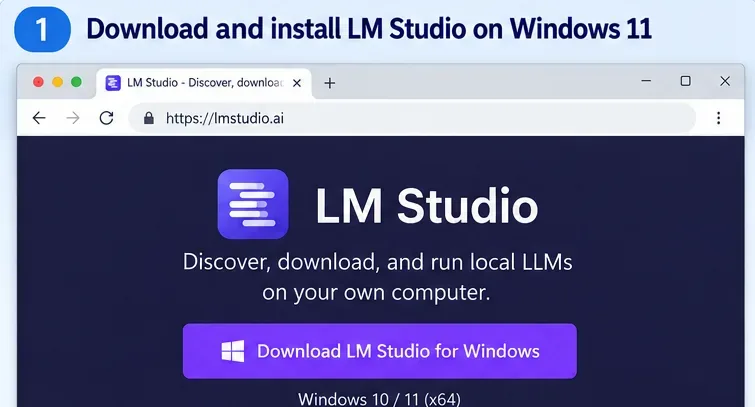
Download the current stable Windows build from the official LM Studio download page. Use the installer that matches your Windows architecture. On an x64 PC, make sure your processor supports AVX2 before troubleshooting model-load errors later.
The Windows download view for LM Studio. Choose the installer that matches your Windows 11 system before moving on to the model download.
Launch LM Studio while you still have an internet connection. This matters because the app may need to download or update an LM Runtime. LM Studio describes runtimes as packaged inference engines, such as its llama.cpp-based runtime for GGUF models. Runtime downloads require connectivity even though inference can work offline afterward.
Step 2: Download a DeepSeek Model That Fits Your PC
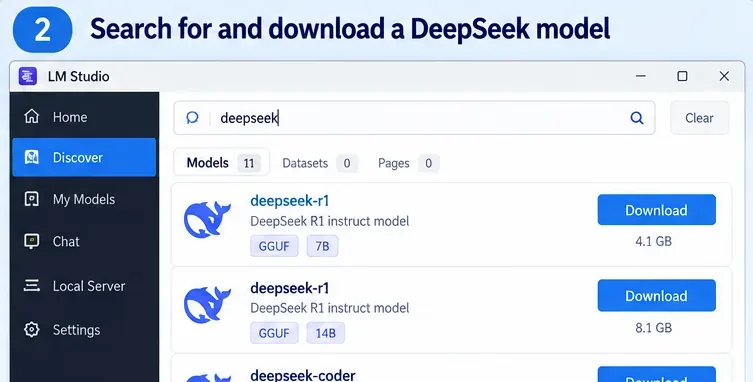
Open the Discover area in LM Studio and search for DeepSeek. LM Studio can search supported Hugging Face models by keyword, by a user/model identifier, or even by a full Hugging Face URL.
Search for DeepSeek in Discover, then choose a model and quantization appropriate for your hardware. Exact catalog entries and file sizes change over time.
Which DeepSeek model should you choose?
For most people following this guide, start with DeepSeek-R1-0528-Qwen3-8B. LM Studio says this distilled 8B model supports reasoning and tool use, is available as GGUF, and can run with far less memory than the flagship DeepSeek models. LM Studio's Windows guidance still recommends 16GB of RAM for the application overall, so do not treat a model-specific low-memory claim as a comfortable whole-system target.
DeepSeek also released earlier R1 distilled variants at 1.5B, 7B, 8B, 14B, 32B, and 70B parameters. Those give you room to trade speed and memory use against capability. See the official DeepSeek-R1 repository for the model family and licensing details, and LM Studio's DeepSeek-R1-0528 local-running note for the 8B option.
If you are tempted by DeepSeek V4 Flash because it is newer, check the hardware requirement first. LM Studio's official V4 Flash article says the 284B Mixture-of-Experts model needs at least 156GB of system memory for local use. It is viable on high-memory workstations, not a normal Windows laptop.
Step 3: Load the Model into Memory
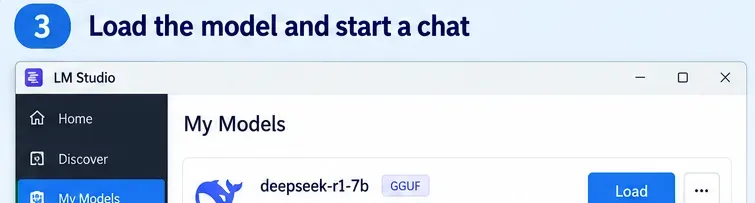
After the download finishes, go to your downloaded models or open the model loader from Chat. Select the DeepSeek model and load it. LM Studio explains that loading a model allocates memory for the model weights and related runtime state.
A downloaded DeepSeek GGUF model ready to load. If loading fails, try a smaller model or lower-memory quantization before changing advanced settings.
For your first run, keep the load settings conservative. A very large context window can consume significant additional memory, so there is little reason to maximize context immediately. Load the model with a modest context, verify that it works, and expand only when your workload requires it.
If LM Studio reports that the model does not fit, the most reliable fix is usually to choose a smaller model or a more compact quantization. Closing memory-heavy applications can help, but it does not change the fundamental model footprint.
Step 4: Disconnect the Internet and Verify DeepSeek Really Works Offline
This is the step that separates “local model” from merely “using a desktop client.” Once the model and its runtime are installed, turn off Wi-Fi and disconnect Ethernet. Then start a new chat and send a simple prompt such as:
Explain the difference between RAM and VRAM in five bullet points.
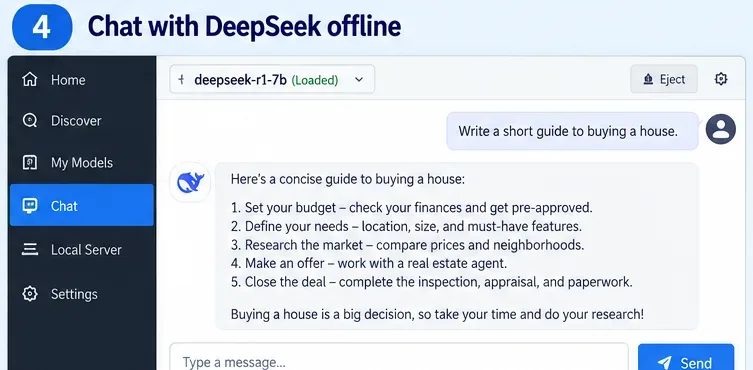
If the model responds while the PC has no network connection, inference is local. LM Studio states that once an LLM is on your machine, it can run entirely offline and that text entered into local LLM chats does not leave your device. Its offline documentation also says local document processing and RAG stay on the machine.
A loaded DeepSeek model responding in LM Studio Chat. To verify offline operation yourself, disconnect network access after the model and runtime are fully downloaded and repeat a simple prompt.
There is an important boundary: searching for models, downloading new models, downloading runtimes, and checking for app updates require internet access. If you later add cloud models, remote MCP servers, web tools, or other network integrations, those features may also require connectivity. Offline privacy claims apply to the local workflow, not to services you deliberately connect afterward.
If you want another Windows application, script, IDE extension, or internal tool to call your local DeepSeek model, LM Studio can run a local server. The current developer documentation says you can start it from the Developer page or with:
lms server start
By default, the server is available at http://localhost:1234. LM Studio provides native REST endpoints and OpenAI-compatible endpoints. The server itself can operate offline as long as the model and runtime are already local. If you expose the server beyond localhost, however, review authentication and network-access settings first.
Not enough RAM/VRAM, oversized context, or unsupported CPU/runtime
Try a smaller DeepSeek model, a smaller quantization, or a lower context length. On x64 Windows, confirm AVX2 support.
LM Studio works online but not after disconnecting
The model or required runtime was not fully downloaded
Reconnect once, finish all model/runtime downloads, load the model successfully, then repeat the offline test.
Generation is very slow
The model is too large for the available GPU acceleration and is relying heavily on CPU/system memory
Choose a smaller model or quantization. A bigger model is not useful if latency makes the workflow impractical.
You cannot find a model while offline
Discover search needs network access
Download models before going offline, or sideload a model file obtained through another controlled process.
You expected V4 Flash to run on a normal laptop
Its local memory requirement is workstation-class
Use an R1 distilled model instead unless your machine has roughly 156GB or more system memory.
When This Setup Is a Good Fit
Running DeepSeek offline with LM Studio is a strong fit when you want private local inference, predictable costs after downloading the model, experimentation without API keys, or a localhost API for development. It is also useful when your machine must keep working without internet access.
It is a weaker fit when you need the strongest available DeepSeek model but only have consumer hardware, when you need extremely high throughput, or when your workload depends on live web information. Local models know only what is in their weights and the context you provide unless you deliberately connect external tools or data sources.
Quick Checklist
Use a Windows 11 system that meets LM Studio's requirements; x64 CPUs need AVX2.
Keep internet access on for the initial LM Studio, runtime, and model downloads.
Start with a smaller DeepSeek GGUF model, especially an 8B-class distilled model.
Choose a 4-bit-or-higher quantization if your hardware can support it.
Load the model successfully before disconnecting the network.
Turn off Wi-Fi/Ethernet and run a fresh prompt to verify offline inference.
Reduce model size or context length if you hit memory errors.
Use LM Studio's localhost server only if you need local API access.
Bottom Line
The easiest way to run DeepSeek offline on Windows 11 is to pair LM Studio with a smaller GGUF DeepSeek model that actually fits your hardware. For a normal PC, an R1 distilled 8B-class model is a far more realistic starting point than DeepSeek V4 Flash. Complete the downloads while online, load the model, disconnect the network, and verify that a new chat still responds. Once that works, you have a genuinely local DeepSeek setup rather than a desktop wrapper around a cloud API.