Home
» AI Agents
»
How to Fix Lip-Sync Lag in AI Video Generators (HeyGen & ElevenLabs)
How to Fix Lip-Sync Lag in AI Video Generators (HeyGen & ElevenLabs)
A useful 2026 clarification comes before any troubleshooting: ElevenLabs Dubbing does not currently perform lip sync by itself. ElevenLabs says lip sync is available separately in Image & Video, Flows, and Studio through dedicated third-party models. HeyGen, meanwhile, currently separates translation into Audio Only, Speed lip sync, and Precision lip sync. That means the right fix depends on where your workflow actually creates the mouth animation.
If you generate speech in ElevenLabs and then animate an avatar in HeyGen, treat the ElevenLabs file as the audio source and HeyGen as the lip-sync stage. If you use ElevenLabs Dubbing for translation, do not expect the Dubbing step alone to change mouth movements; route the finished speech into a lip-sync tool afterward. If you are translating an existing video in HeyGen, choose the lip-sync engine based on the footage rather than assuming the more expensive mode is always necessary.
This guide was checked against current HeyGen and ElevenLabs documentation on September 13, 2026. Product controls and credit rates can change, so the linked official pages are the source of truth.
First diagnose the type of lip-sync problem
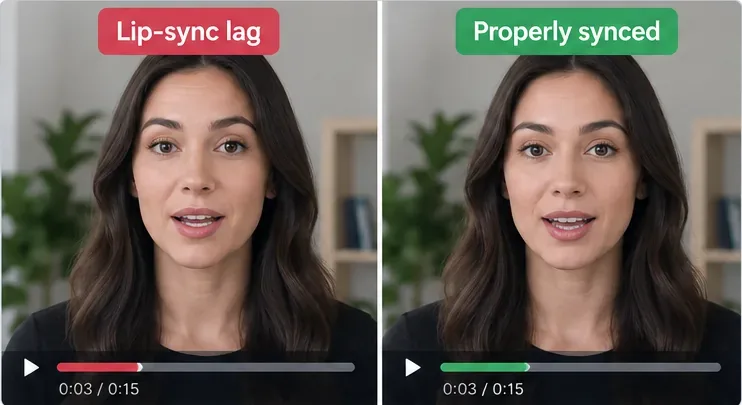
“Lip-sync lag” can mean several different things. Fixing the wrong layer wastes generations and credits.
What you see
Likely problem
Best first move
The mouth is late by roughly the same amount from beginning to end
Constant audio/video offset or leading silence
Trim or shift the audio before regenerating the entire video
The first sentence matches, but drift gets worse over time
Speech duration and video timing are diverging
Regenerate at a better pace, split the scene, or use duration adaptation
Only certain words look wrong
Phoneme/articulation mismatch
Regenerate the affected sentence or use a higher-fidelity lip-sync pass
Front-facing shots work but side profiles fail
Visual tracking difficulty
Use HeyGen Precision or simplify the source shot
ElevenLabs dub sounds well timed but the original mouth never changes
Dubbing was mistaken for lip sync
Send the dubbed audio into a dedicated lip-sync model or HeyGen
Before changing settings, decide whether you have a constant offset, progressive drift, or only a few bad mouth shapes; each problem calls for a different fix.
1. Pick one audio source of truth before generating video
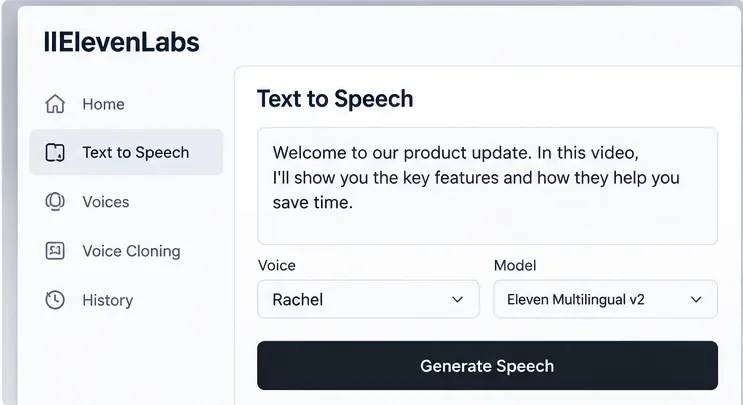
A common workflow mistake is generating a voice in ElevenLabs, then also letting the video tool synthesize or reinterpret the script. That creates two timing decisions instead of one. If the ElevenLabs performance is the one you want, finish that audio first and use it consistently as the source for the avatar scene.
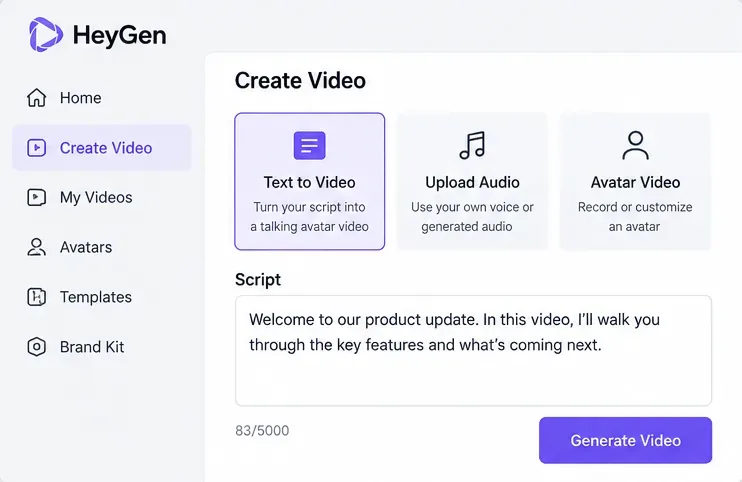
HeyGen’s current Studio documentation says custom audio can be added by uploading a prerecorded file or recording audio directly. The Studio is script-focused, and HeyGen notes that full animated-avatar previews are not available while editing because the avatar must be generated; you can preview audio before submission.
Recommendation: for expensive or long scenes, generate a short test scene first. Confirm the audio, face, and mouth behavior before committing the full runtime.
Choose one speech source for the scene. If you already approved the ElevenLabs audio, upload that audio rather than independently recreating the delivery.
2. Fix the ElevenLabs pacing before blaming the lip-sync engine
If the speech itself is rushed, unusually slow, or full of awkward pauses, the video generator has to animate that timing. Clean audio is easier to sync than audio you plan to repair after the mouth animation has already been generated.
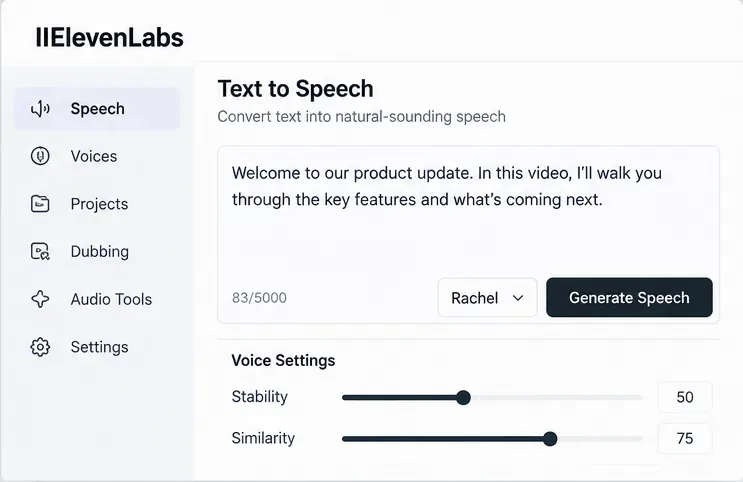
ElevenLabs currently documents a voice Speed control from 0.7 to 1.2 in Text to Speech, with 1.0 as the normal rate. The company warns that extreme values can reduce quality. Its best-practices documentation also notes that excessive pause markup can create instability or unexpected pacing.
Tradeoff: changing speed can help a sentence fit a target duration, but it also changes the performance. If the voice starts sounding rushed or unnaturally stretched, rewriting the line is usually better than pushing the speed control further.
Generate and approve the speech first. Listen for pacing problems, uneven pauses, or rushed phrases before using the file for lip sync.
ElevenLabs’ official documentation is currently inconsistent on one detail: the Help Center says the Speed setting is available for all voices and models, while the Text to Speech product guide contains a model-specific note saying Speed is not available for Eleven v3. Because both statements are official, check the controls actually shown for the model you select rather than assuming a speed slider will always be present.
Action: if the selected model does not expose Speed, control timing through wording, punctuation, model-specific audio tags, or a different supported model instead of relying on a nonexistent control.
3. Remove avoidable silence and check for a constant offset
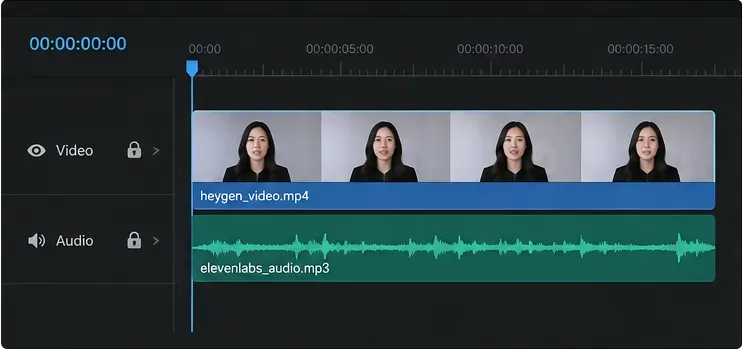
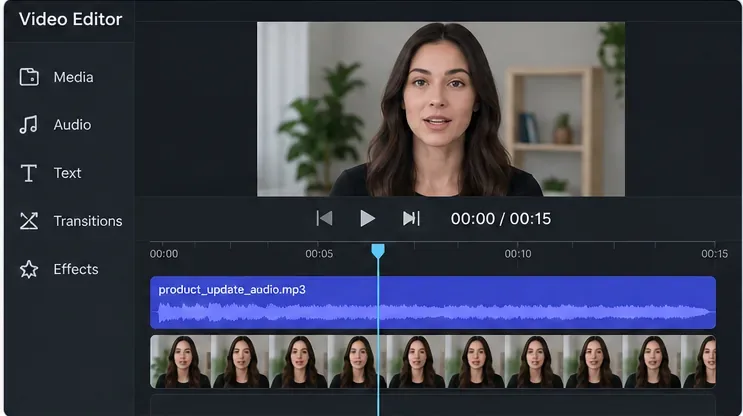
If the mouth is consistently late or early by the same amount, changing the AI model may be unnecessary. Inspect the audio file in a timeline. A small lead-in before the first spoken consonant, or an audio clip placed a few frames away from the intended start, can create the appearance of a failed lip-sync generation.
For example, a four-frame offset at 30 fps is about 133 milliseconds. That is large enough to look wrong on close-up speech, even if the mouth animation itself is internally consistent.
Action: align the first clear speech transient to the expected visual start. If the problem remains a fixed offset after generation, shift the audio in a video editor instead of regenerating every asset.
For a constant offset, inspect the waveform and clip start points before spending credits on a new avatar generation.
4. Use shorter segments when drift grows over time
Progressive drift is different from a fixed offset. If the first few seconds look correct and the mouth gradually falls behind, the spoken duration is not fitting the visual timing well enough. Long continuous scenes magnify small timing differences.
Split a long narration into shorter logical sentences or shots, generate them separately, and join them later. This gives you a smaller unit to regenerate when only one section is wrong. HeyGen’s Voice Mirror guidance also recommends starting with short segments while learning the desired pacing and processing behavior.
Tradeoff: shorter segments improve repairability, but too many cuts can make tone and ambience less consistent. Keep the same voice settings and avoid changing the performance style between adjacent segments unless the script calls for it.
Test a short sentence first. Once the timing is reliable, expand the workflow to longer scenes instead of debugging a full video at once.
5. In HeyGen Video Translation, choose Speed or Precision based on the shot
HeyGen’s current Video Translation system offers three engine choices:
Audio Only: translates and re-voices without lip sync.
Speed: lip sync optimized for front-facing video, limited facial occlusion, and simpler conversations.
Precision: higher-quality lip sync intended for side profiles, camera-angle changes, facial occlusions, speaker switches, and more complex conversations.
As of September 13, 2026, HeyGen’s Help Center lists Speed at 6 credits per minute and Precision at 10 credits per minute on its current credit system. The rate is useful for understanding the tradeoff, but check the product before generating because pricing can change.
Recommendation: use Speed for a single speaker who remains within roughly 45 degrees of the camera with a clear face. Upgrade to Precision when the footage itself is harder to track. Spending more credits will not fix bad source audio, so solve pacing first.
HeyGen also recommends close-up shots, minimal camera cuts, reduced background noise, and only one person speaking at a time for better translation lip sync.
6. Use Dynamic Duration when translated speech needs more room
Different languages rarely take exactly the same amount of time to say the same idea. HeyGen’s current Advanced settings include Enable Dynamic Duration, which can stretch or compress segment durations by up to ±20% to create more natural translated speech. HeyGen notes that this can change the total video length.
Choose Dynamic Duration when: natural delivery matters more than keeping the exact original runtime.
Avoid relying on it when: the video must stay frame-accurate to music, fixed graphics, broadcast slots, or externally timed cues. In that case, rewrite the translation or adjust the ElevenLabs speech timing first.
When runtime matters, regenerate the spoken line until its natural duration fits the scene instead of forcing a large timing correction downstream.
7. Do not expect ElevenLabs Dubbing alone to animate the mouth
This is the most important workflow distinction between the two platforms. ElevenLabs’ current Dubbing documentation explicitly says that Dubbing does not include lip syncing. Lip-sync tools are available separately in ElevenLabs Image & Video, Flows, and Studio through specialized models.
ElevenLabs Dubbing v2 is currently described as an alpha model. It preserves timing, tone, and speaker characteristics, but the default v2 web workflow is automatic and does not offer in-app transcript editing. Transcript editing and audio regeneration through the v2 API are currently listed as Enterprise-only. Dubbing Studio based on v1 remains available but is in maintenance mode and receives critical bug fixes only.
For a HeyGen + ElevenLabs workflow: generate or dub the final speech in ElevenLabs, then upload that approved audio to HeyGen for the mouth animation.
When ElevenLabs supplies the final voice track, use that approved file as the input to the lip-sync stage rather than expecting the Dubbing step to modify mouth movement.
What if you want to stay entirely inside ElevenLabs?
ElevenLabs Image & Video currently provides dedicated lip-sync models for source images or videos plus speech audio. The documentation lists options such as HeyGen Avatar 4, Sync 3, Sync Lipsync 2 Pro, Veed Lipsync, and others. Availability can vary by model and region; for example, the documentation says OmniHuman 1.5 is not available in the United States.
Tradeoff: staying in one workspace can simplify asset management, but these are separate post-processing or avatar models with their own costs and constraints. Do not confuse them with the Dubbing feature itself.
8. If only a residual constant lag remains, correct it once in the final editor
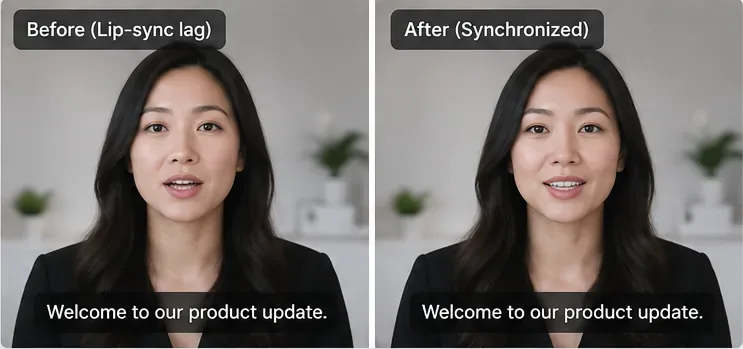
After you have fixed pacing, source audio, and the lip-sync mode, a small consistent offset may still remain. If the mouth is early or late by the same amount throughout the clip, a final timeline adjustment is often cheaper and more predictable than another full generation.
Move the audio track by a few frames, preview plosive consonants such as p, b, and m, and check at least three points: the beginning, middle, and end. If the offset changes over time, do not keep nudging the whole track; return to pacing or segment duration because you are dealing with drift, not a fixed offset.
A final editor is best for a small constant offset. Progressive drift should be fixed earlier by changing speech duration or regenerating the affected segment.
How should you control pauses in ElevenLabs?
Pause handling depends on the model. ElevenLabs says Eleven v3 uses audio tags and punctuation rather than SSML break tags. Multilingual v2, Flash v2, and Flash v2.5 support SSML-style <break time="1.5s" /> pauses up to three seconds. The company warns that excessive break tags can cause speed changes, noise, or other artifacts.
Recommendation: use the minimum pause markup needed to express the script naturally. If a translated sentence needs many artificial pauses just to fit the visual timing, rewrite the sentence or split the shot instead.
What if the custom HeyGen avatar itself has weak lip sync?
If every generated line is unreliable—even with clean audio—the problem may be the avatar training footage rather than the current voice file. HeyGen’s Digital Twin guidance says the training footage must include the person actually speaking because audio and video are crucial for the system’s lip-sync capability. The company recommends at least 1080p and 30 fps, bright even lighting, and clear audio without strong echo or external noise.
Action: if the avatar consistently struggles across multiple clean scripts, consider retraining it with better source footage before spending time micro-adjusting every generated clip.
Fast talking-head video from approved ElevenLabs narration
Generate ElevenLabs audio first, then upload it to HeyGen Studio
Simple workflow, but the final avatar still requires a generation pass
Translate a simple front-facing source video
HeyGen Video Translation with Speed
Lower credit cost than Precision, but less suited to complex shots
Translate side profiles, occlusions, or multi-speaker footage
HeyGen Video Translation with Precision
Higher credit use in exchange for higher lip-sync fidelity
High-quality translated audio without mouth animation
ElevenLabs Dubbing
Dubbing preserves timing and voice characteristics but does not itself lip-sync
Keep speech and lip sync inside ElevenLabs
ElevenLabs Image & Video with a dedicated lip-sync model
Model availability, cost, and regional restrictions vary
Only a small fixed offset remains
Shift audio in a normal video editor
Fast and cheap, but only appropriate for constant offset—not drift
Final troubleshooting checklist
Confirm whether the error is constant offset, progressive drift, or word-level mismatch.
Approve the ElevenLabs audio before generating the avatar video.
Avoid extreme speech-speed changes solely to force the line into a duration.
Use the model-appropriate pause controls and avoid excessive pause markup.
Trim obvious lead-in silence and check the first spoken consonant.
Use shorter scenes when drift increases over time.
Choose HeyGen Speed for simple front-facing footage and Precision for difficult angles or occlusion.
Use Dynamic Duration only when changing total runtime is acceptable.
Remember that ElevenLabs Dubbing alone does not provide mouth animation.
Use a final timeline nudge only for a consistent offset that does not grow across the clip.
Bottom line
The best fix for lip-sync lag is not a single setting. It is a diagnosis. If the whole clip is off by the same amount, correct the offset. If drift grows over time, fix pacing or segment duration. If only difficult angles fail, use a stronger lip-sync mode. If you are using ElevenLabs Dubbing, add a separate lip-sync stage because Dubbing itself does not animate the mouth.
For most HeyGen + ElevenLabs workflows, the lowest-friction path is to finalize clean speech in ElevenLabs, test a short segment in HeyGen, choose Speed or Precision based on the source footage, and reserve external timeline correction for the small constant offsets that remain after generation.