Home
» AI Agents
»
How to Set Up a Private Local AI Knowledge Base for Personal Documents
How to Set Up a Private Local AI Knowledge Base for Personal Documents
The simplest practical answer: run the language model, embedding model, document index, and chat interface on your own computer. A straightforward stack is Ollama for local model serving plus self-hosted AnythingLLM for document ingestion, retrieval-augmented generation (RAG), and chat. Keep the vector database local, use persistent storage, avoid cloud model providers, and test that answers are actually grounded in your files.
Illustrative example: throughout this guide, imagine Jordan is organizing a private collection that includes household manuals, insurance PDFs, meeting notes, a personal finance reference, and a few project reports. Jordan is fictional. The files, questions, answers, and outcomes described below are examples for explaining the workflow, not test results or a testimonial.
This guide uses a four-step setup so the privacy boundary stays understandable. It is appropriate for one person or a small trusted household that wants local document search and question answering. If you need enterprise identity controls, multi-node availability, centralized auditing, or regulatory guarantees, you should treat this as a starting architecture rather than a complete compliance solution.
What “private local AI knowledge base” actually means
A local knowledge base is not the same thing as training a model on your documents. In a typical RAG workflow, the system extracts text from your files, splits the text into chunks, converts those chunks into numeric embeddings, stores them in a vector database, retrieves relevant chunks for each question, and sends only those chunks to the language model as context.
AnythingLLM’s current documentation describes both attached-document and embedded-document workflows. Attached documents can place full text into a chat when the context window permits, while RAG retrieves smaller relevant pieces from embedded documents. Its current local LanceDB documentation also states that the default on-instance LanceDB keeps document text and embeddings inside the AnythingLLM application. See the AnythingLLM document workflow documentation and AnythingLLM LanceDB documentation.
Component
Role in the local stack
Privacy-sensitive choice
Ollama
Runs the chat model and, optionally, an embedding model on your machine
Use a local model, not a cloud-hosted model endpoint
AnythingLLM
Provides the UI, document management, chunking, RAG, and workspace organization
Run it locally and keep its storage directory persistent
Embedding model
Turns document chunks and queries into vectors for semantic retrieval
Use a local embedder if documents must not be sent to an external service
LanceDB
Stores vectors used to find relevant passages
Keep the default local instance unless you intentionally need a remote database
Original files and backups
Remain the authoritative source
Protect them with normal OS access controls, encryption, and backups
Before you begin: decide the privacy boundary
The key question is not “Is the app local?” It is “Which components can send document text or prompts off the machine?” A local UI can still be configured to call a cloud LLM, a cloud embedding API, web search, or remote tools. For a private setup, keep the LLM, embedder, and vector database local unless you have deliberately accepted the data-sharing implications of an external provider.
AnythingLLM documents anonymous telemetry and provides a way to disable it. Its privacy documentation also distinguishes removing a document from one workspace from deleting it from the document library entirely. For full erasure within AnythingLLM, the current documentation says to delete the document from My Documents, which removes the parsed source and cached embeddings as well as workspace references. Review the AnythingLLM privacy and data handling documentation before adding sensitive material.
You also need enough memory for your chosen local model. There is no single correct model size because usable speed depends on CPU, GPU, RAM or VRAM, quantization, context length, and the number of documents retrieved. Start with a model that fits comfortably rather than choosing the largest model your machine can barely load.
Step 1: Install Ollama and prepare local chat and embedding models
Install Ollama using the current instructions for your operating system. Ollama is available for macOS, Windows, and Linux, and its local API is served on port 11434 by default. The official Ollama quickstart is the best source for current installation and command syntax.
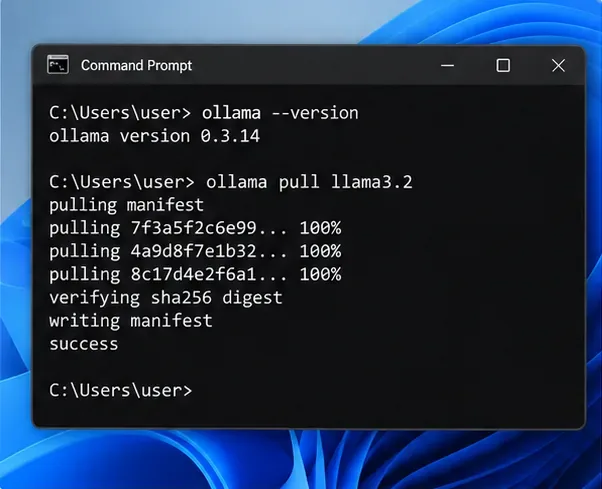
After installation, pull a chat model that suits your hardware. The exact model is deliberately not fixed here because the model catalog changes and hardware requirements vary. A typical command has this form:
ollama pull <chat-model-name>
For RAG, you also need an embedding model. Ollama’s current embeddings documentation, checked in September 2026, lists models such as embeddinggemma, qwen3-embedding, and all-minilm as recommended embedding choices. You can review the current list in the Ollama embeddings documentation. For example:
ollama pull embeddinggemma
Do not use a normal chat model as an embedding model just because it appears in a model dropdown. AnythingLLM’s current Ollama embedder documentation explicitly warns that Ollama can expose both chat models and embedding models in the same list. Use an actual embedding model for document indexing. See the AnythingLLM Ollama embedder setup.
Illustrative terminal flow for pulling a local model with Ollama. The version number visible in this example is not a current-version recommendation; verify the installed version with the official Ollama documentation.
For Jordan’s fictional setup, the goal at this stage is simple: both generation and embedding should be possible without sending the household documents to a remote API.
Step 2: Run AnythingLLM locally with persistent storage and connect it to Ollama
AnythingLLM offers desktop and self-hosted options. This guide uses the Docker route because the storage boundary is explicit and easy to back up. Its current local Docker documentation instructs users to pull the image and emphasizes that persistent storage is required or application data can be lost when the container is recreated. It also states that the web application is available at http://localhost:3001. Use the official AnythingLLM local Docker guide rather than copying an old command from a forum.
docker pull mintplexlabs/anythingllm:latest
When you run the container, preserve AnythingLLM’s storage by mounting a host directory to /app/server/storage. The vendor documentation specifically calls out the persistent mount as necessary. Keep that storage directory on a disk that is included in your backup plan.
Then configure the LLM provider as Ollama. If AnythingLLM is running directly on the host, the documented default Ollama address is http://127.0.0.1:11434. If AnythingLLM is running inside Docker while Ollama runs on the host, do not use localhost from inside the container. AnythingLLM’s Docker networking documentation says to use http://host.docker.internal:11434 on supported desktop platforms; on Linux it documents 172.17.0.1 for this host connection pattern. See AnythingLLM’s localhost networking note and Ollama LLM configuration.
In settings, choose Ollama as both the LLM provider and, if desired, the embedding provider. Select the chat model for generation and the embedding model for indexing. Keeping those roles separate prevents a common configuration mistake.
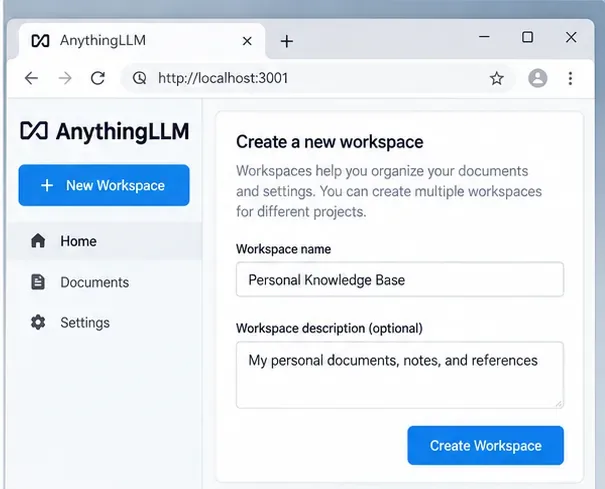
Self-hosted AnythingLLM is documented to run at localhost:3001. A dedicated workspace gives one document collection a clear purpose and keeps unrelated material out of the retrieval pool.
Jordan creates a workspace called “Personal Knowledge Base” and avoids connecting cloud model providers. That makes the intended boundary easy to audit later: local UI, local LLM, local embeddings, local vectors.
Step 3: Add documents, choose RAG versus full-text attachment, and verify ingestion
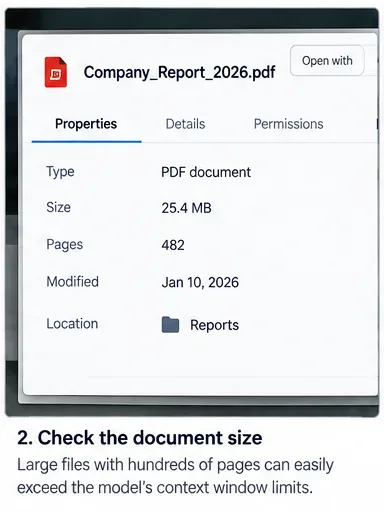
Do not begin by uploading your entire drive. Start with a small, representative set of documents whose contents you know well. This gives you a controlled way to detect extraction or retrieval problems before the index grows.
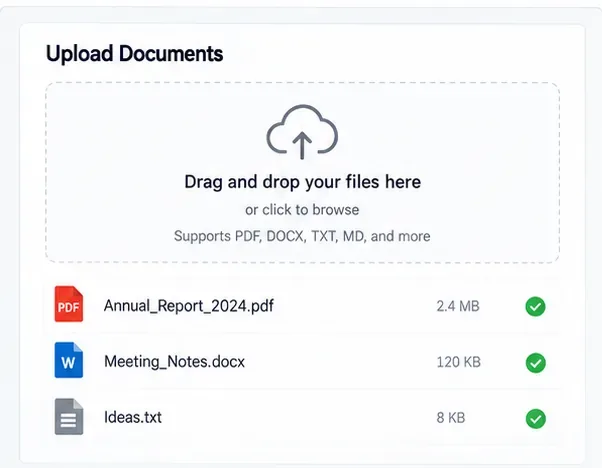
For Jordan’s example, a useful first batch might include one searchable PDF, one DOCX file, and one plain-text or Markdown note. If scanned PDFs contain images instead of selectable text, confirm that your chosen document-processing path actually extracts the needed text; a file that looks readable to you can still produce an empty or poor text representation for RAG.
AnythingLLM currently supports two broad document behaviors:
Attached documents: useful when the full text fits inside the model’s context window and you want the model to see the complete file for that thread.
Embedded documents with RAG: useful for larger or reusable collections. The system chunks the content, embeds it, and retrieves relevant portions for a question.
The current AnythingLLM document guide notes that documents embedded into a workspace become available across threads in that workspace. That is convenient, but it also means workspace membership is part of your privacy model in multi-user deployments. Keep personal workspaces separate from any shared workspace.
Example ingestion view with several document types. Use a small known-good batch first, then verify extraction and indexing before adding a large archive.
After embedding, ask a question whose answer appears in only one file. Then ask for a detail that does not appear in any file. The first question tests retrieval; the second tests whether the model admits uncertainty instead of inventing an answer.
What to tune if retrieval is weak
AnythingLLM exposes workspace-level RAG controls such as search preference, maximum context snippets, and document similarity threshold. Its documentation recommends starting with workspace settings rather than assuming the base model is the problem. Increasing retrieved context can help when the answer spans several sections, but sending too many chunks can also add irrelevant text and consume context-window capacity.
If you change embedding models after indexing, re-embed the affected documents so the stored vectors and query vectors come from the same embedding space. Mixing embeddings from different models is not a meaningful retrieval strategy.
Step 4: Test grounded answers, lock down privacy, and back up the knowledge base
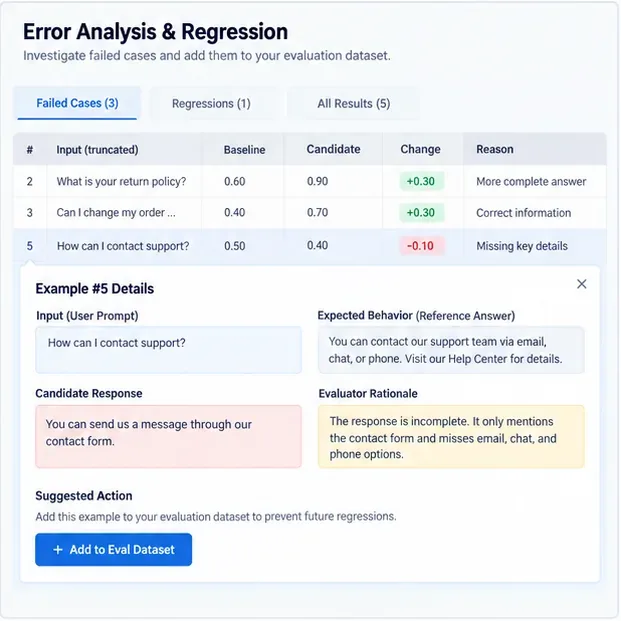
A knowledge base is useful only if you can detect when it is wrong. Build a small evaluation list from facts you can verify directly. For example:
Ask for a date, amount, product model, or policy clause that appears verbatim in one document.
Ask a cross-document question that requires facts from two files.
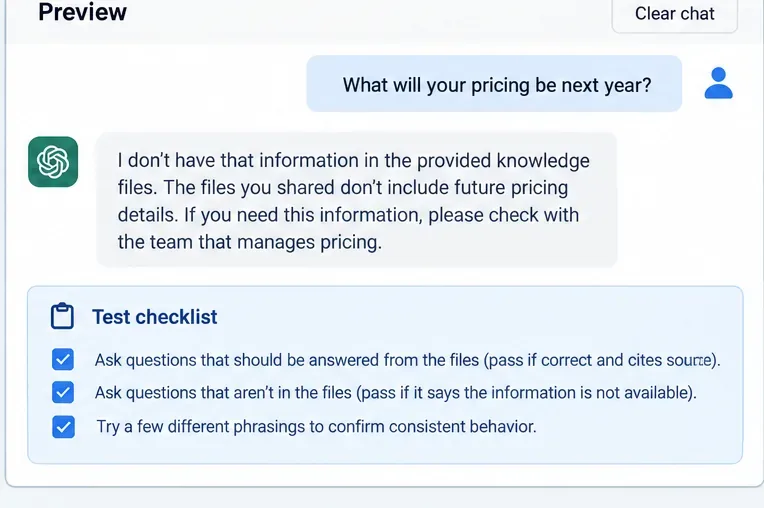
Ask a deliberately unanswerable question and check that the response does not fabricate a source.
Ask the same question with different wording to see whether retrieval is stable.
Open the source document and confirm every high-stakes claim manually.
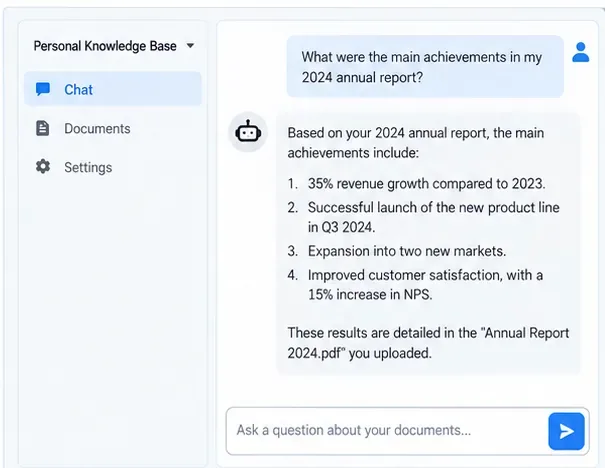
Hypothetical document-grounded answer used to illustrate the verification step. The figures shown are fictional example content; in a real knowledge base, verify important claims against the original file.
For Jordan, a good acceptance rule is not “the answer sounds right.” It is “the answer matches the source, includes the necessary context, and fails safely when the source does not contain the information.” That rule matters especially for taxes, insurance, legal documents, medical records, or financial decisions.
Keep the setup private after it works
Local inference reduces data exposure, but privacy still depends on configuration. Use these controls as a practical checklist:
Keep the AnythingLLM service bound to the local machine or a trusted private network unless remote access is intentionally secured.
Do not add cloud LLM, cloud embedding, web-search, browser, or agent integrations to a workspace containing sensitive material unless you understand what those integrations transmit.
Disable anonymous telemetry if your privacy policy requires zero product telemetry.
Use your operating system’s disk encryption and account permissions. A local vector database is still readable data if an attacker gains access to the machine.
Delete sensitive files from the document library, not only from one workspace, when you intend full erasure inside AnythingLLM.
Patch Ollama, AnythingLLM, Docker, and the host OS. “Offline” should not mean “never maintained.”
Back up the parts that are hard to recreate
The original documents remain your source of truth, but the AnythingLLM storage directory contains the application database, parsed documents, vector data, and configuration needed to avoid rebuilding everything after a disk failure. Back up both the original document folder and AnythingLLM’s persistent storage. If you use Docker volumes instead of a bind-mounted host directory, follow Docker’s official volume backup and restore documentation.
Test restoration, not just backup creation. A backup is only proven when you can restore it to another directory or machine, start the local stack, open the workspace, and retrieve a known fact correctly.
When this setup is a good fit—and when it is not
This architecture is a strong fit when your priority is keeping personal documents on hardware you control, you are comfortable running local software, and you want semantic search plus natural-language answers across a modest document library. It is also useful when internet access is unreliable or when you want predictable local costs after downloading the models.
It is less suitable if your computer cannot run an adequate local model, you need seamless access from many devices outside your home network, or you require enterprise-grade identity, auditing, legal holds, centralized key management, or guaranteed support. In those cases, the right answer may be a managed private deployment or an enterprise RAG platform rather than a single-PC setup.
A compact setup checklist
Install Ollama and verify local model inference.
Install a dedicated embedding model such as one listed in Ollama’s current embeddings documentation.
Run AnythingLLM locally with persistent storage.
Connect AnythingLLM to the local Ollama endpoint using the correct host address for your deployment method.
Use a local vector database such as AnythingLLM’s default LanceDB when the goal is local-only document retrieval.
Create a narrowly scoped workspace.
Start with a few known documents and verify extraction.
Use RAG for large reusable collections and full-text attachment only when the document comfortably fits the model context.
Test answerable and unanswerable questions before trusting the system.
Disable unnecessary external integrations and telemetry according to your privacy requirements.
Back up both source documents and persistent application storage, then test a restore.