If you need a small business invoice that looks professional but does not require paid accounting software, Excel is a practical place to start. The useful part is not just the layout: a good invoice workbook should calculate line totals, subtotal, sales tax, and the final amount due without making you retype arithmetic every time.
Illustrative example: throughout this article, imagine a fictional design business called GreenLeaf Studio preparing an invoice for a client. The business name, numbers, tax rate, and results are only examples to show how the template can work. They are not real customer data, test results, or tax advice.
Where to get a free Excel invoice template
As checked in September 2026, Microsoft still provides free Excel templates, including invoice templates, through Microsoft Create and Excel for the web. Microsoft Support explains that you can start from a free template rather than a blank workbook, and it specifically lists invoices among the available template types. See Microsoft's free Excel for the web templates guidance and the broader Microsoft pre-built templates documentation.
The safest workflow is to download or open an official invoice design you like, then add the tax calculation layer described below. Microsoft templates vary, so do not assume that every invoice template already contains the same sales tax logic.
What an automated small business invoice should calculate
For a simple invoice in which all taxable line items use one applicable combined sales tax rate, the workbook only needs a few dependable calculations:
- Line amount: quantity multiplied by unit price.
- Subtotal: the sum of all line amounts before tax.
- Sales tax: subtotal multiplied by the tax rate.
- Total due: subtotal plus sales tax.
Excel formulas are well suited to this because Microsoft recommends keeping values that may change, such as a percentage or other constant, in their own cells and referencing those cells from formulas. That makes the workbook easier to maintain than typing a tax percentage directly into every formula. See Microsoft's overview of formulas in Excel.
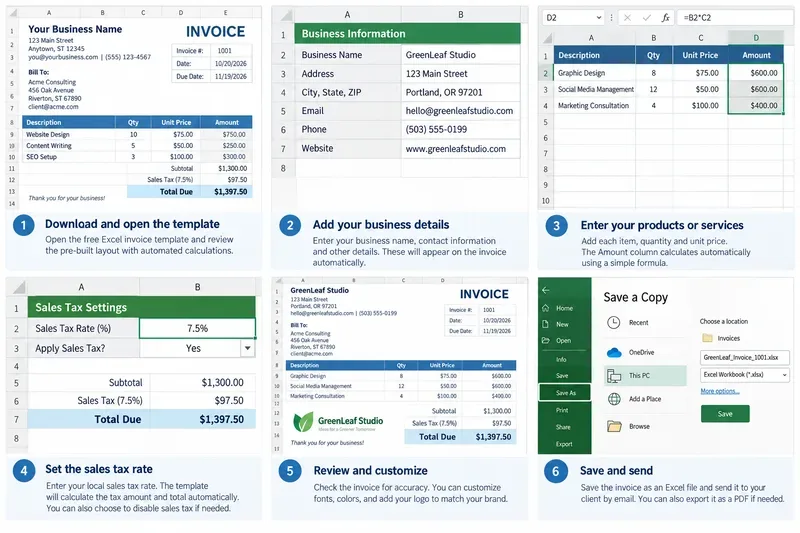
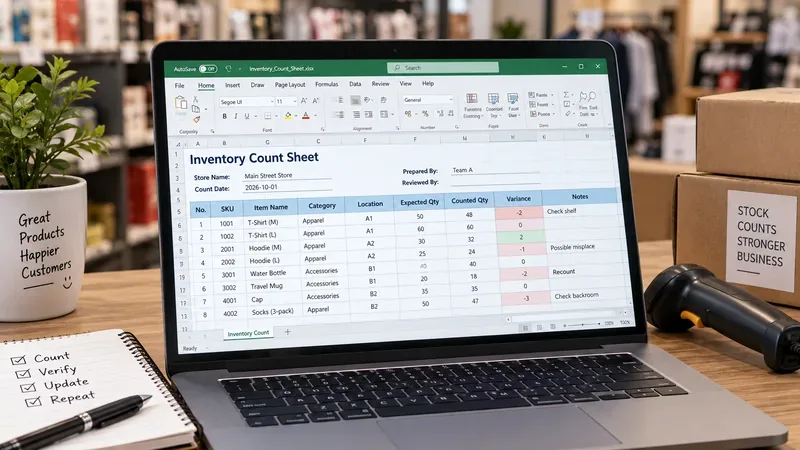
Example invoice workflow showing line items, a dedicated sales tax rate field, automatically calculated subtotal and tax, and a final review before saving the workbook.
A simple formula layout that scales as you add line items
For GreenLeaf Studio, suppose the invoice has columns named Description, Qty, Unit Price, and Amount. Converting the line-item area to an Excel Table makes the design more resilient because the table can expand as new rows are added. Microsoft calls formulas that use table and column names structured references. Its documentation notes that these references adjust when table data changes. See Microsoft's structured references documentation.
If the table is named InvoiceItems, the Amount column can use:
=[@Qty]*[@[Unit Price]]
Excel Tables typically copy a calculated-column formula down the column automatically. The subtotal can then use:
=SUM(InvoiceItems[Amount])
Put the sales tax rate in one dedicated cell, such as H2, and format that cell as a percentage. If the illustrative rate is 7.5%, enter 7.5% rather than 7.5. The example tax formula is:
=ROUND(SUM(InvoiceItems[Amount])*$H$2,2)
The total due can be calculated as the subtotal plus the tax amount. A clean invoice often keeps those two values in separate summary cells so the customer can see exactly how the final number was formed.
Illustrative example with GreenLeaf Studio
Assume the fictional invoice contains three services totaling $1,300 before tax. Using an invented 7.5% demonstration rate, the tax formula returns $97.50 and the total due becomes $1,397.50. Again, 7.5% is used only to explain the spreadsheet logic. It is not a recommended or verified rate for any real address.
| Invoice element | Example value or formula | Why it matters |
|---|
| Tax rate | H2 = 7.5% | One editable input instead of a hard-coded percentage inside multiple formulas |
| Line amount | =[@Qty]*[@[Unit Price]] | Updates when quantity or unit price changes |
| Subtotal | =SUM(InvoiceItems[Amount]) | Expands with the Excel Table |
| Tax | =ROUND(SUM(InvoiceItems[Amount])*$H$2,2) | Calculates tax from the current subtotal and tax-rate cell |
| Total due | Subtotal + Tax | Keeps the final amount clear for the customer |
The sales tax rate is the part you must verify
Spreadsheet automation can perform arithmetic, but it cannot decide by itself which sales tax rate is legally correct for your transaction. In the United States, rates and taxability can depend on the state, local jurisdiction, transaction location, and the product or service being sold.
The Streamlined Sales Tax Governing Board maintains a state-by-state sales tax resource table that links to state revenue departments, rate pages, and tax lookup tools where available. Its table also shows that many states have local jurisdiction taxes in addition to the state rate. Use the applicable state or local tax authority as the source of truth for a real invoice.
For the GreenLeaf Studio example, the correct process would be: determine whether the services are taxable in the relevant jurisdiction, verify the applicable combined rate from the appropriate tax authority, then enter that verified percentage into the invoice's tax-rate cell. The spreadsheet should calculate the number; it should not invent the rule.
When one tax-rate cell is enough
A single tax-rate cell is appropriate for a relatively simple invoice when every taxable line on that invoice uses the same rate. That is common enough to make the layout useful for many small businesses, especially when invoices contain a small number of similar products or services.
However, do not force this design onto a more complicated sale. You may need line-level tax logic or dedicated tax software if:
- some items are taxable and others are exempt;
- different items are taxed at different rates;
- you sell across multiple jurisdictions with different sourcing rules;
- you need exemption-certificate handling;
- you collect tax in several states and need filing or nexus tracking.
In those cases, Excel can still be useful for presenting the invoice, but a single percentage multiplied by the entire subtotal may produce the wrong tax amount.
Fields worth keeping in the invoice template
A reusable small business invoice should be easy for both you and your customer to understand. At minimum, reserve clear spaces for:
- business name, mailing address, email, phone number, and optional logo;
- customer name and billing address;
- invoice number, invoice date, and due date;
- description, quantity, unit price, and line amount;
- subtotal, sales tax rate, sales tax amount, and total due;
- payment instructions and any relevant purchase-order or project reference.
For GreenLeaf Studio, the business details remain unchanged from invoice to invoice, while the customer, dates, services, and verified tax rate change. That is why it is useful to separate permanent business information from transaction-specific cells.
Make the workbook reusable without breaking the formulas
Once the invoice is working, save a clean master copy that contains no customer-specific information. Duplicate that file for each new invoice. If you prefer a formal Excel template file, desktop Excel also supports saving workbooks as templates; Microsoft documents this workflow in its Excel support materials.
Keep formula cells protected from accidental typing if multiple people prepare invoices. Also consider data validation for fields that should accept only specific inputs, such as dates, positive quantities, or a list of payment terms. Even without complex automation, these small controls reduce avoidable invoice errors.
A practical accuracy check before sending
Before exporting the invoice to PDF or emailing it, confirm the arithmetic and the business facts separately. For the fictional GreenLeaf Studio invoice, the checklist would look like this:
- Do quantity × unit price calculations match each line amount?
- Does the subtotal equal the sum of all line amounts?
- Was the tax rate verified for the real transaction location and item type?
- Does the tax formula reference the dedicated tax-rate cell rather than an old hard-coded number?
- Does the total equal subtotal plus tax?
- Are the invoice number, date, due date, customer name, and payment instructions correct?
This separation matters: Excel can reliably apply a formula, but the person preparing the invoice is still responsible for supplying the correct tax inputs.
Free template, but keep the tax logic transparent
A free Excel invoice template is most useful when it stays simple enough to audit. Start with an official Microsoft invoice template or another workbook you trust, put the sales tax rate in one clearly labeled input cell, use formulas that expand with your line-item table, and verify the rate through the relevant tax authority before sending a real invoice.
For a small business with straightforward tax treatment, that approach gives you a reusable invoice that is fast to update and easy to explain to a customer. If your sales tax obligations involve multiple jurisdictions, mixed taxability, exemptions, or filing automation, treat this spreadsheet as an invoice presentation tool rather than a substitute for professional tax guidance or a dedicated tax system.