Home
» AI Agents
»
Simple Onboarding Training Presentation Template for New Hires: A Practical Deck That Supports a Strong Start
Simple Onboarding Training Presentation Template for New Hires: A Practical Deck That Supports a Strong Start
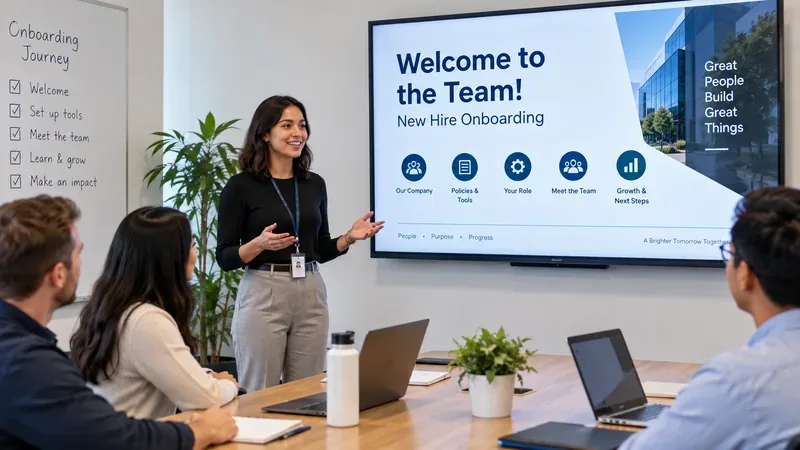
A simple onboarding training presentation should do one thing especially well: help a new hire leave the session knowing what matters now, what happens next, and where to get help. A useful deck is not a complete employee handbook and it is not the entire onboarding program. It is a structured starting point that makes the first days easier to navigate.
That distinction matters. The U.S. Office of Personnel Management (OPM) describes orientation as a shorter-term process focused on preparing people for their first days, while onboarding is a broader process that helps employees acclimate and become productive members of an organization. OPM also notes that onboarding can continue well beyond the first day. See the official OPM explanation of orientation versus onboarding.
A clear onboarding presentation gives new hires a map of what they need to know now, while leaving deeper training and role practice for follow-up sessions.
What a good onboarding presentation should accomplish
By the end of a first onboarding presentation, a new employee should be able to explain the organization's purpose in plain language, describe their immediate role, identify the people or channels that can help them, and name the highest-priority tasks for the first few days. They should also know where official policies, required training, benefits information, and technical support live.
Those are better quality signals than asking whether the slides looked polished. A visually attractive deck can still fail if a new hire finishes the session without knowing what to do next. Likewise, a modest deck can work well if it leads to clear action, useful questions, and fewer avoidable handoff problems.
OPM's current orientation guidance says effective orientation should help employees understand the organization's mission, culture, structure, systems, resources, duties, responsibilities, and information needed to perform effectively. That is a useful boundary for deciding what belongs in your opening presentation. The source is OPM's Hiring Reform orientation guidance.
A simple 10-slide onboarding training presentation template
The structure below is intentionally compact. It works best for a general company or team welcome session of roughly 30 to 60 minutes, followed by role-specific onboarding. If your organization has regulated training, union requirements, specialized safety procedures, or complex systems, use this deck as the entry point rather than the full curriculum.
Slide
What to include
How to know it worked
1. Welcome and session goals
New hire name or cohort, facilitator, agenda, and what the employee should know by the end.
The employee understands the purpose of the session and what will be covered elsewhere.
2. Why the organization exists
Mission, customers or stakeholders, core products or services, and one concrete example of impact.
The employee can summarize what the organization does without repeating a slogan.
3. How the team fits
A simple organizational view, the new hire's team, key partners, and escalation paths.
The employee knows who owns the work around them and whom to contact for common needs.
4. Your role and near-term expectations
Primary responsibilities, first-week priorities, manager expectations, and how success will be discussed.
The employee can name the first meaningful outcomes expected from the role.
5. First-week plan
Key meetings, introductions, setup tasks, required reading, training, and one or two useful early assignments.
The employee knows what to do after the presentation instead of waiting for instructions.
6. Tools and access
Systems the employee will use, where access requests are tracked, support contacts, and secure sign-in expectations.
The employee can distinguish between a missing-access problem and a training problem.
7. Policies, safety, and required training
Only the policies that require immediate awareness, plus links to the authoritative source and due dates for mandatory training.
The employee knows where the full policy lives and which actions have deadlines.
8. How the team works
Communication channels, meeting norms, documentation expectations, working hours or coverage rules, and decision-making practices.
The employee knows which channel to use for routine work, urgent questions, and formal documentation.
9. People and support
Manager, buddy or mentor, HR, IT/help desk, facilities, security, learning resources, and any role-specific experts.
The employee can name a first contact for the most likely questions.
10. What happens next
Next check-in, first 30-day milestones, follow-up training, feedback channel, and a short recap.
The employee leaves with a visible next step and a scheduled point to review progress.
Make the deck support onboarding instead of trying to replace it
A common design mistake is to pack the presentation with every policy, every benefit detail, every process map, and every system screenshot. That creates a large deck without necessarily creating understanding. Some information changes frequently; some is only relevant when the employee reaches a specific task; and some requires practice rather than explanation.
Use the presentation for orientation and navigation. Put authoritative details in the systems that own them. For example, link to the HR portal for benefits, the policy repository for policy text, the learning system for mandatory courses, and the service desk for technical requests. This reduces the chance that a saved onboarding deck becomes an outdated source of truth.
The NIH onboarding page offers a practical example of this separation: new employees attend orientation, contact their supervisor, complete remaining mandatory training, confirm system access, and continue benefits tasks after orientation. The page was last updated June 9, 2026. See the NIH Office of Human Resources onboarding guidance.
How to evaluate whether the presentation is actually good
Look for observable understanding, not just completion
At the end of the session, ask the new hire to summarize their next three actions, identify where official information is stored, and explain whom they would contact for a role question, an HR question, and a technical problem. This is not a test; it is a quick way to discover whether the deck created a usable mental map.
Check for action after the session
Within the first day or two, the employee should be able to move into planned tasks with limited avoidable waiting. If they repeatedly ask where to find links already discussed, do not assume they were inattentive. The presentation may have shown too much information at once, used unfamiliar terminology, or failed to provide a simple reference page.
Track recurring questions
Repeated questions are useful feedback. If several new hires ask the same thing, consider adding one concise slide, improving the wording, or moving that information earlier. If only one role asks the question, a role-specific follow-up may be better than expanding the company-wide deck.
Ask managers whether the handoff is working
A good onboarding presentation should make the manager's next conversation easier. The manager should not have to rebuild the same basic context from scratch. At the same time, the deck should not attempt to replace manager involvement. OPM's onboarding model emphasizes that the process extends beyond orientation and includes continued integration, expectations, support, and development.
When you should change the template
Change the deck when evidence shows that the current structure is producing confusion or unnecessary friction. Useful triggers include new hires missing the same first-week task, confusion about who owns a process, outdated screenshots or links, policy changes, organizational restructuring, or feedback that role-specific content is being buried under generic material.
Another reason to change the approach is audience diversity. A single deck may work for a small group of employees entering similar roles, but it becomes less effective when the audience spans office staff, field teams, managers, interns, contractors, or different countries. In that case, keep a short shared core and create separate modules for the content that actually differs.
Remote and hybrid onboarding also needs different delivery choices. A slide that says “ask the person next to you” may not translate to a distributed team. Add explicit communication channels, time-zone norms, virtual introductions, and remote support paths instead of assuming employees will absorb those practices informally.
Presentation design choices that improve usability
The template should be easy to scan and easy to reuse. Use one idea per slide where practical, short headings that state the point, consistent placement of titles, and enough white space to separate instructions from background information. Avoid using color alone to indicate status or priority.
If you build the deck in PowerPoint, Microsoft recommends using accessible templates and built-in layouts, giving every slide a unique descriptive title, adding alt text to meaningful visuals, maintaining logical reading order, and using sufficient contrast. Microsoft's current support guidance applies to Microsoft 365 and recent PowerPoint releases; see Microsoft Support's PowerPoint accessibility guidance.
Accessibility is also a quality issue for everyone in the room. Descriptive titles and predictable layouts make it easier to revisit the deck later. Alt text and correct reading order support people using screen readers. Captions or transcripts should accompany training videos when needed. If the deck is distributed as a file, run PowerPoint's Accessibility Checker before sharing.
What to leave out of the onboarding presentation
Passwords, secrets, or personal credentials: never place them in a reusable presentation.
Full policy text: summarize what the employee must know now and link to the controlled source.
Long software tutorials: teach the workflow in a separate hands-on session where the employee can practice.
Dense organizational charts: show only the relationships that help the new hire navigate work.
Every possible exception: explain the normal path first and identify where exceptions are handled.
Unverified performance claims: use facts that your organization can support and update.
Where a simple template reaches its limits
This template is a strong fit when you need a repeatable welcome deck for employees joining a team, department, small business, or general corporate onboarding program. It is less suitable as a complete solution for jobs that require formal certification, regulated safety instruction, complex equipment training, or detailed compliance assessment.
It also cannot solve an operational onboarding problem by itself. If accounts are not provisioned, managers are unavailable, required documents are missing, or ownership between HR, IT, and the hiring team is unclear, improving the slides will not fix the underlying handoff. In those cases, the presentation should point to a better process rather than hide the gap.
A final quality check before you reuse the deck
Can a new hire state what they should do immediately after the session?
Does every date-sensitive item link to an authoritative source instead of relying on copied text?
Are role expectations specific enough to guide a first conversation with the manager?
Are support contacts and escalation paths current?
Can the deck be understood without the presenter explaining every slide?
Does the deck separate company-wide information from role-specific training?
Have you checked titles, contrast, reading order, and alt text for accessibility?
Is there a scheduled follow-up so onboarding continues after orientation?
If those answers are mostly yes, the presentation is doing what a simple onboarding template should do: reducing uncertainty, creating a clear first path through the organization, and preparing the employee for the deeper learning that follows.