Home
» AI Agents
»
Printable Construction Job Estimate Template for Excel: A Practical Setup for Small Contractors
Printable Construction Job Estimate Template for Excel: A Practical Setup for Small Contractors
Short answer: a useful printable construction job estimate template in Excel should do two things at once: calculate the job consistently for you and present a clean, understandable price to the client. For a small contractor, that usually means a client-facing estimate sheet plus enough behind-the-scenes structure to track quantities, units, materials, labor, subcontractor costs, allowances, markup, taxes or fees when applicable, and exclusions.
The most important design choice is not color or branding. It is whether the workbook makes scope and pricing easy to audit before you send it. The Federal Trade Commission advises homeowners to get written estimates that include the work description, materials, completion date, and price. That is a useful minimum reference point for a contractor-facing template too, even though legal requirements vary by state and by project type. See the FTC guidance on home improvement estimates and contracts.
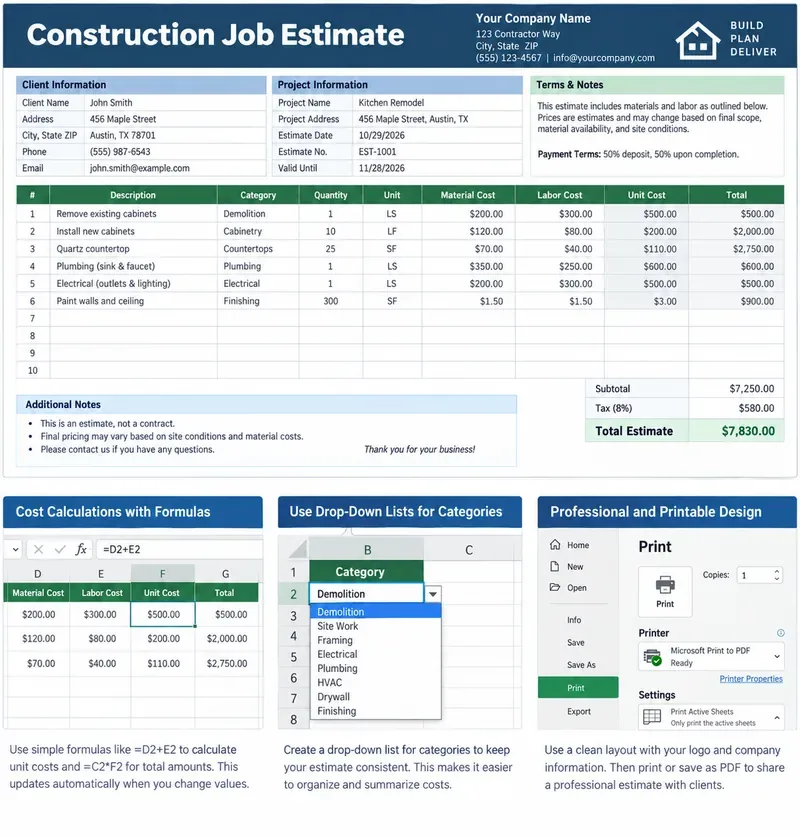
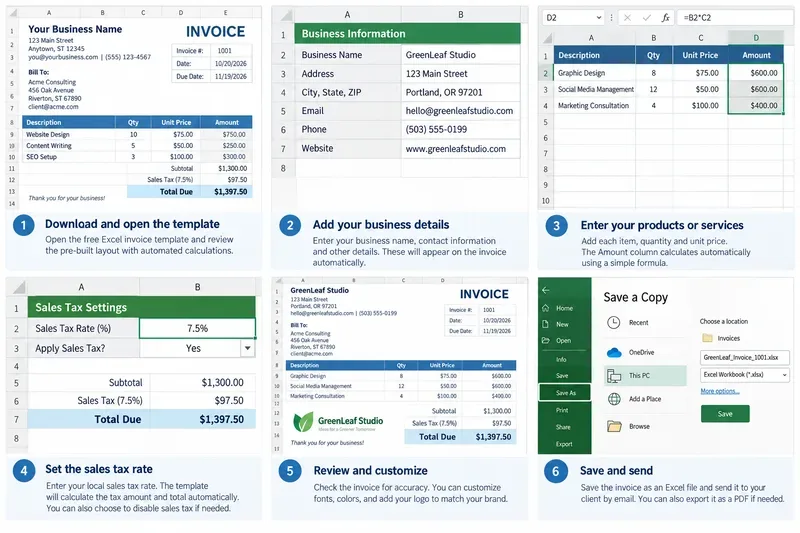
Illustrative construction estimate layout showing a client-ready sheet, formula-driven cost columns, category controls, and print preparation. The tax rate, payment terms, addresses, and prices shown are sample data only, not legal or pricing recommendations.
What should a construction estimate include before you send it?
Start with the information that lets both sides understand exactly what is being priced. A polished estimate does not need to be long, but it should make the project, scope, assumptions, and total easy to identify.
Section
What to include
Why it matters
Contractor details
Business name, phone, email, address, license number when applicable
Identifies who issued the estimate
Client and job details
Client name, job address, project name, estimate number, estimate date
Prevents estimates from being mixed between jobs
Scope
Specific tasks, materials, quantities, units, and important specifications
Reduces ambiguity about what is included
Cost lines
Labor, materials, equipment, subcontractor or other costs as appropriate
Makes the calculation traceable
Pricing adjustments
Markup, overhead recovery, allowances, discounts, taxes or fees when applicable
Action: before styling the workbook, fill in these sections with one real past job. If anything important has nowhere to go, the template is not ready.
Should labor and materials be shown separately?
For your internal costing, usually yes. Separating labor and material inputs makes it much easier to see why a job is expensive and to update only the part that changed. A cabinet installation, for example, may have a stable labor assumption while the supplier quote changes from week to week.
For the customer-facing estimate, it depends. Some contractors show separate labor and material amounts; others present one fixed line price per scope item. The right choice depends on your sales method, customer expectations, project type, and local requirements. There is no universal rule that every estimate must expose your internal cost build-up.
Action: keep labor and material in separate internal columns even if the printed estimate combines them into one line total.
What workbook structure works best for a small contractor?
A simple three-sheet workbook is usually enough:
Estimate: the clean sheet you print or export for the client.
Cost Setup: internal labor rates, supplier prices, standard markups, and recurring cost assumptions.
Lists: categories such as Demolition, Framing, Electrical, Plumbing, HVAC, Drywall, Painting, Finish Carpentry, Equipment, and Subcontractor.
This structure keeps the printable sheet readable without forcing you to duplicate common rates on every job.
As of September 2026, Microsoft documents Excel Tables and structured references across Microsoft 365 and current perpetual Excel releases. Structured references automatically adjust when rows are added or removed, which is useful when an estimate grows from ten line items to forty. See Microsoft's guide to structured references in Excel tables.
Action: turn the itemized cost area into an Excel Table instead of leaving it as an unstructured block of cells.
Which columns should the estimate table use?
A practical item table can be built with these columns:
Column
Example
Use
Category
Electrical
Groups similar work
Description
Install six recessed lights
Defines the scope item
Quantity
6
Number of units
Unit
EA
EA, LF, SF, HR, LS, and so on
Material Unit Cost
$42.00
Material cost per unit
Labor Unit Cost
$55.00
Labor cost per unit
Other/Subcontract Cost
$0.00
Outside or specialty cost
Line Cost
Formula
Calculated cost for that scope line
One simple line-cost formula is =Quantity*(Material Unit Cost+Labor Unit Cost)+Other Cost. If your labor is estimated by hours rather than by the same production unit as materials, use separate quantity or hour fields instead of forcing everything into one quantity column.
Action: choose a formula structure that matches how you actually estimate work. Do not make the spreadsheet look simpler by hiding a unit mismatch.
How do you keep categories and units consistent?
Use data validation drop-down lists. Excel can restrict a cell to a predefined list, which helps prevent variations such as “Elec,” “Electrical,” and “electric” from becoming three different categories in the same workbook. Microsoft documents list-based Data Validation for Excel for Microsoft 365, Excel 2024, Excel 2021, Excel 2019, and Excel 2016. See Microsoft's Data Validation instructions.
For units, a short controlled list might include EA, LF, SF, CY, HR, DAY, and LS. Use the abbreviations your team understands and keep a legend if the estimate goes directly to customers.
Action: add drop-downs to Category and Unit before you start copying the template for new jobs.
How should overhead, markup, profit, and contingency be handled?
These terms are related but not interchangeable. Direct cost is what you expect to spend on the job. Overhead is the business cost you need to recover, such as office expenses, insurance, vehicles, estimating time, and software. Markup or profit is part of the selling-price logic. Contingency is an allowance for defined uncertainty.
There is no defensible universal percentage that works for every contractor or every trade. Your percentage should come from your own cost history, business model, risk, and market—not from a generic template downloaded from the internet.
A useful workbook therefore stores percentages in named input cells rather than hard-coding them into dozens of formulas. For example, the summary section can reference one Markup Rate cell and one Contingency Rate cell.
Action: put pricing assumptions in visible input cells and label them clearly so a future edit does not require hunting through formulas.
Should the Excel estimate calculate sales tax automatically?
Only when you know which items are taxable and under which rules. Construction tax treatment can differ by jurisdiction, contract type, and whether the charge is for materials, labor, installed property, or another category. A template should not assume that one tax rate applied to the entire subtotal is universally correct.
If tax applies to your work, use an explicit tax-rate input and a clearly defined taxable base. If the rules are unclear, verify them with the relevant state or local tax authority or a qualified tax professional.
Action: never bury a default tax percentage inside the workbook without documenting where it came from.
How do you make the estimate printable without shrinking it into unreadable text?
Keep the client-facing sheet narrower than the internal costing sheet. A clean printed estimate usually needs the description, quantity, unit, price, and total—not every internal rate used to build that price.
Excel lets you define a print area so only the estimate region is printed. Microsoft notes that a print area can be one or more cell ranges and that only those ranges are printed until the area is changed or cleared. See Microsoft's print-area instructions.
Use Print Preview before sending the file.
Fit to one page wide only if the font remains readable.
Keep notes and exclusions on the same page when practical.
Use a repeating project or estimate number in the header or footer if your workflow depends on printed copies.
Export a PDF when you do not want the recipient editing formulas.
Action: test the template on both Letter and A4 paper if you work with clients who may use either format.
Is a construction estimate the same thing as a contract?
No, not automatically. An estimate is primarily a pricing and scope document, while a contract establishes enforceable terms between parties. However, an estimate can become part of an agreement depending on its wording, signatures, attached terms, and local law. That is why a spreadsheet template should not casually insert contractual language you do not intend to use.
The FTC notes that contract requirements vary by state. California provides a concrete example: the Contractors State License Board requires written contracts for certain home-improvement work and specifies details such as project descriptions, materials, pricing, schedules, and change orders. Those are California-specific rules, not a national template. See the California Contractors State License Board guidance.
Action: label the document “Estimate” unless you intentionally use it as part of your contract process, and verify the rules that apply where you work.
What details are often too vague in contractor estimates?
“Install cabinets,” “electrical work,” or “paint room” may be easy to type, but they leave too many questions unanswered. A better description identifies enough detail for the client and estimator to understand the price later.
For example, replace “paint living room” with a scope such as “prepare walls, patch minor nail holes, and apply two finish coats to approximately 550 square feet of wall surface; trim and ceiling excluded.” The point is not to write a specification manual in every cell. The point is to record the assumptions that materially affect price.
Action: read each line and ask, “Could another estimator reproduce what I meant six months from now?” If not, add detail.
What should be checked before sending the estimate?
Confirm the client name, job address, estimate number, and date.
Verify every quantity and unit.
Refresh supplier and subcontractor quotes that may have expired.
Check that all formula rows are included in subtotal calculations.
Review allowances and exclusions for ambiguous wording.
Verify markup, overhead, discount, tax, and contingency inputs.
Make sure the estimate validity period is intentional.
Open Print Preview and check page breaks, clipped columns, and font size.
Save a locked or PDF client copy and keep the editable workbook internally.
Action: use this checklist as the final section of your master workbook so it appears every time you create a new estimate.
Bottom line
The best printable construction job estimate template for Excel is not the one with the most formulas. It is the one that matches how your company prices work, makes scope clear, separates editable assumptions from calculations, and produces a readable client document without manual cleanup.
Build the template around real jobs, not imaginary perfect ones. Test it against completed projects, compare estimated costs with actual costs, and revise the categories, units, rates, and notes that repeatedly cause variance. That turns a basic spreadsheet into a practical estimating system for a small contracting business.