Home
» AI Agents
»
How to Stop Excel from Automatically Changing Numbers to Dates
How to Stop Excel from Automatically Changing Numbers to Dates
The most reliable fix is to format the destination cells as Text before you type or paste date-like numbers. If you only have a few values, prefix each one with an apostrophe. For CSV or other imported data, use Power Query and explicitly set identifier columns to Text before loading them into the worksheet.
This distinction matters because Excel has more than one kind of automatic conversion. Microsoft still documents the long-standing behavior in which entries containing a slash or hyphen can be interpreted as dates. At the same time, newer Excel releases include Automatic Data Conversion controls for several specific patterns. Those newer controls are useful, but they are not a universal off switch for every value that looks like a date.
Current status: The guidance below was checked against Microsoft Support in September 2026. Microsoft says the Text-format workaround applies across Excel for Microsoft 365, Excel 2024, Excel 2021, Excel 2019, and Excel 2016. The newer Automatic Data Conversion feature is documented for Excel for Microsoft 365 and Excel 2024, including current Mac editions.
Why Excel changes numbers to dates
Excel tries to infer the type of data you enter. That is convenient when you really mean a date, but it creates problems with identifiers such as part numbers, sports records, room codes, version-like values, or labels such as 1-2 and 11/53. Microsoft gives the example that typing 12/2 can become a date.
The exact result can depend on regional settings and the characters in the value. A slash-based entry may be interpreted differently in a month/day region than in a day/month region. That is why the safe solution is to tell Excel that the field is text before Excel has a chance to interpret it.
Action: If the values are identifiers rather than quantities you plan to calculate, treat the entire column as Text.
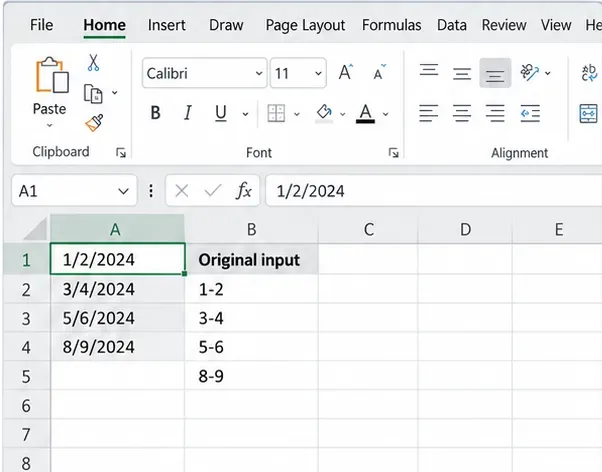
Example worksheet showing date-like entries in one column and their intended code forms in another. The exact date displayed after conversion can vary with regional settings.
Method 1: Format cells as Text before entering the values
This is the best general-purpose method for codes that contain slashes, hyphens, leading zeros, or other characters that might trigger automatic interpretation.
On Excel for Windows or Mac
Select the cells or the entire column that will contain the values.
Open the Format Cells dialog. On Windows, Ctrl+1 is the standard shortcut; on Mac, use the corresponding Format Cells shortcut available in your edition.
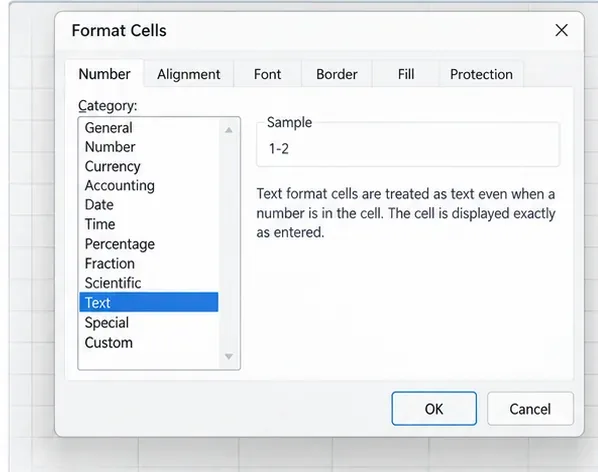
On the Number tab, choose Text, then confirm the dialog.
Type or paste the values after the Text format has been applied.
Microsoft describes Text format as treating cell content as text and displaying it as entered. This is different from merely changing how an already stored number looks.
Action: Preformat a reusable input column as Text before pasting product codes, account IDs, case numbers, or other date-like identifiers.
The Format Cells dialog with Text selected. Applying Text before data entry tells Excel to preserve future values as text instead of interpreting date-like strings.
On Excel for the web
Select the target cells, then use Home > Number Format > Text. Microsoft documents this as the web equivalent for preventing unwanted automatic number formatting.
Action: If you collaborate in a browser, set the shared input column to Text before teammates begin entering data.
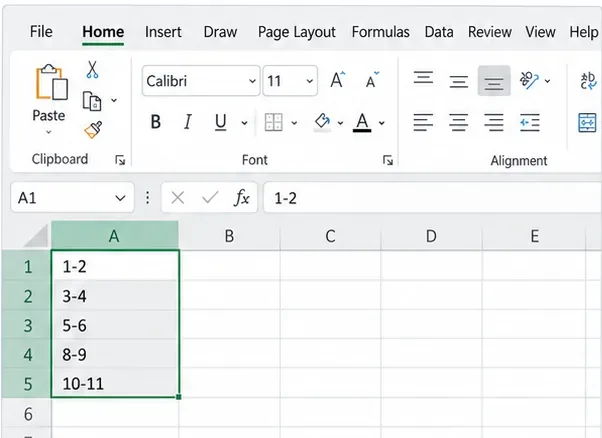
Hyphenated values remain unchanged after the destination cells are prepared for text input. This is the result you want for identifiers that only resemble dates.
Method 2: Use an apostrophe for a few one-off values
If you only need to enter a handful of values, typing an apostrophe before the value is faster than formatting an entire range. For example, enter '11-53 or '1/47. Microsoft says the apostrophe is not displayed in the cell after you press Enter.
This is usually cleaner than adding a leading space. Microsoft also notes that a leading space remains in the cell, while it recommends the apostrophe over a space when the data will be used with lookup functions such as MATCH or VLOOKUP.
Action: Use the apostrophe technique for occasional entries; use a Text-formatted column for bulk data or repeatable workflows.
Method 3: Understand what Automatic Data Conversion can—and cannot—disable
Newer Excel versions have an Automatic Data Conversion section. On current Excel for Windows, Microsoft documents it under File > Options > Data. The feature can control several conversions, including removing leading zeros, shortening very long numbers, interpreting values around the letter E as scientific notation, and converting a continuous string of letters and numbers to a date.
For the date-related option, Microsoft gives JAN1 as an example. Disabling Convert continuous letters and numbers to a date can keep that kind of value as text. However, Microsoft explicitly warns that values containing spaces or other characters, such as JAN 1 or JAN-1, may still be treated as dates.
That limitation is important. It explains why this setting does not contradict Microsoft's separate support page that says there is no general way to turn off the classic behavior for all slash- or hyphen-based date-like entries. For those values, Text formatting remains the reliable method.
Action: If you use Microsoft 365 or Excel 2024, review File > Options > Data > Automatic Data Conversion, but still preformat identifier fields as Text when they contain slashes or hyphens.
Common misconception: AutoCorrect is not the date-conversion switch
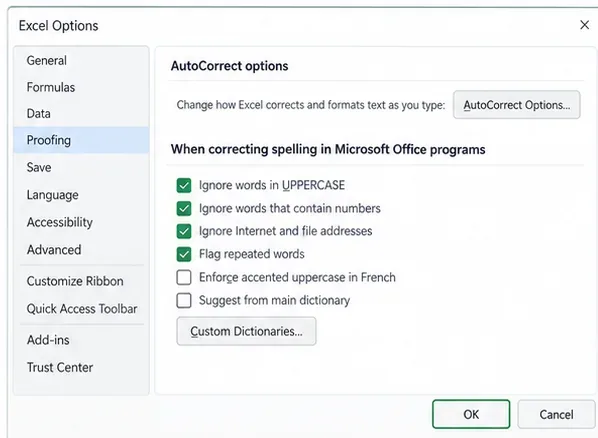
It is easy to assume that Proofing > AutoCorrect Options controls this behavior because AutoCorrect changes text as you type. Microsoft's current Excel documentation places the relevant newer conversion controls under the Data options, not the Proofing page.
Action: Do not spend time changing spelling or AutoCorrect settings to solve numeric date parsing. Use Text formatting, the Data options described above, or an import workflow that assigns the column type explicitly.
The Proofing and AutoCorrect page is a common wrong turn. Microsoft documents Excel’s Automatic Data Conversion controls under Data options, while Text formatting remains the broader fix for date-like identifiers.
Method 4: For CSV files, import the data instead of trusting automatic type detection
CSV files do not store Excel cell types or formatting. When Excel opens or imports the file, it has to interpret the text. That is exactly where IDs such as 3-4, 00123, or long numeric strings can be changed unintentionally.
For repeatable imports, use Data > From Text/CSV. In the preview, choose Transform Data to open Power Query. Select the identifier column, change its data type to Text, accept the replacement of the detected type if prompted, then use Close & Load.
Microsoft documents that Power Query automatically detects column types for unstructured sources such as CSV and text files. Explicitly changing an identifier column to Text prevents later refreshes from reinterpreting that field as a date.
Action: If a CSV is part of a recurring workflow, save the Power Query steps and refresh the query instead of opening the CSV directly each time.
If Excel has already converted the value, changing the format may not restore the original text
This is another common misunderstanding. Number formatting primarily changes how a stored value is displayed. Microsoft notes that number formats change appearance without changing the underlying value used for calculations. If Excel has already interpreted your input as a date value, switching the cell to Text afterward does not reliably reconstruct the original characters you typed.
For example, if an identifier was transformed into a date, Excel may now be storing a date serial value rather than the original string. The safe recovery source is the original file, clipboard data, system of record, or an immediate Undo action.
Action: If the conversion just happened, use Undo. If the workbook was already saved, re-import or re-enter the affected identifiers from a trustworthy source after preformatting the destination cells as Text.
Fractions are a special case
If 1/2 is supposed to be the numeric fraction one-half rather than an identifier, storing it as Text is usually the wrong choice because you may want to calculate with it. Microsoft recommends entering a zero followed by a space before a fraction, such as 0 1/2. Excel then keeps the value as a fraction rather than interpreting it as a date.
Action: Decide whether the entry is an identifier or a mathematical value. Use Text or an apostrophe for identifiers; use the fraction-entry method when you need arithmetic.
Which fix should you use?
Situation
Best approach
Why
Many codes such as 1-2, 3/4, or 11-53
Preformat the column as Text
Prevents Excel from interpreting future entries as dates.
One or two date-like identifiers
Prefix each value with an apostrophe
Fast and does not display the apostrophe in the cell.
JAN1-style strings in Microsoft 365 or Excel 2024
Review Automatic Data Conversion settings
The specific continuous letter-number conversion can be disabled.
Recurring CSV imports
Use Power Query and set the column type to Text
Makes the transformation repeatable on refresh.
A real mathematical fraction
Enter 0, a space, then the fraction
Keeps the value numeric and usable in calculations.
Value was already converted
Undo or restore it from the source
Changing display format does not necessarily recreate the original string.
What is verified, what depends on context, and what is not a universal fix
Verified: Microsoft recommends preformatting cells as Text to stop slash- and hyphen-containing entries from being automatically formatted as dates.
Verified: Prefixing a value with an apostrophe prevents the apostrophe from being displayed while keeping the entry as text.
Verified: Current Microsoft 365 and Excel 2024 builds include Automatic Data Conversion controls for specific conversions, including continuous letter-number strings that resemble dates.
Context-dependent: The exact date Excel produces from an ambiguous entry can vary with regional settings and the input pattern.
Not a universal fix: Turning off the newer continuous letter-number date conversion does not guarantee that strings with spaces, slashes, or hyphens will never be interpreted as dates.
Not the right setting: Proofing and AutoCorrect options are not the documented control for this numeric date-conversion behavior.
Action: Build your worksheet around explicit data types instead of relying on Excel to guess correctly.
Quick verification checklist
Create a blank test cell in the same column and confirm the Number Format is Text before entering anything.
Enter a representative identifier such as 1-2 or 11/53.
Confirm the characters remain exactly as entered.
If the workbook receives CSV data, test the Power Query refresh with several edge cases, including leading zeros and date-like codes.
Keep an untouched source file until you have verified the imported values.