Home
» AI Agents
»
How to Reduce Render Time in ComfyUI for an SDXL Workflow
How to Reduce Render Time in ComfyUI for an SDXL Workflow
The fastest way to reduce render time in a ComfyUI SDXL workflow is usually to reduce the amount of diffusion work before changing low-level launch flags: test at a sensible SDXL resolution, keep batch size at 1 while tuning, use fewer sampling steps when quality still holds, and temporarily bypass expensive extras such as refiners, ControlNet branches, upscale passes, or preprocessors. Only after that should you tune VRAM, attention, preview, and cache behavior.
This order matters because startup flags cannot compensate for a workflow that is simply asking the GPU to do two or three times more work than necessary. The current ComfyUI documentation also recommends lowering resolution or batch size first when generation is slow, then using memory and attention optimizations as needed. The guidance below was checked against current ComfyUI and PyTorch documentation on September 13, 2026.
Why SDXL workflows get slow in ComfyUI
An SDXL render can spend time in several different places: loading or moving model weights, CLIP text encoding, repeated denoising inside KSampler, ControlNet or other conditioning, VAE decoding, upscaling, and any second-pass or refiner stage. If VRAM is tight, additional CPU-to-GPU transfers can add even more latency.
That means two users with the same GPU can see very different render times. A basic 1024-class text-to-image graph is not comparable to a workflow that adds a refiner, two ControlNets, a high-resolution second pass, and a large batch. The goal is to identify which part of your graph is expensive, then remove or optimize that part without sacrificing output quality you actually care about.
1. Measure a clean baseline before changing anything
Use one fixed prompt, one fixed seed, batch size 1, and the same output resolution. Run the workflow at least twice. The first run may include checkpoint loading, compilation, disk I/O, or model transfers; a later run is a better measure of steady-state generation speed.
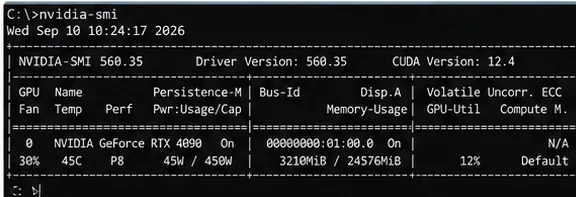
Also check whether the GPU is actually doing the work. On NVIDIA systems, nvidia-smi can show VRAM use and GPU utilization. If GPU utilization remains low while the system is constantly moving data or loading models, the bottleneck may be memory pressure or I/O rather than the sampler itself.
Check GPU and VRAM behavior before tuning ComfyUI. Treat the values shown here as an example layout, not a benchmark target.
2. Start from the smallest SDXL graph that produces the result you need
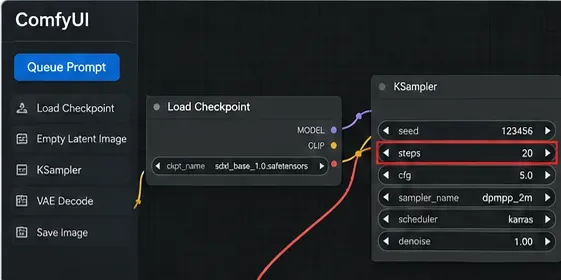
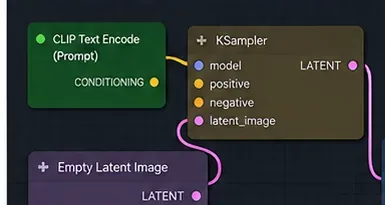
Before optimizing a complex workflow, compare it with a minimal path: checkpoint loading, prompt conditioning, an Empty Latent Image, KSampler, VAE Decode, and Save Image. ComfyUI’s official examples show that the SDXL base checkpoint can be used like a regular checkpoint. If this basic graph is fast but your production graph is slow, the extra branches are the problem.
For drafting, temporarily bypass components that are not essential to the current decision. Examples include a refiner, a second upscale pass, image preprocessors, multiple ControlNets, or optional style branches. Re-enable them one at a time after the base image is acceptable.
A small SDXL graph is the best baseline. Add expensive branches only after you know how much time each one costs.
3. Reduce KSampler steps before chasing exotic speed settings
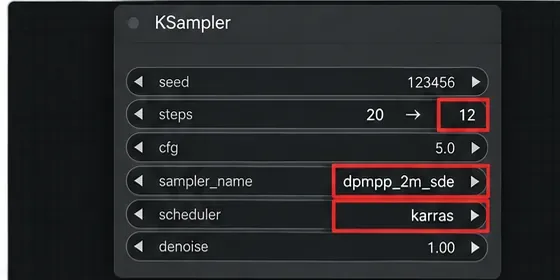
Sampling steps are one of the clearest levers because each additional denoising step adds work. If you reduce steps from a higher value to a lower one, the sampling portion of the render should become shorter, although total wall-clock time will not fall by exactly the same percentage because model loading, prompt encoding, VAE decode, and other nodes still take time.
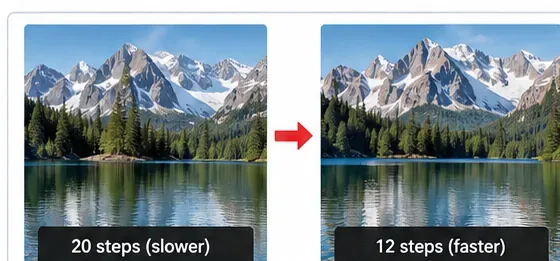
Do not copy a universal “best” step count from someone else. The right number depends on the checkpoint, sampler, scheduler, prompt, CFG, and quality target. A practical method is to keep the seed fixed and test a small ladder—for example, your current setting, then a modest reduction, then another reduction. Stop when textures, anatomy, typography, or prompt fidelity degrade more than you are willing to accept.
Lowering KSampler steps can cut denoising time. The values shown are illustrative; verify quality with your own checkpoint and fixed seed.
4. Keep test resolution and batch size under control
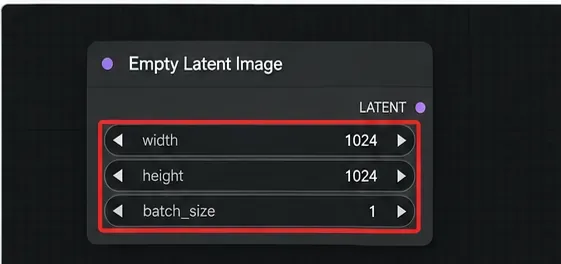
For SDXL, ComfyUI’s official SDXL examples recommend 1024×1024 or other aspect ratios with roughly the same pixel count, such as 896×1152 or 1536×640, for optimal base-model behavior. Going substantially above that pixel budget increases latent size and therefore compute and memory use.
During prompt and workflow tuning, keep batch_size at 1 unless you specifically need throughput testing. A batch of four asks the pipeline to produce four images in one execution; that may improve throughput in some setups, but it is not the way to minimize time-to-first-image and it raises memory requirements.
If your final deliverable must be larger than SDXL’s normal base resolution, consider separating “composition testing” from the final high-resolution pass. Get the prompt, seed, conditioning, and composition right first, then pay for the expensive upscale or second pass only on selected candidates.
A 1024-class latent with batch size 1 is a sensible SDXL tuning baseline before higher-resolution or multi-image runs.
5. Benchmark samplers and schedulers instead of assuming one is always fastest
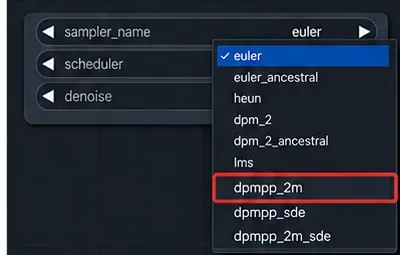
ComfyUI exposes multiple sampler and scheduler choices in KSampler. Different combinations can reach acceptable quality in different numbers of steps, so “fastest” should mean fastest at the quality you need, not merely the shortest single run.
Use the same checkpoint, prompt, seed, resolution, and CFG when comparing. Change only the sampler or scheduler, then compare both render time and visible quality. If one combination needs materially fewer steps for your checkpoint while preserving the result you want, it is a real speed win. If it requires extra steps to recover detail, the apparent advantage may disappear.
Change one sampler variable at a time and compare at a fixed seed. Do not assume a sampler is faster for every SDXL checkpoint or quality target.
6. Remove redundant graph work and use ComfyUI’s execution model to your advantage
ComfyUI is designed to execute only the parts of the graph that need to run. Its project documentation states that unchanged portions can be reused between executions, and the current backend includes configurable node-result caching. This is useful when you are changing only a downstream value instead of rebuilding the entire workflow.
Keep loader nodes and expensive upstream processing stable when possible. If you constantly switch checkpoints, resize large images repeatedly, or invalidate upstream nodes, you lose the benefit of cached work.
ComfyUI also has a documented Partial Execution feature that can run only the part of a workflow required for a selected output node. Use it when you are testing a downstream branch and do not need every output in a large graph to be regenerated.
A lean graph makes bottlenecks easier to see. Use caching and partial execution so unchanged upstream work is not repeated unnecessarily.
7. Tune previews, caching, VRAM mode, and attention only after the graph is efficient
Current ComfyUI command-line options expose several performance controls. Their effects depend on hardware and available memory, so treat them as benchmark candidates rather than mandatory switches.
Setting
When it can help
Main trade-off
--preview-method none
If sampler previews were enabled and you only care about final output
You lose live latent previews. The current CLI already uses no previews as the default.
--highvram
If you have enough VRAM and repeated model unloading/reloading is costing time
Keeps models in GPU memory and can cause out-of-memory errors on tighter cards.
--lowvram
If the workflow otherwise does not fit in VRAM
This is primarily a memory-saving mode, not a speed mode; CPU use or transfers can increase latency.
--use-pytorch-cross-attention
Worth benchmarking on modern PyTorch/GPU combinations
Do not combine mutually exclusive attention-mode flags blindly.
--use-flash-attention
Worth testing when your hardware/software stack supports the optimized path
Availability and benefit depend on supported inputs and kernels.
--cache-classic or --cache-lru N
Repeated workflows where extra cache memory is acceptable
Can use more RAM/VRAM.
--cache-none
Only when reducing cache memory is more important than speed
ComfyUI’s own CLI says every node will execute for each run, so it is usually worse for render time.
The current CLI also exposes asynchronous weight offloading, and its help text says it is enabled by default on NVIDIA. That means adding more flags is not automatically an optimization; first check your current launch command and logs.
PyTorch’s scaled dot-product attention can automatically select optimized CUDA implementations such as FlashAttention or memory-efficient attention when the inputs and hardware allow it. That is the reason modern attention paths can matter, but the exact gain is hardware-dependent. Avoid quoting a generic percentage as if it applies to your SDXL workflow.
8. Keep queue and batch behavior aligned with your goal
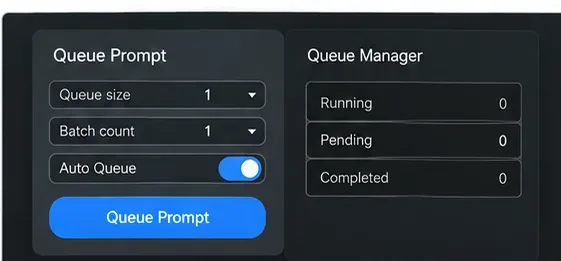
If your priority is the quickest feedback loop, queue one image at a time while tuning. Large queue counts and batches are useful when you already know the settings and want throughput, but they do not make the first image arrive faster.
Once the workflow is finalized, you can benchmark throughput separately. At that point, a larger batch may make sense if VRAM allows it and if total images per minute matters more than latency per image.
Use one queued image and batch size 1 for interactive tuning; test larger batches later when throughput is the objective.
How to tell whether the optimization actually worked
A faster run is useful only if the image still meets your target. Compare before and after with the same seed and prompt. Check the areas that fail first when settings are too aggressive: small text, hands and faces, repeating patterns, fine materials, edge detail, and adherence to prompt-specific attributes.
Record at least these four items for each test: total execution time, sampling steps, resolution, and whether model loading occurred. If the first run takes 30 seconds and the second takes 12 seconds, do not automatically credit a sampler change—the first run may simply have paid the checkpoint-loading cost.
Use side-by-side fixed-seed comparisons to decide whether a lower step count is acceptable. The pictured labels illustrate the method and are not benchmark results.
A practical optimization order
Benchmark a warmed run. Keep seed, prompt, resolution, and batch fixed.
Remove unnecessary branches. Test the base SDXL path without refiner, ControlNet, upscale, or optional preprocessors.
Reduce steps. Find the lowest count that still meets your quality bar.
Keep resolution sane. Tune around SDXL’s 1024-class pixel budget before high-resolution finishing.
Keep batch at 1 while iterating. Optimize throughput only after the workflow is stable.
Compare sampler/scheduler choices. Judge speed at equivalent acceptable quality.
Use caching and partial execution. Avoid rerunning unchanged upstream work.
Then benchmark launch flags. Test preview, VRAM, cache, and attention changes one at a time.
When you should change strategy instead of optimizing harder
If an SDXL workflow still takes too long after these changes, inspect what the job is actually doing. A multi-ControlNet, refiner-plus-upscale production graph may simply be compute-heavy by design. At that point you have three honest options: accept the longer render for final images, use a simpler draft workflow for iteration, or move the workload to faster hardware.
Likewise, if you are constantly running out of VRAM, forcing a “faster” GPU-resident mode is the wrong fix. Stable execution in default dynamic memory management or a lower-VRAM configuration is better than repeated out-of-memory failures. Memory-saving settings can increase render time, but a slower successful render is still more useful than a fast crash.