Home
» AI Agents
»
How to Remove AI Watermarks from Generated Videos Legally for Commercial Use
How to Remove AI Watermarks from Generated Videos Legally for Commercial Use
Removing a visible watermark from an AI video can be lawful, but the safest answer is not “use a remover.” It is: first determine what the mark is, confirm that your license and the provider’s current terms allow a clean commercial export, and preserve any provenance or disclosure that the law or platform still requires.
As of September 13, 2026, major AI video services do not all treat watermarks the same way. Runway says videos generated on its Free plan include a watermark and that Standard or higher can generate without one. Google’s Gemini Apps let eligible users control a visible media watermark, but Google says that setting does not remove SynthID or Content Credentials. Adobe, meanwhile, applies Content Credentials to qualifying Firefly outputs as part of its provenance approach. Those differences matter because “watermark” can mean several technically and legally different things.
This guide is general information, not legal advice. For a high-value campaign, regulated industry, celebrity likeness, political content, or a disputed license, have counsel review the specific contract, jurisdiction, and distribution plan.
What kind of watermark are you trying to remove?
Before editing a frame, classify the mark. A visible service logo in a corner is different from a creator’s copyright notice, an invisible provenance signal, or machine-readable metadata.
Type of mark
Typical purpose
Can you remove it?
Visible provider watermark
Shows the video came from a free, trial, or labeled export
Only when the provider’s current plan or terms authorize a watermark-free output or later editing
Creator or copyright watermark
Identifies an author, copyright owner, source, or licensing information
Do not remove without clear authority; separate copyright-management rules may apply
Invisible provenance watermark
Helps identify synthetic media even after ordinary edits
Do not treat it as a cosmetic logo; follow the provider’s provenance rules
Content Credentials / C2PA metadata
Records origin and editing provenance in a tamper-evident format
Preserve it unless the provider and applicable law clearly permit otherwise
Google’s current Gemini Apps documentation is a useful example of this distinction. Its visible media-watermark setting controls only the visible overlay. Google says all media created or edited with Gemini Apps still includes invisible SynthID, and Gemini Apps also includes Content Credentials. In India, South Korea, and Vietnam, Google currently says only AI Ultra subscribers see the visible-watermark setting; other users in those locations automatically receive visible watermarks. See Google’s official Gemini Apps watermark documentation.
Does commercial-use permission automatically mean you may erase the watermark?
No. Commercial-use rights and watermark-removal rights are related but not identical. A provider may allow commercial use of an output while still requiring a particular export path, subscription tier, attribution, provenance signal, or disclosure.
Runway currently states that, as between the user and Runway, users retain their rights to generated content and may use it commercially. Its Free-plan documentation also states that Free-plan videos carry a Runway watermark and that users can generate without a watermark by moving to Standard or above. That makes the provider-supported route straightforward: obtain a clean export through the eligible plan instead of trying to defeat a free-plan restriction. See Runway’s official usage-rights page and Runway’s official Free-plan details.
Adobe likewise says Firefly outputs from features without the beta label can be used in commercial projects, and beta features can generally be used commercially unless the product explicitly says otherwise. Adobe also warns that eligibility can depend on which model is used, particularly when partner models are involved. For video work, check Adobe’s official Firefly FAQ and Adobe’s Firefly video information.
When can removing a watermark create a separate legal problem?
In the United States, 17 U.S.C. §1202 prohibits certain intentional removal or alteration of copyright management information without authority, as well as some distribution of works knowing that such information was improperly removed. Copyright management information can include information such as a work’s title, author, copyright owner, terms and conditions for use, and identifying numbers or links.
That does not mean every AI watermark automatically qualifies as copyright management information. Whether a particular mark falls within §1202 depends on what information it carries and the surrounding facts. The practical rule is simple: if the mark identifies a creator, copyright owner, license, rights terms, or similar rights-management data, do not erase it merely because the file is technically editable. Review the official text at 17 U.S.C. §1202 from the U.S. House Office of the Law Revision Counsel.
Also remember that watermark removal does not erase disclosure duties. In the European Union, Article 50 of the AI Act includes transparency obligations for certain synthetic content and requires deployers of AI systems that generate or manipulate image, audio, or video constituting a deepfake to disclose that the content has been artificially generated or manipulated, subject to the regulation’s stated exceptions and special treatment for evidently artistic or fictional works. The regulation generally applies from August 2, 2026. See the official EU Artificial Intelligence Act on EUR-Lex.
What is the safest way to get a clean video for a commercial project?
Step 1: Save the original generation and identify every mark
Keep the source export before editing. Note the generator, model if known, account tier, generation date, and whether the file contains a visible watermark, Content Credentials, or another provenance indicator. If the project came from a client or teammate, verify who generated it and under which account.
This avoids a common commercial mistake: a clean-looking file gets handed to marketing, but nobody can later prove which plan or license covered the generation.
Step 2: Read the current terms and the plan-specific watermark rule
Do not rely on an old forum post or a screenshot of last year’s pricing page. Open the provider’s current support page, license, or terms and answer four questions:
Is commercial use allowed for this exact model or feature?
Does the current plan authorize a watermark-free export?
Is attribution required?
Are provenance signals such as SynthID or Content Credentials supposed to remain?
An example rights checklist helps separate commercial-use permission from permission to remove a visible mark.
Step 3: Prefer the provider’s official no-watermark export
If the service offers a paid or licensed clean export, use it. This is usually the lowest-risk workflow because you are not trying to defeat a restriction; you are using the export the provider designed for that entitlement.
Runway is a clear current example: its Free-plan help page says Free-plan videos have a watermark and that Standard or higher can generate without one. Gemini Apps provides a visible-watermark control for eligible users but explicitly states that the control does not affect SynthID or Content Credentials. These are two different implementations of the same principle: use the provider’s authorized path instead of assuming that all marks are meant to be erased in post-production.
Step 4: If editing is permitted, use ordinary post-production methods only for the visible overlay
When the license expressly permits editing or removal of a visible provider mark, standard video-editing techniques may be enough. The least destructive options are usually:
Crop or reframe: best when the mark sits close to an edge and the composition has extra room.
Scale slightly: useful when a modest zoom removes a corner mark without harming important content.
Replace the affected region: suitable for a static background when your editor can reconstruct or cover a small area cleanly.
Re-render from the provider: often better than aggressive cleanup when the watermark moves or crosses important detail.
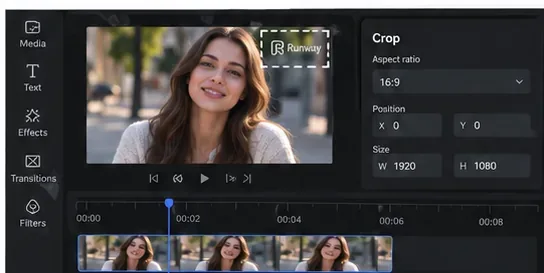
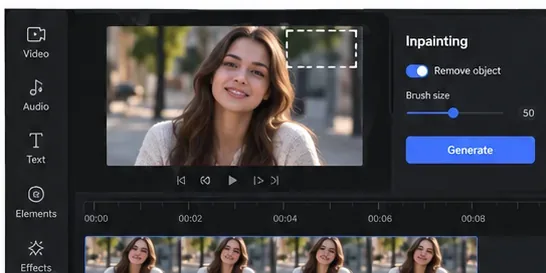
Example crop workflow: reframe only when your license permits removing the visible overlay and the crop does not damage the composition.For a permitted edit, a small selected region can be repaired when the background is simple; exact controls vary by editor.
Do not use these techniques as a workaround for a plan that explicitly requires the visible watermark, and do not intentionally target invisible provenance systems merely to conceal that the media is synthetic. A clean commercial master and an undisclosed fake are not the same goal.
Step 5: Preserve your compliance record before publishing
Save a small rights packet with the finished project. It can include the provider name, model or feature, plan, generation date, relevant terms URL, invoice or subscription record, clean-export entitlement, and any required disclosure copy. If the provider’s terms change later, this record helps show what governed the project when you created and released it.
Also review the final video for third-party material. A watermark-free export does not give you rights to someone else’s trademark, copyrighted character, music, footage, or likeness. Commercial permission from the AI platform only answers part of the rights question.
Review the final master for visual quality, rights issues, and any required synthetic-media disclosure before commercial release.
Should you remove Content Credentials or SynthID too?
Usually, no. A visible logo is a presentation-layer issue; provenance systems are designed to communicate origin. Google states that its visible-watermark control does not affect SynthID or Content Credentials. Adobe describes Content Credentials as tamper-evident metadata that can provide context about how a file was created or edited and says it automatically applies them to qualifying Firefly assets. See Adobe’s official Content Credentials overview.
If ordinary editing or transcoding strips metadata incidentally, that is different from deliberately defeating a provenance mechanism to misrepresent origin. For commercial work, the safer practice is to preserve provenance where practical and meet any separate disclosure duties that apply to the final use.
What if the watermark comes from a free plan you no longer have access to?
Do not assume ownership of the output gives you the right to erase a plan-enforced mark. Re-open the provider’s current account options and look for an authorized clean-export route. If the provider does not offer one for that legacy file, contact its support team and ask whether re-exporting, regenerating, or upgrading grants the right to use a clean version.
If the answer is no, the safest commercial decision is to leave the watermark in place or regenerate the asset under a plan that grants the needed rights. A few minutes of cleanup is not worth creating a contract or provenance dispute for a paid campaign.
Can you publish a watermark-free AI video without telling viewers it was made with AI?
Sometimes, but not always. The answer depends on jurisdiction, subject matter, platform rules, and how realistic or potentially misleading the content is. For example, the EU AI Act has specific disclosure rules for deepfakes. Other laws and advertising rules can also apply when synthetic media creates a misleading impression about a person, product, event, or endorsement.
That is why the commercial workflow should separate three decisions: whether you may use the video, whether you may remove the visible watermark, and whether you still need to disclose that the content is synthetic. Treating those as one question is where many compliance mistakes begin.
A practical pre-publish checklist
Confirm commercial-use rights for the exact generator, model, and feature.
Confirm that your plan authorizes a clean export or watermark removal.
Do not remove creator, copyright-owner, or license information without authority.
Do not try to defeat invisible provenance simply to hide the source.
Check whether a synthetic-media disclosure is legally or contractually required.
Clear third-party likeness, trademark, music, footage, and other embedded rights.
Save the terms, entitlement, and project record that supported your decision.
The bottom line
The most defensible way to remove an AI video watermark for commercial use is to avoid “removal” whenever possible: obtain a provider-authorized watermark-free export under a plan or license that clearly permits commercial use. If post-production editing is allowed, restrict it to the visible overlay and keep provenance and disclosure obligations in mind.
Do not confuse a technically removable mark with a legally removable one. Check the license first, preserve evidence of your rights, and keep any transparency signal or disclosure that the provider or law still requires.